AI RENDERING GUIDE
How to Render a SketchUp Model With AI Using a Free Extension
Published 6 min read
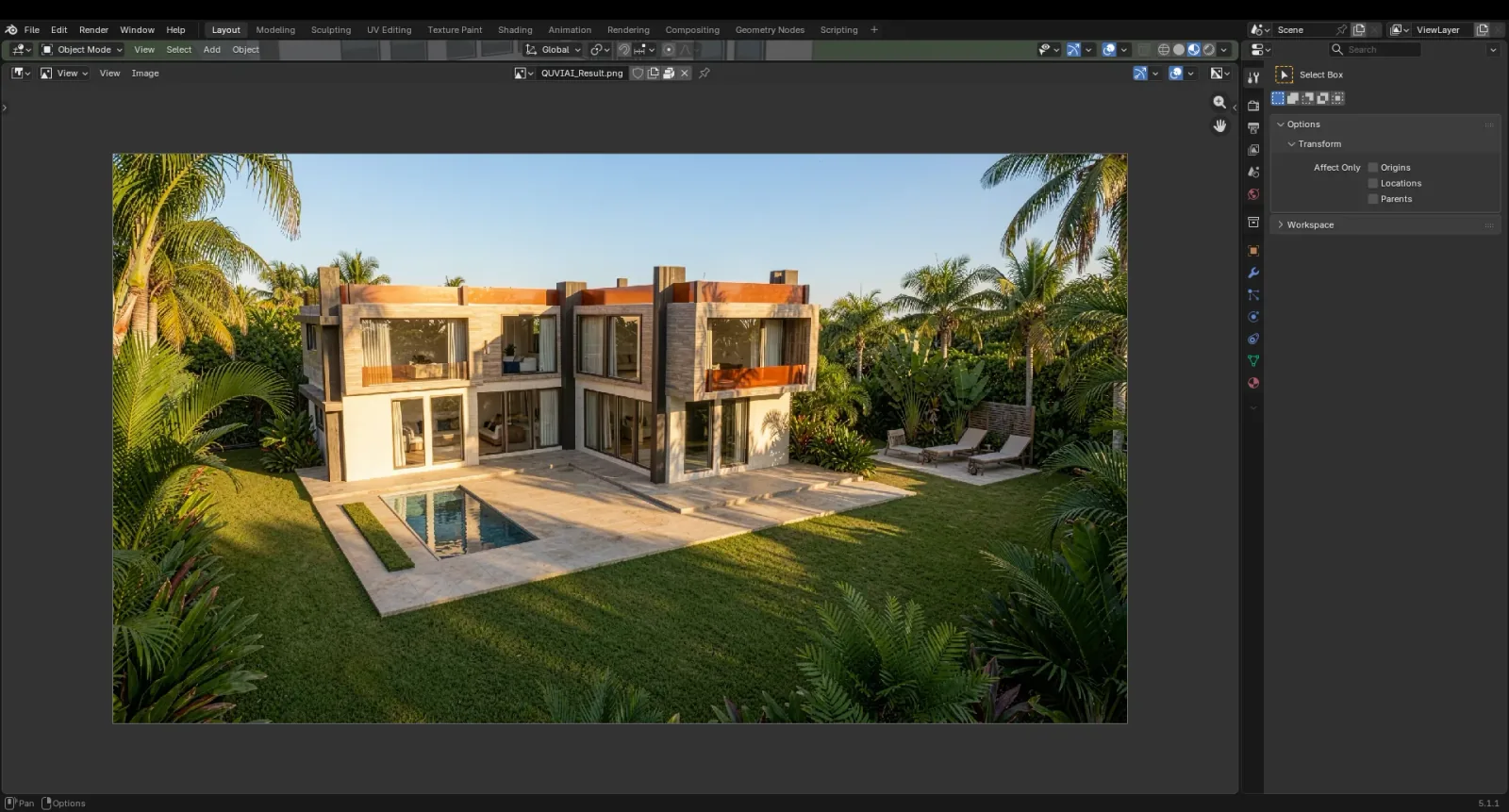
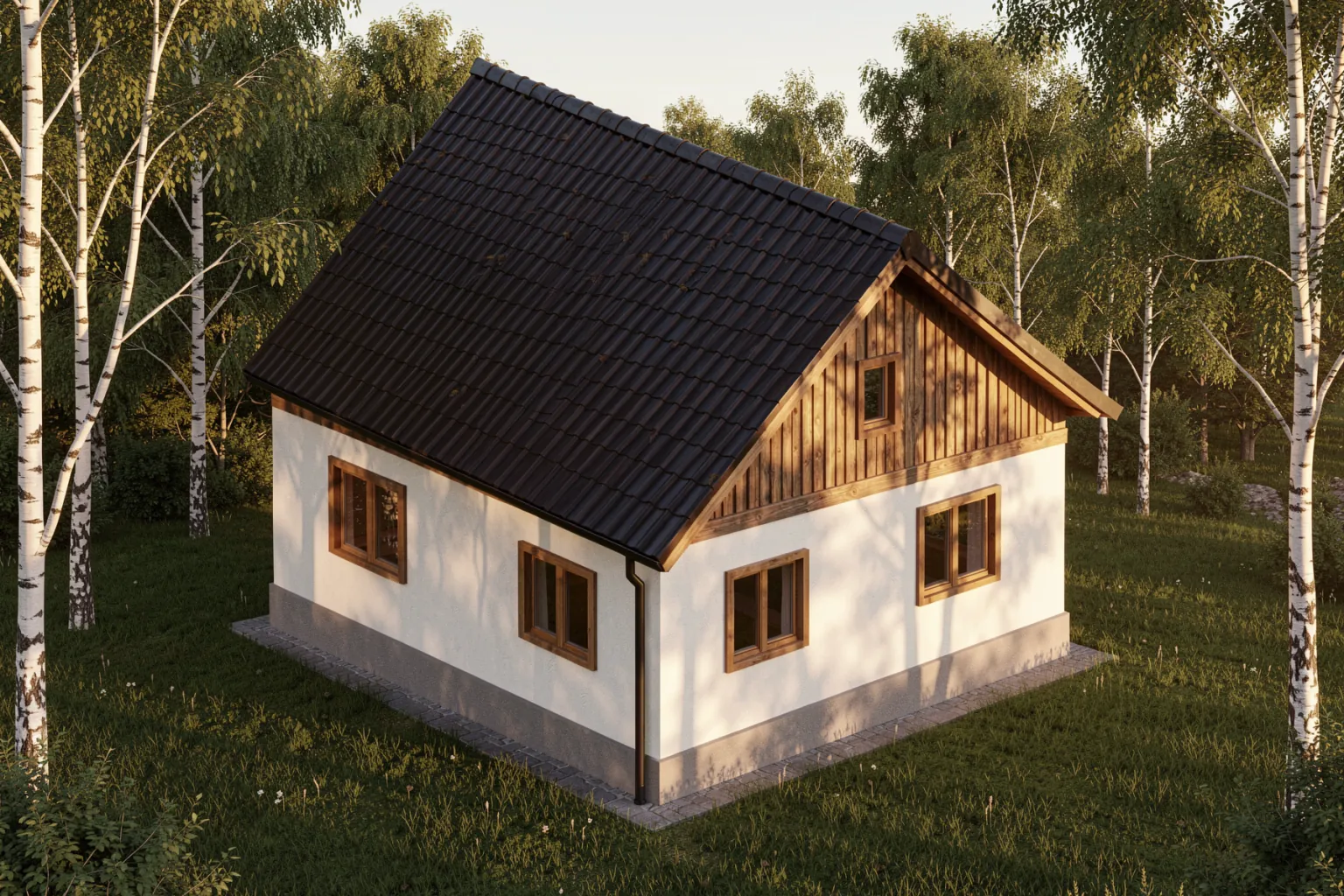
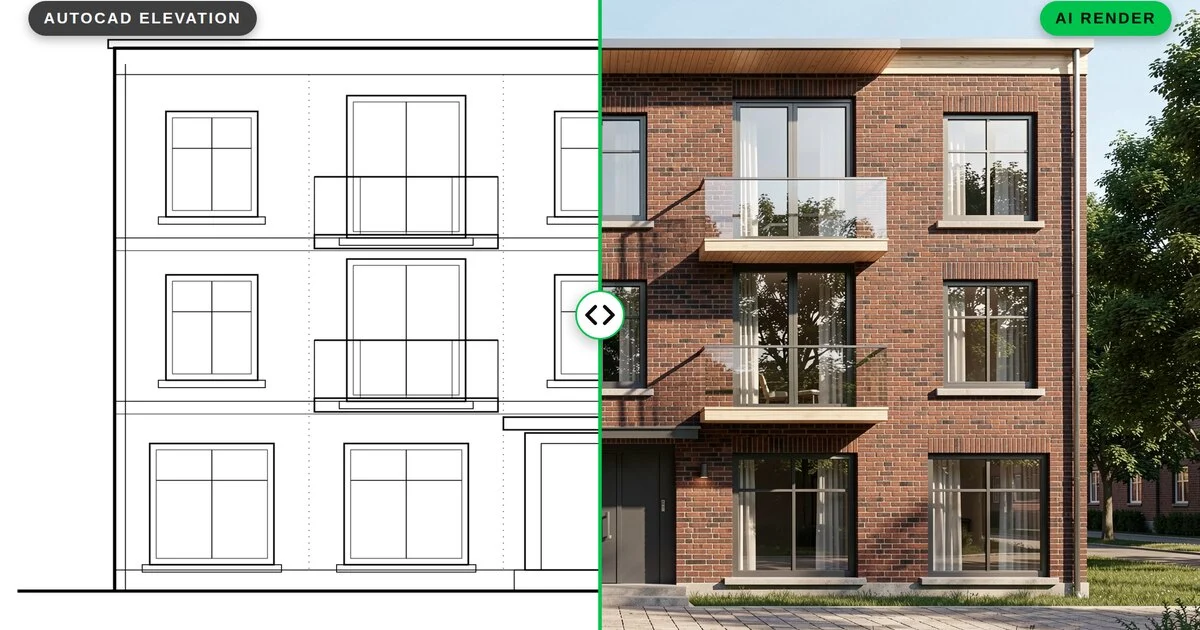
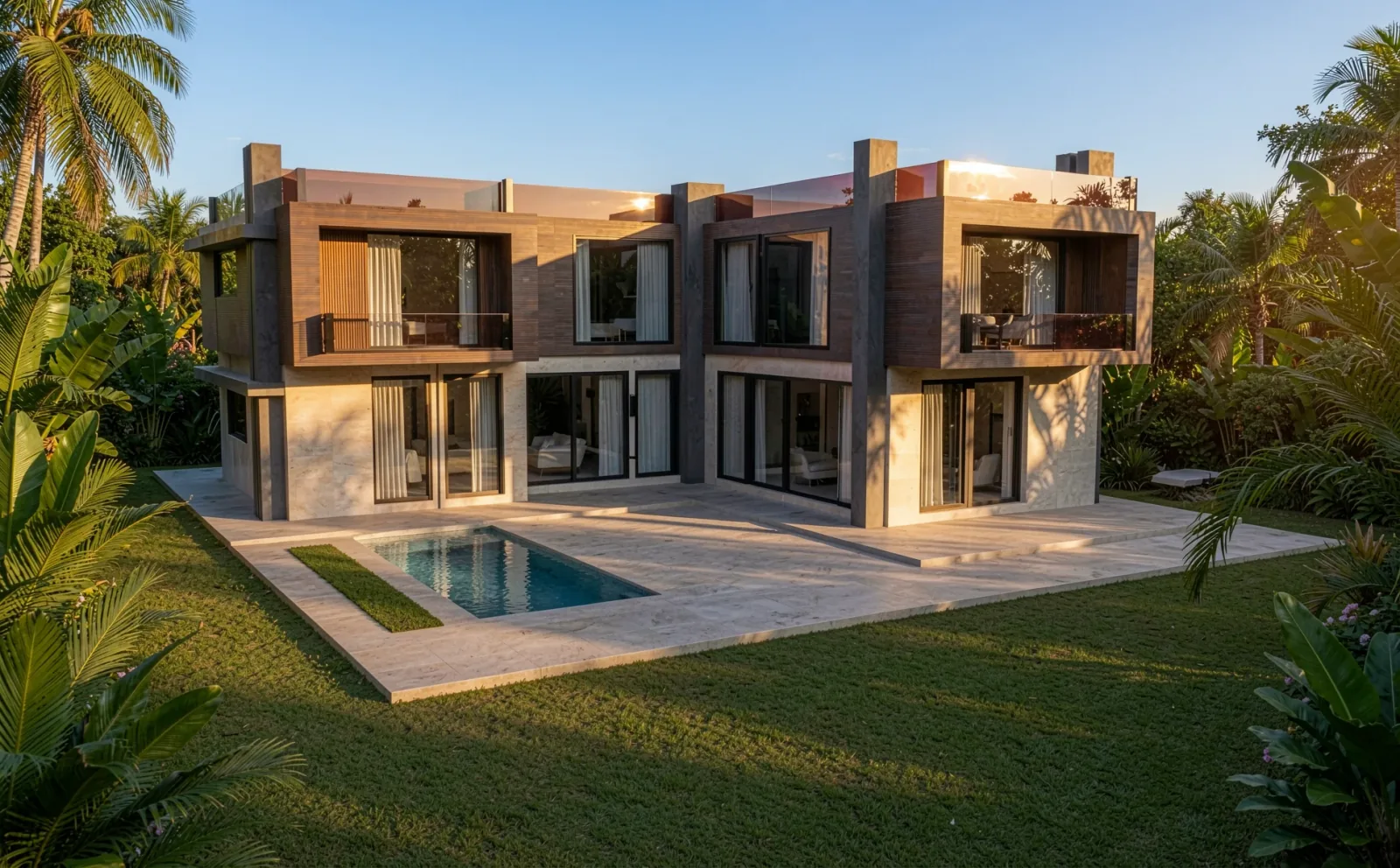
SketchUp is one of the fastest ways to model an architectural idea, but turning that model into a presentation image usually means a separate render engine, material setup and long waits. With the free QUVIAI Render extension you can render a SketchUp model with AI directly from SketchUp: the extension captures your current view and returns a photorealistic render in minutes.
This guide walks through installing the extension, rendering your first view, and generating 3D objects into your model.
What You Need
- SketchUp with access to the Extension Warehouse
- A QUVIAI account — the free plan includes daily credits
- A model with the camera set to the view you want to render
Step 1: Install the Extension
- Open QUVIAI Render on the Extension Warehouse, or search for "QUVIAI Render" from Extensions › Extension Warehouse inside SketchUp.
- Click Install. The extension is free.
- Open the panel from Extensions › QUVIAI › Open Panel and log in with your QUVIAI e-mail or Google account.
Step 2: Prepare the View
The AI keeps the massing and the camera of your view, so the view you set up is the image you get:
- Choose the camera carefully. Two-point perspective at eye level reads best for exteriors.
- Keep edges readable. A clean style with visible edges helps the AI read openings and volumes.
- Hide what you do not want rendered — dimensions, text, section planes and guides.
- Materials are optional. Even a white massing model works, because the prompt decides the materials.
Step 3: Set Up the Render
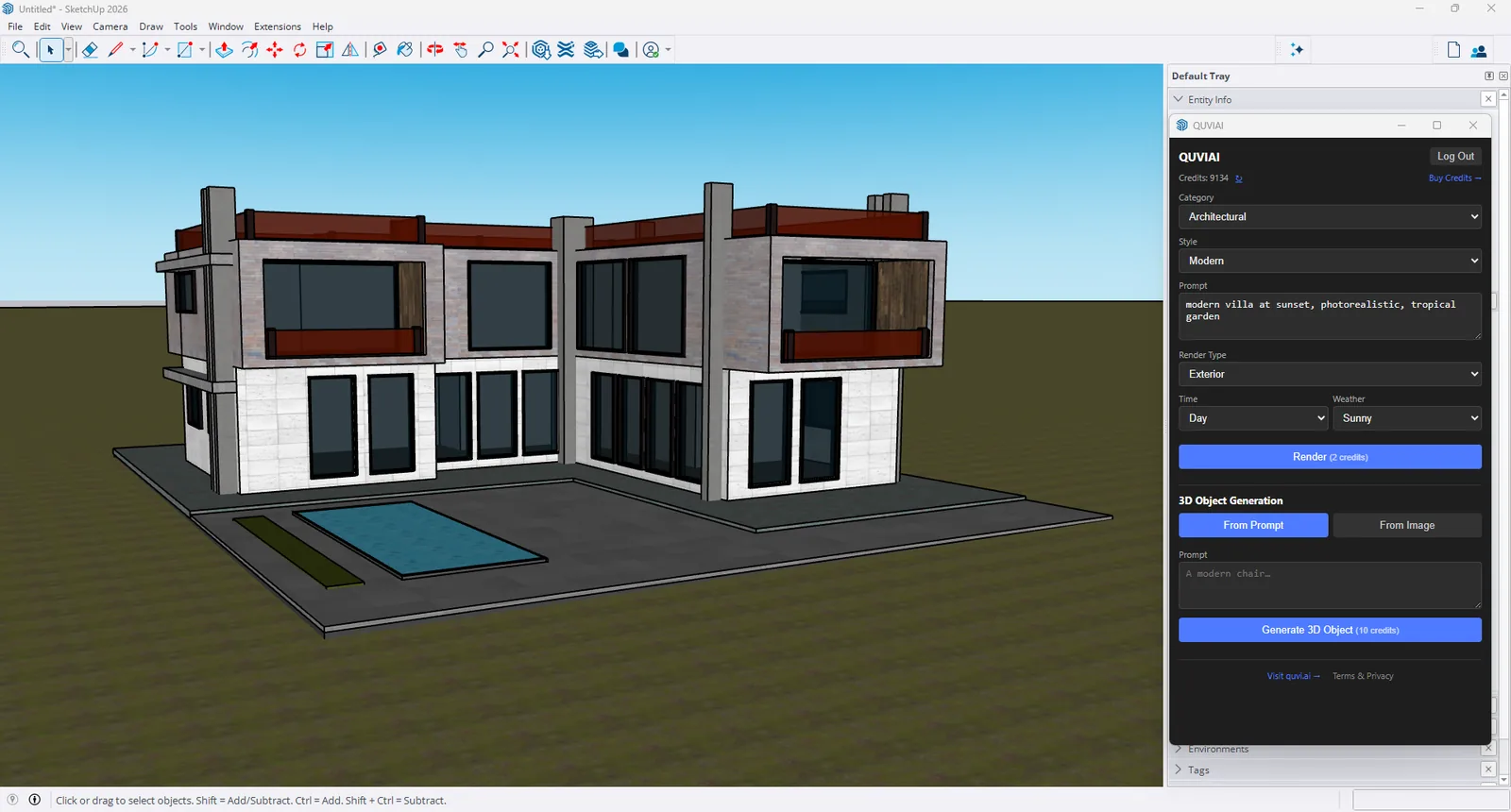
In the panel, choose:
- Category and style — for example Architectural and Modern.
- Prompt — materials, setting and mood, e.g. "modern villa at sunset, photorealistic, tropical garden".
- Render type — exterior, interior or site.
- Time and weather — day or night; sunny, cloudy, rainy, snowy, windy or foggy.
Step 4: Render
Click Render (2 credits). When the image is ready it opens in a viewer, where you can save it to a file. To compare options, change the prompt, time or weather and render again from the same view.
Step 5: Generate 3D Objects Into Your Model
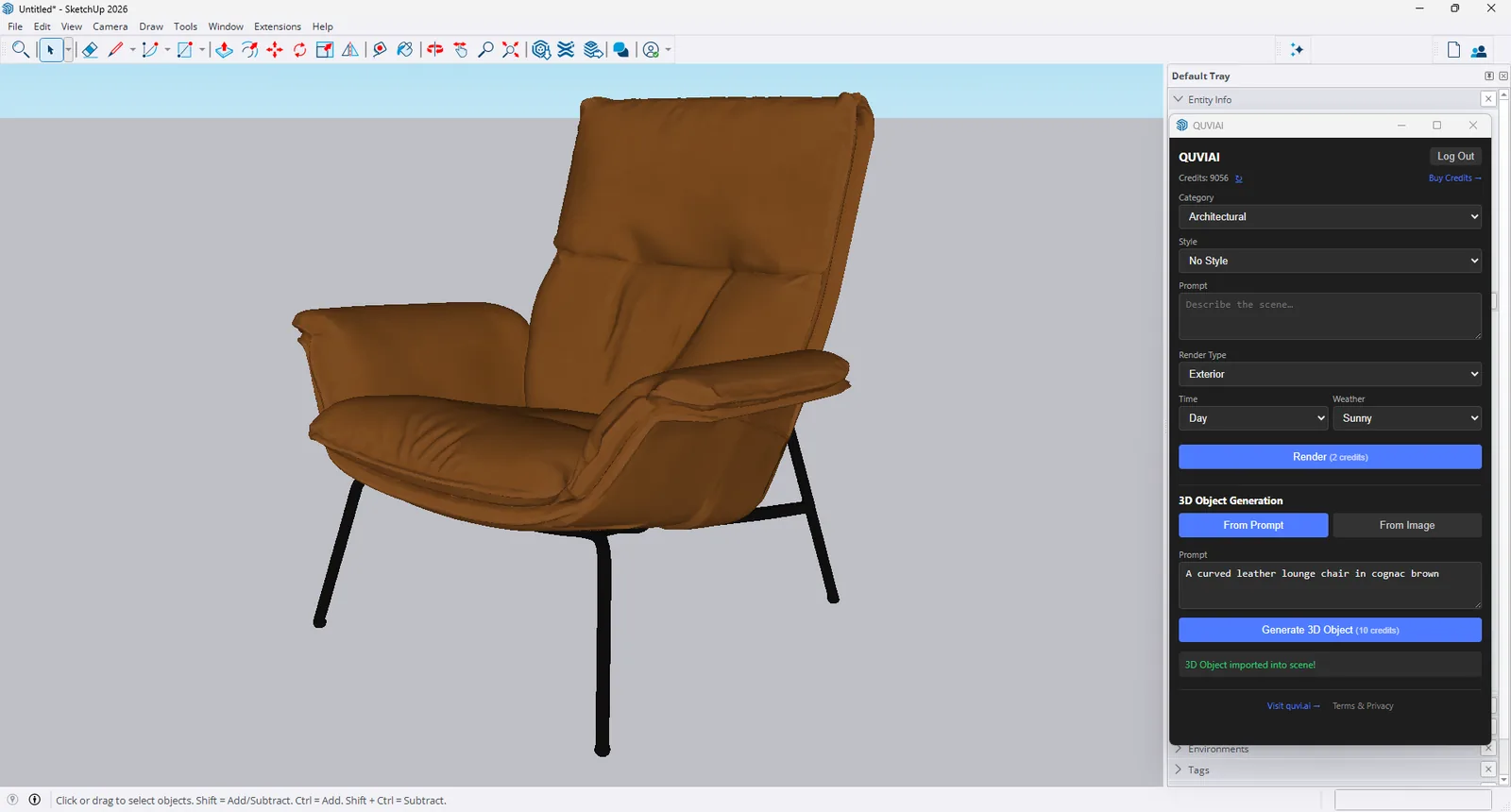
Need a chair, a planter or a sculpture you have not modelled? In the 3D Object Generation section of the panel, describe the object (From Prompt) or pick a reference image (From Image) and click Generate 3D Object (10 credits). The object is imported into your SketchUp model, ready to place. Read more about text-to-3D and image-to-3D.
Tips for Better SketchUp AI Renders
- Name the materials and light in the prompt — "board-formed concrete, oak cladding, golden hour".
- Change one thing at a time when comparing options, so you can see what made the difference.
- Create variations from the result on the web: night and seasonal versions, new camera angles or a walkthrough video.
- Review details before sending to a client — AI renders are concept images and small details can shift.
Conclusion
Rendering a SketchUp model no longer has to mean a separate render pipeline. Install QUVIAI Render, frame your view, describe the scene and click Render — and add AI-generated 3D objects to your model from the same panel.
SketchUp is a trademark of Trimble Inc. Blender is a trademark of the Blender Foundation. QUVIAI is an independent product and is not affiliated with, sponsored or endorsed by Trimble Inc. or the Blender Foundation.