AI RENDERING GUIDE
AI Rendering in Blender: A Step-by-Step Guide With a Free Add-on
Published 6 min read
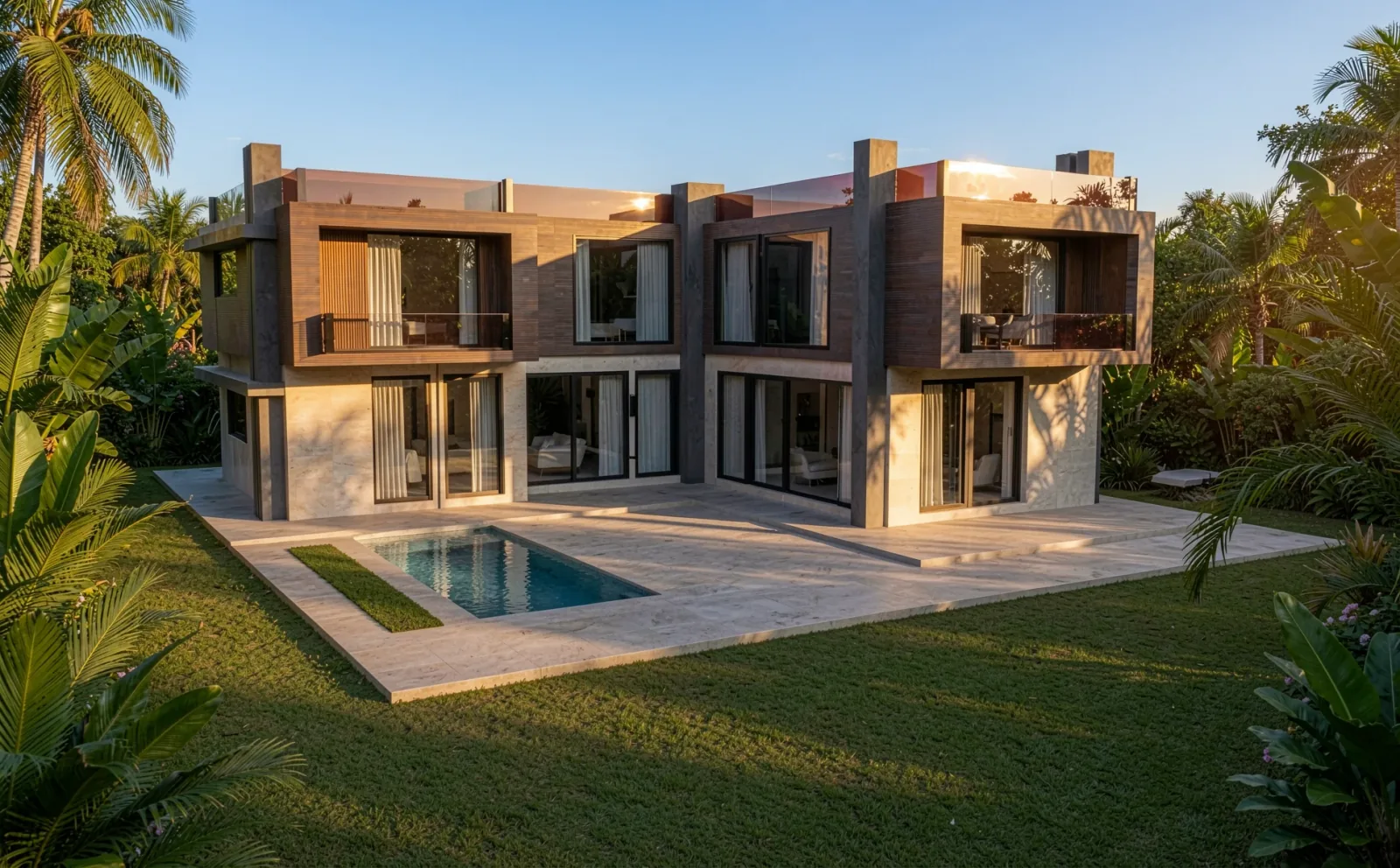
Getting a convincing architectural image out of Blender usually means lighting, materials, render settings and render time. For concept images and design options there is a faster route: the free, open-source QUVIAI Render add-on captures your 3D Viewport and turns it into a photorealistic render with AI, right inside Blender.
This guide covers installing the add-on, rendering a scene and generating 3D objects into it.
What You Need
- Blender 4.0 or newer (4.2+ recommended) on Windows, macOS or Linux
- A QUVIAI account — the free plan includes daily credits
- A scene framed in the 3D Viewport — a blockout is enough
Step 1: Install the Add-on
- Download the latest release from GitHub: quviai_blender_extension.zip for Blender 4.2 and newer, or quviai_blender.zip for Blender 4.0–4.1. Do not unzip it.
- In Blender open Edit › Preferences › Add-ons, choose Install (in Blender 4.2+: Install from Disk) and select the ZIP.
- Enable QUVIAI Render and log in from its preferences with your QUVIAI e-mail and password, or with Google.
Step 2: Open the Panel and Frame the View
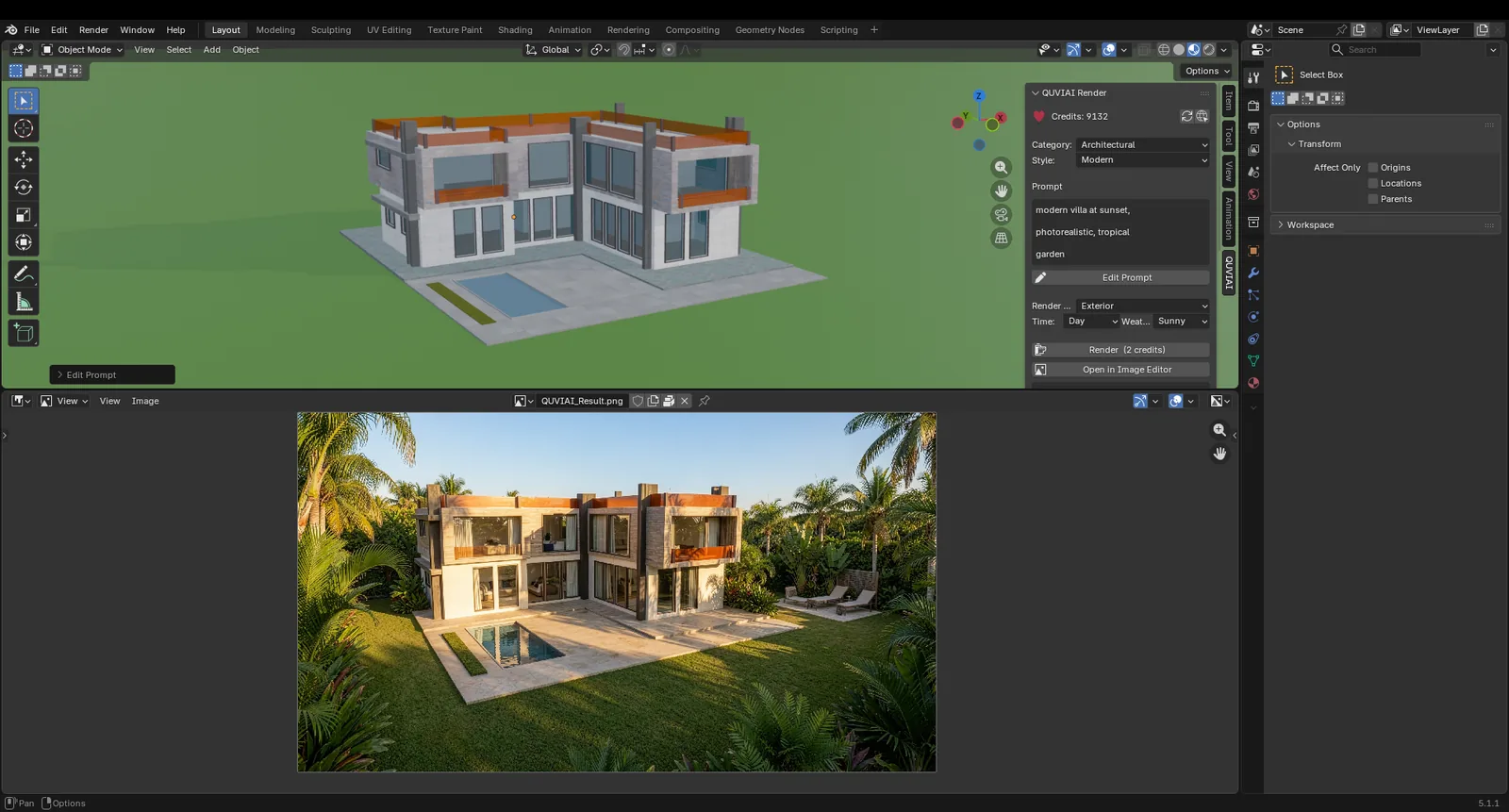
In the 3D Viewport press N to open the sidebar and select the QUVIAI tab. Then set the viewport to the angle you want in the final image. The AI keeps the massing and camera of the viewport, so take a moment to compose it:
- Use a perspective view at a believable eye height for exteriors.
- Solid or Material Preview shading with clear edges works well.
- Hide helper objects, empties and overlays you do not want interpreted.
Step 3: Describe the Render
In the panel choose a category and style, write a prompt for materials, setting and mood, and select the render type, time of day and weather.
Step 4: Render
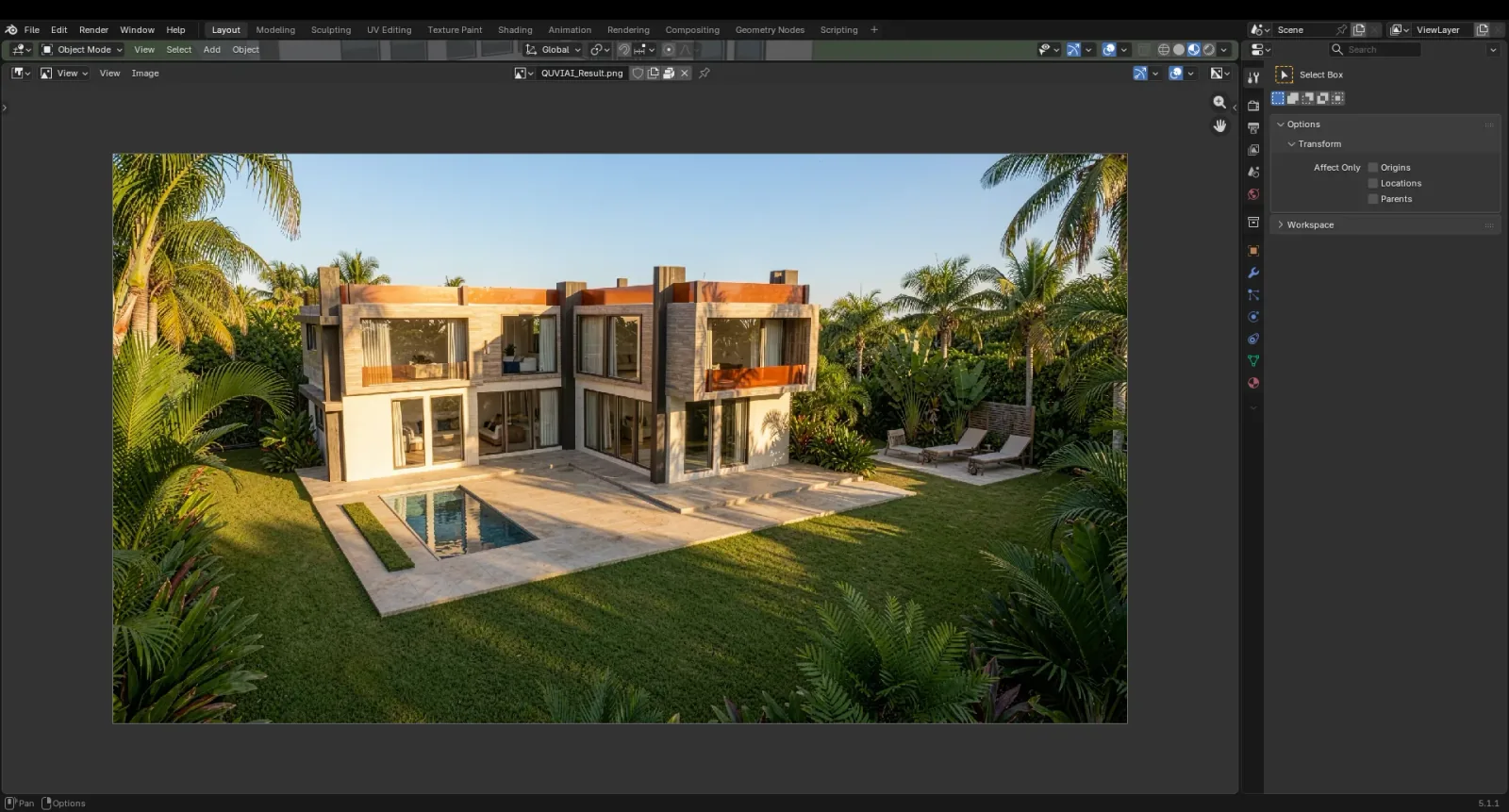
Click Render (2 credits). When the image is ready it opens in Blender's Image Editor, where you can review and save it. Change the prompt, time or weather and render again to compare design options from the same view.
Step 5: Generate 3D Objects Into the Scene
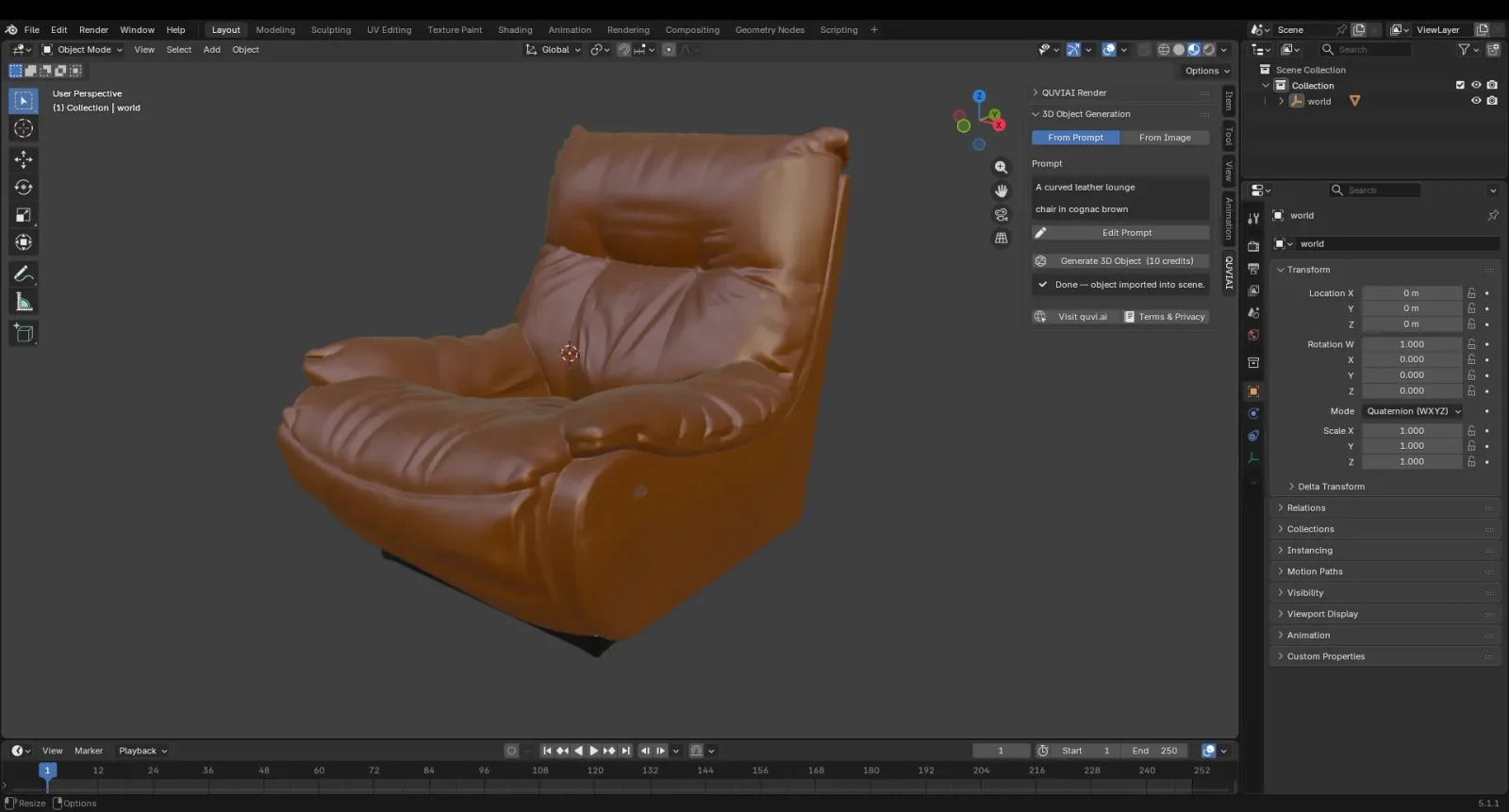
The add-on's 3D Object Generation section creates 3D models with AI. Describe an object (From Prompt) or choose a reference image (From Image) and click Generate 3D Object (10 credits). The model is imported into your scene as glTF, ready to place and render. See our guide to text-to-3D and image-to-3D for tips.
When to Use AI Rendering vs Cycles or Eevee
- AI rendering is fastest for concept images, early client presentations and comparing materials, moods and weather.
- Cycles or Eevee remain the choice for exact, repeatable final frames and animations of a fully detailed scene.
Many artists use both: AI for exploration, a traditional render for the final image. Read more in AI rendering vs traditional rendering.
Conclusion
With QUVIAI Render, a blockout in the 3D Viewport becomes a presentation-ready concept image in minutes — and AI-generated 3D objects can fill the scene without leaving Blender.
SketchUp is a trademark of Trimble Inc. Blender is a trademark of the Blender Foundation. QUVIAI is an independent product and is not affiliated with, sponsored or endorsed by Trimble Inc. or the Blender Foundation.