

Render the current view
Captures the active SketchUp view and turns it into a photorealistic render. 2 credits per render.
Free extension for SketchUp
Render your SketchUp model with AI without leaving SketchUp. Capture the current view, pick a style, time of day and weather, and get a photorealistic render in minutes. Generate 3D objects from a prompt or image and drop them straight into your model.
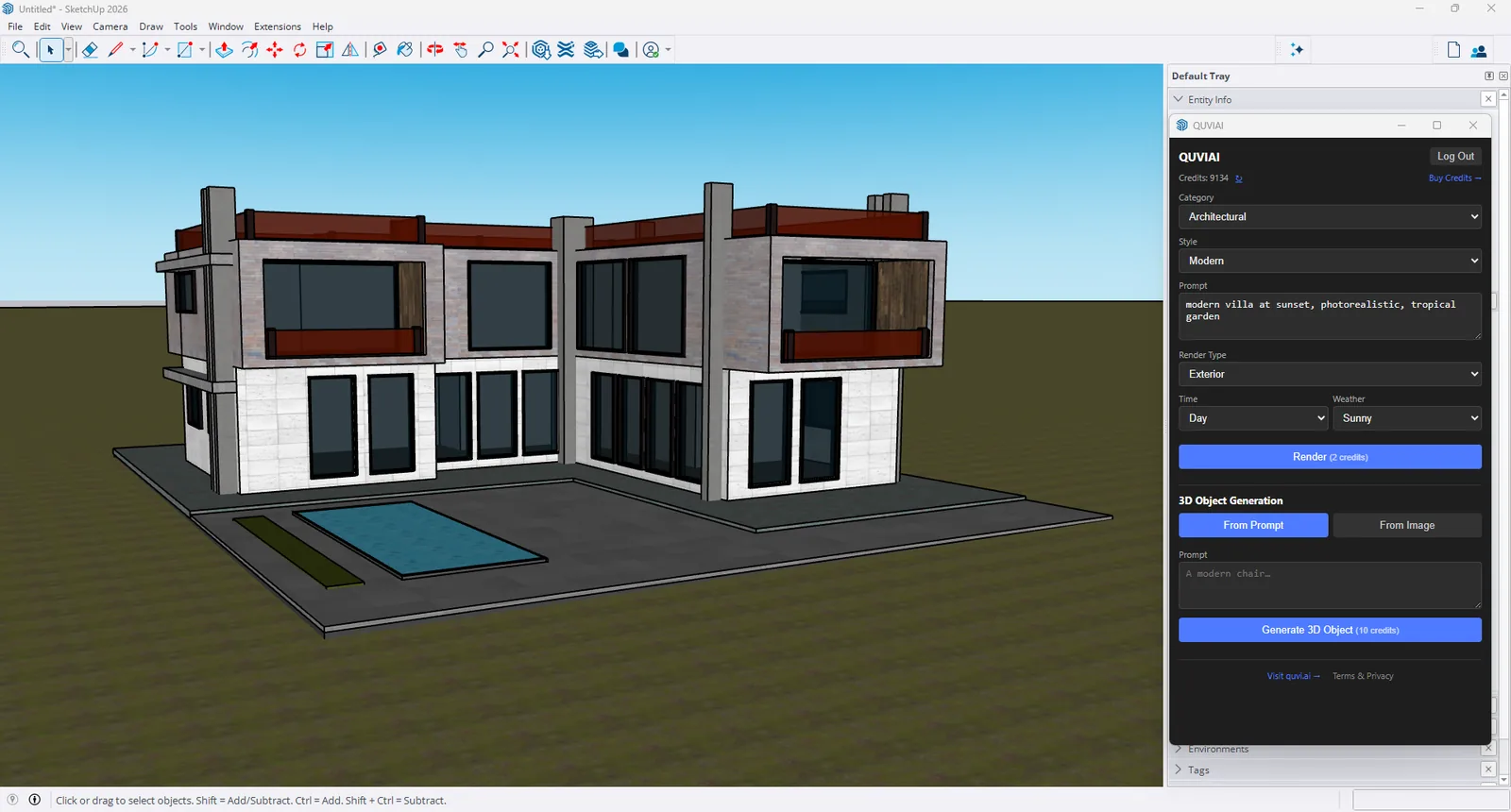 IN SKETCHUP
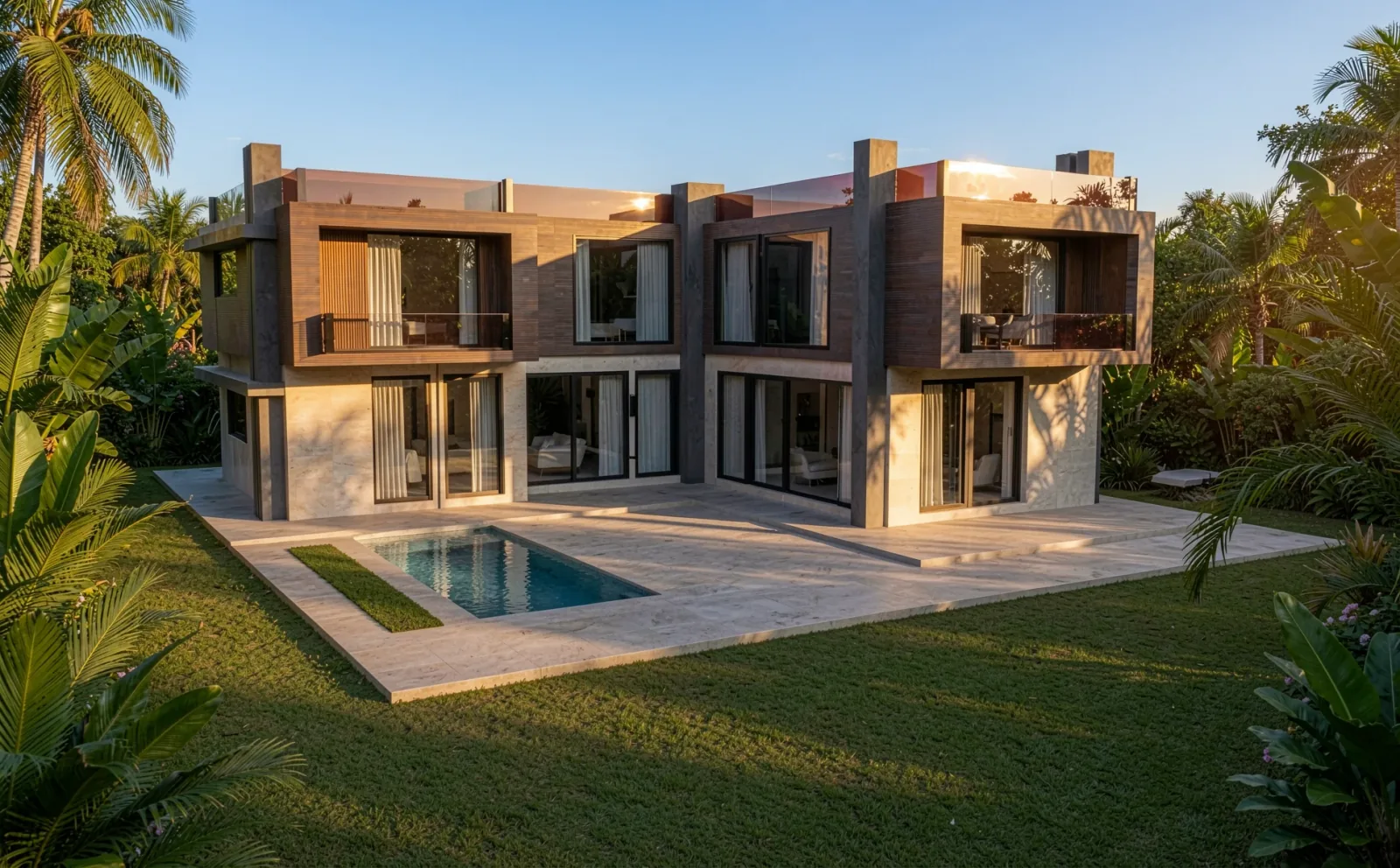 AI RENDER
OVERVIEW
QUVIAI Render is a free extension that brings QUVIAI’s AI rendering into SketchUp. Instead of setting up materials, lights and a render engine, you set up the camera you want, describe the materials and mood in a sentence, and the extension sends the current view to QUVIAI and returns a photorealistic image.
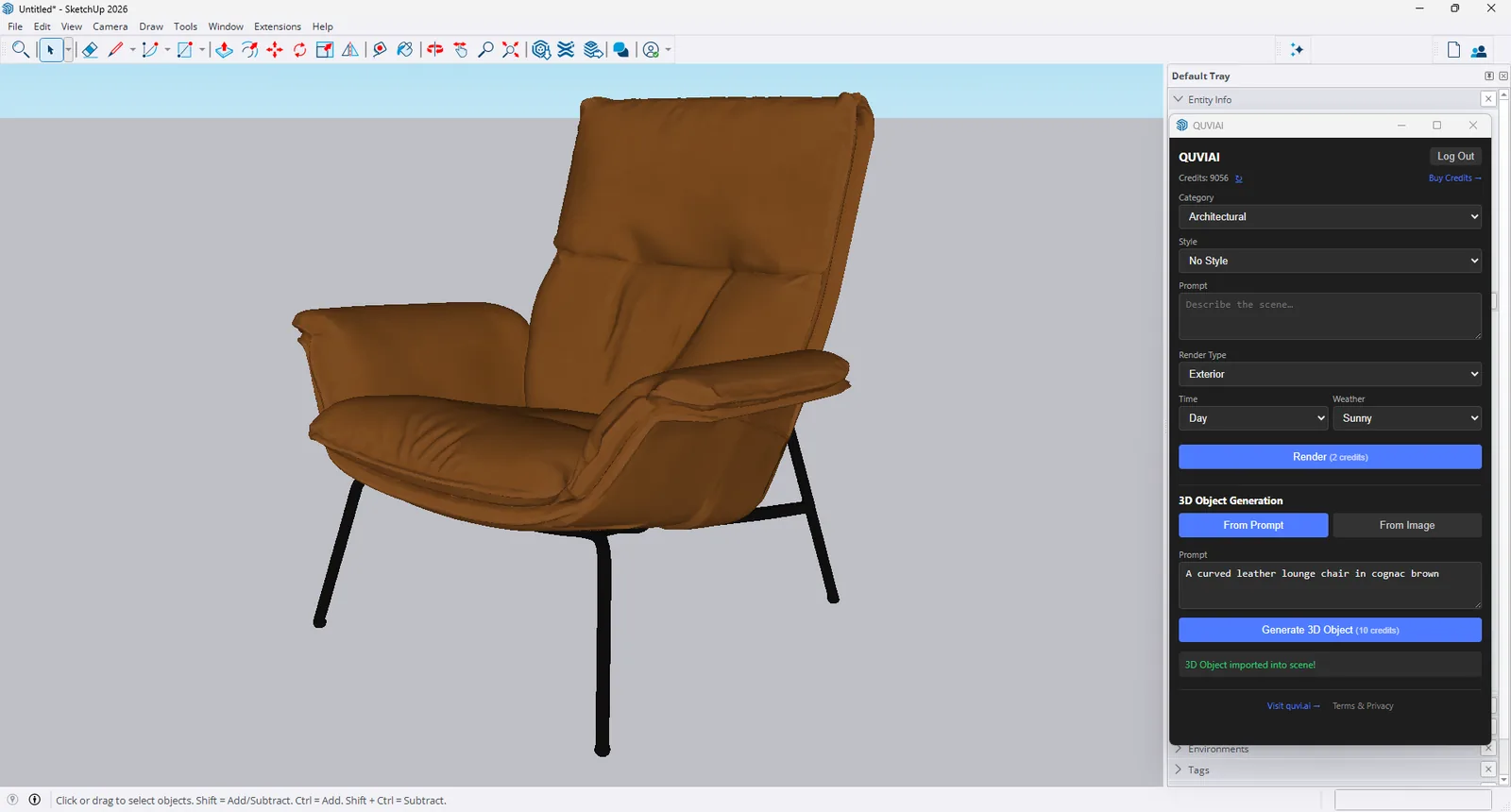
Because the AI keeps the massing and the camera of your view, even an untextured massing model can become a presentation image. The same panel can also generate 3D objects — furniture, planters, props — from a text prompt or a reference image and import them into the model.
FEATURES
Captures the active SketchUp view and turns it into a photorealistic render. 2 credits per render.
Choose an architectural or general category, a style, exterior, interior or site render type, day or night, and sunny, cloudy, rainy, snowy, windy or foggy weather.
Describe materials, setting and atmosphere in plain language — no material library needed.
Generate a 3D object from a text prompt or a reference image and import it into your model. 10 credits per object.
The finished render opens in a viewer and can be saved to a file.
Log in with e-mail or Google; your credit balance is shown in the panel and shared with the web and mobile apps.
INSTALL
Open QUVIAI Render on the SketchUp Extension Warehouse, or search for "QUVIAI Render" from Extensions › Extension Warehouse inside SketchUp.
Click Install. The extension is free.
Go to Extensions › QUVIAI › Open Panel.
Log in with your QUVIAI e-mail or Google account. New accounts get free daily credits.
HOW TO USE
Full walkthrough: Step-by-step guide: render a SketchUp model with AI
Orbit to the camera you want in the final image. Hide annotations and section planes; a clean style with readable edges works best.
Pick a style and write a short prompt, for example "modern villa at sunset, photorealistic, tropical garden".
Select exterior, interior or site, day or night, and the weather.
The render opens when it is ready. Save it, or change the prompt and render again to compare options.
EXAMPLES
REQUIREMENTS
FAQ
FREE TO INSTALL
Free to install. Every QUVIAI account gets 5 free credits every day · No credit card required.
SketchUp is a trademark of Trimble Inc. Blender is a trademark of the Blender Foundation. QUVIAI is an independent product and is not affiliated with, sponsored or endorsed by Trimble Inc. or the Blender Foundation.