

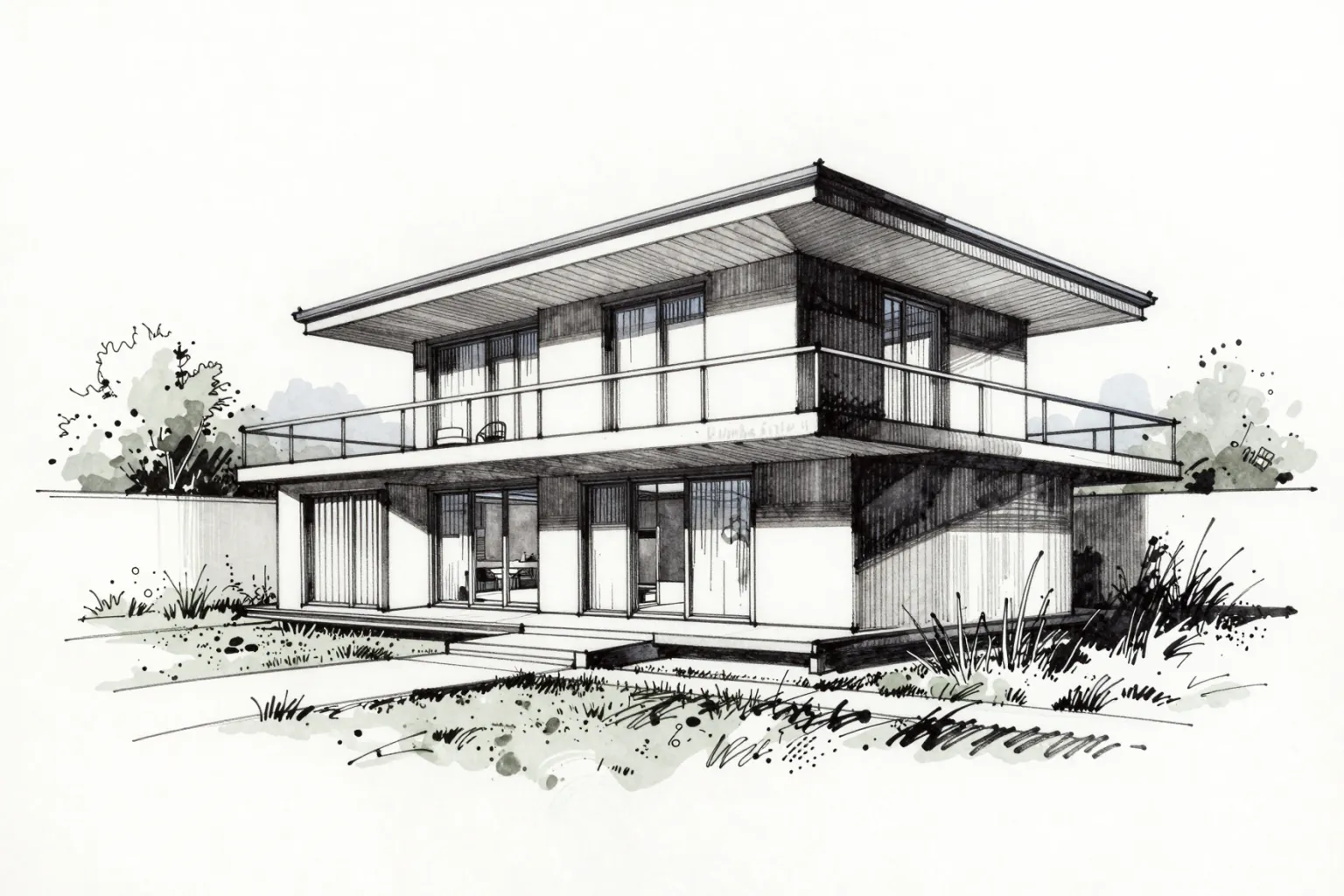
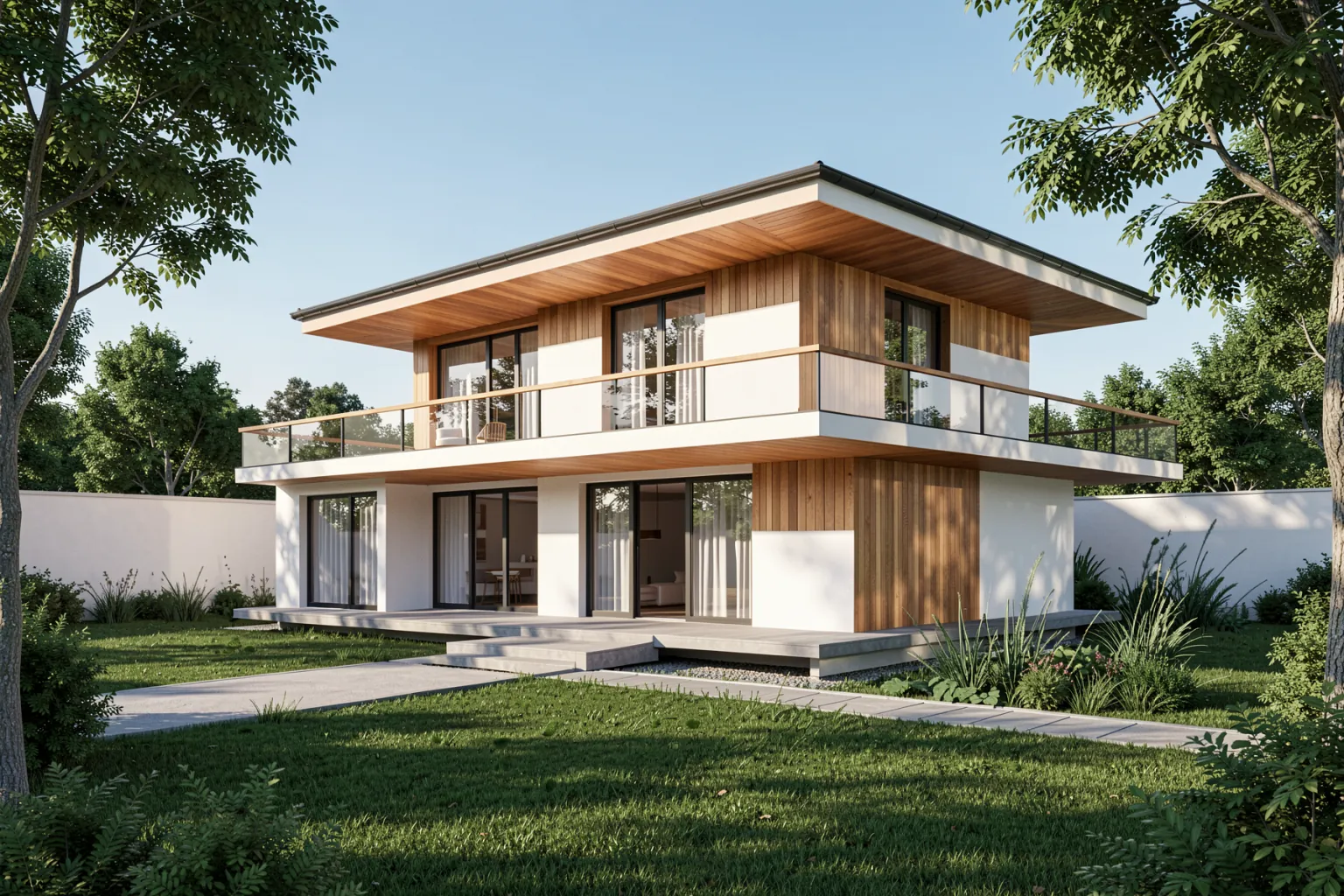
Exterior sketch to render
A perspective sketch of a two-story house becomes a daylight render with realistic materials and landscaping, while the massing and window layout stay the same.
Sketch to render AI
Turn architectural sketches into photorealistic renders. Upload a hand sketch, a digital rough or a CAD line drawing and get a render in minutes — massing, openings and composition preserved.
OVERVIEW
Sketch to render AI turns a drawing into a photorealistic image. You upload the sketch you already have and the AI reads its lines — walls, windows, roof, massing — then adds materials, light, sky and surroundings on top, so a client sees the building rather than a drawing.
The traditional route from sketch to render means building a 3D model, assigning materials, lighting the scene and rendering, which takes hours or days. With QUVIAI the same concept visual takes minutes, so you can test several materials or moods before choosing a direction.
HOW IT WORKS
A hand drawing, a tablet sketch or a line-drawing export from your CAD or 3D modelling software all work. Clear outlines give the best result.
Optionally name materials, light and setting — "wood cladding, golden hour, pine trees". If you skip it, the AI interprets the sketch on its own.
Pick an architectural style for the render instead of writing it into the prompt.
Get the render, then regenerate with a small change or refine one detail with the AI render editor.
EXAMPLES
A perspective sketch of a two-story house becomes a daylight render with realistic materials and landscaping, while the massing and window layout stay the same.
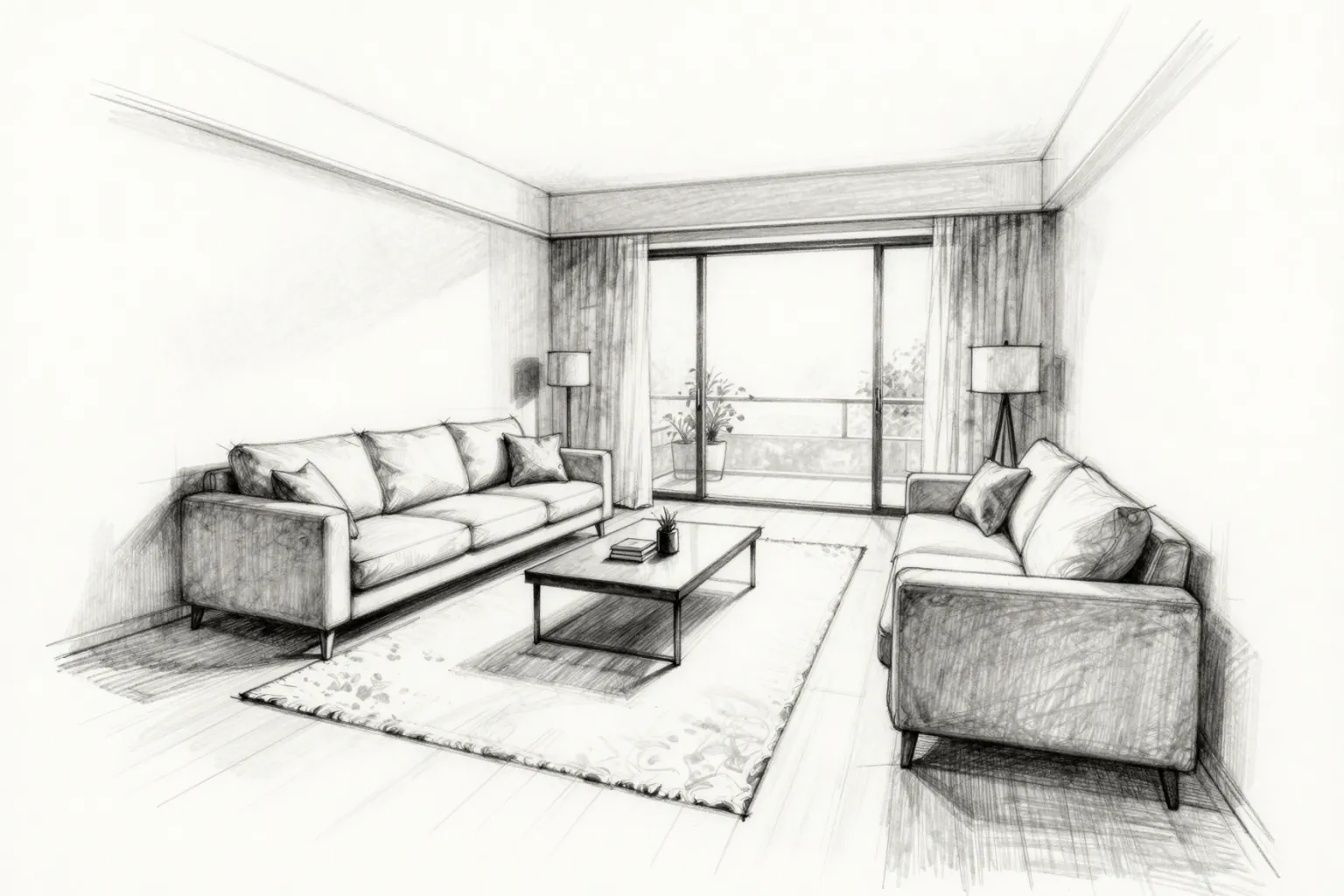
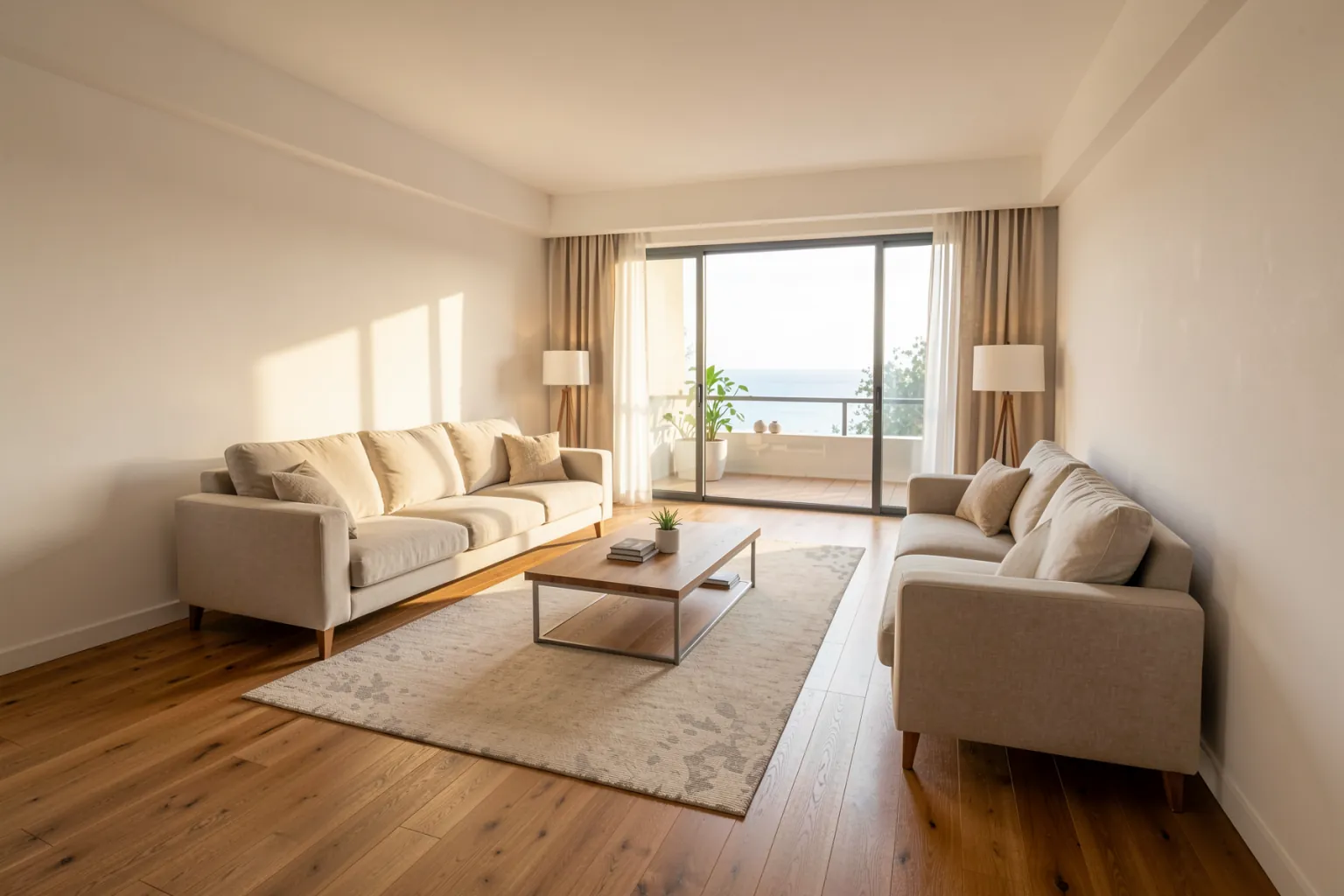
A quick pencil-style sketch of a living room turns into a furnished, naturally lit interior render that is ready to show a client.
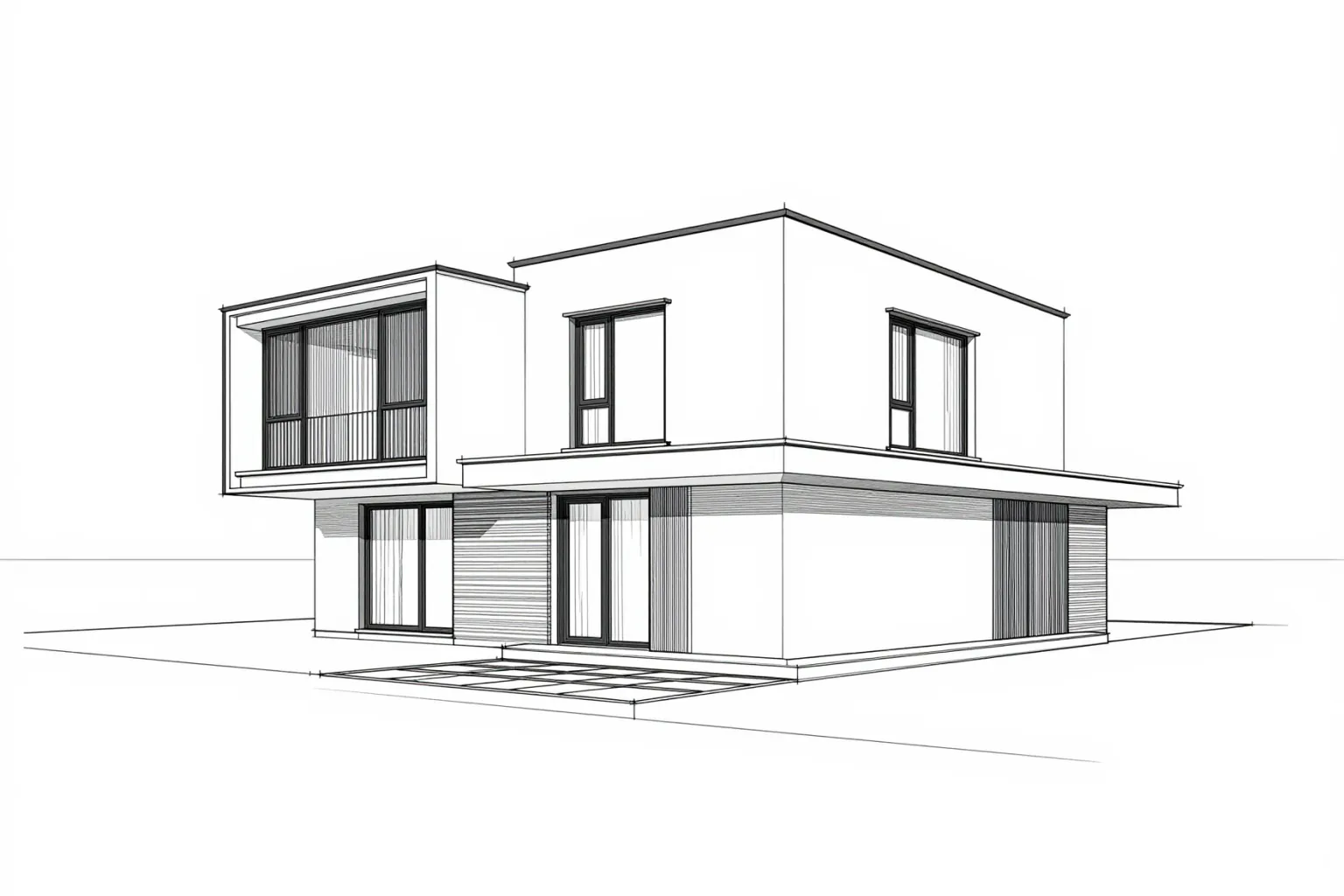
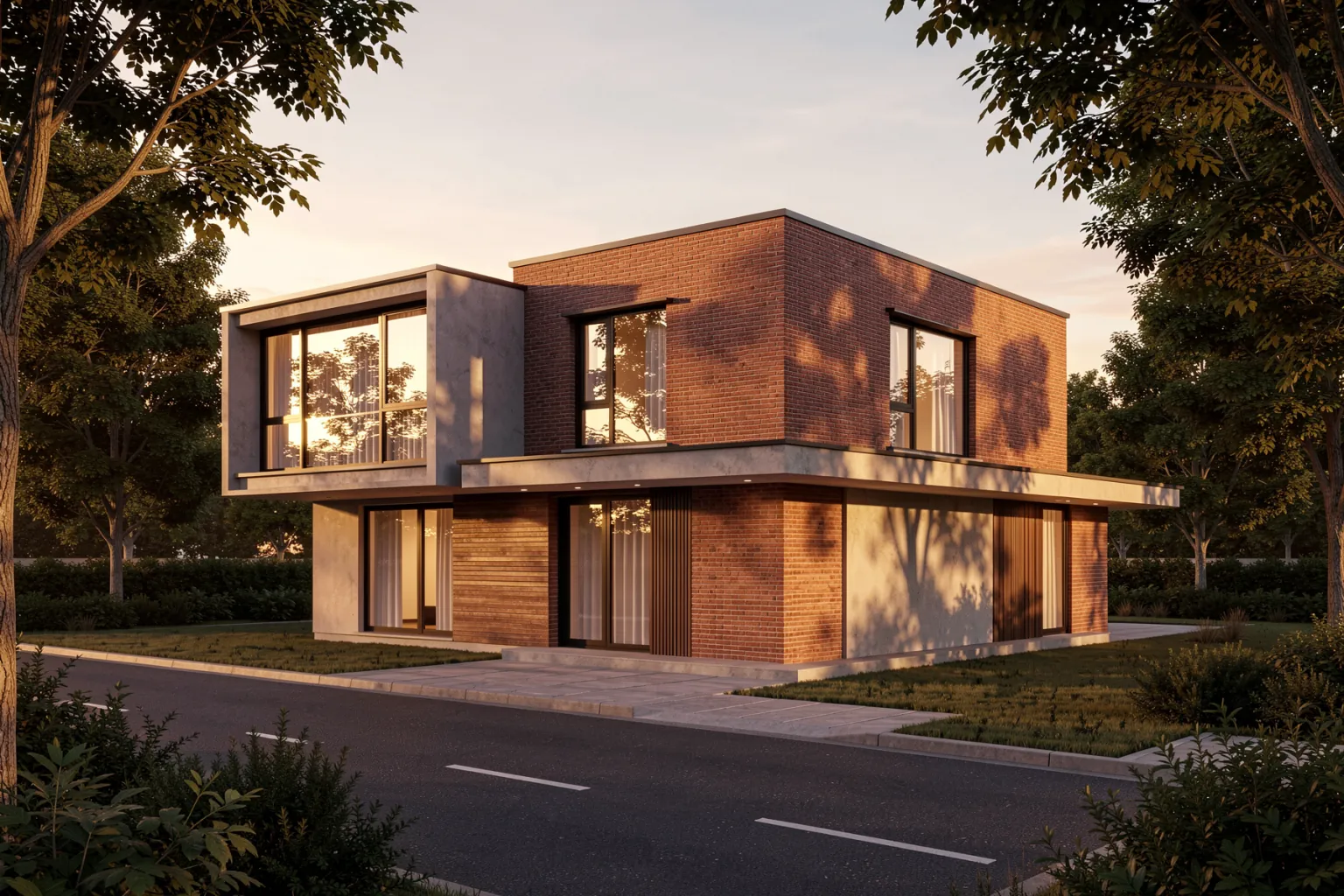
A line-drawing export from your CAD or 3D software works as the input too — useful when the model exists but has no materials or lighting yet.
WHY IT HELPS
Show a client a realistic image at the concept stage instead of waiting for a full 3D model.
The massing, openings and composition of the sketch carry through to the render.
Compare cladding, glazing or lighting directions from the same drawing.
Everything runs in the browser — no render engine, GPU or material library to set up.
FAQ
START FREE
5 free credits every day · No credit card required. Try sketch to render AI and every other tool.