AI RENDERING GUIDE
How to Render AutoCAD Drawings and Elevations With AI: A Step-by-Step Guide
Published 8 min read
Many projects still live in 2D for a long time. Elevations, sections and facade studies are drawn in AutoCAD, and a client or planning meeting arrives before anyone has built a 3D model. A clean elevation explains proportions well to other architects, but most clients find it hard to imagine materials, depth and light from black lines on a white background.
AI rendering offers a shortcut for the concept stage. A clean line drawing exported from AutoCAD is, in practice, a very precise sketch, and you can use it as the starting point for a photorealistic image. In this guide you will learn how to prepare the drawing, export it as an image, describe the materials and mood, and refine the result.
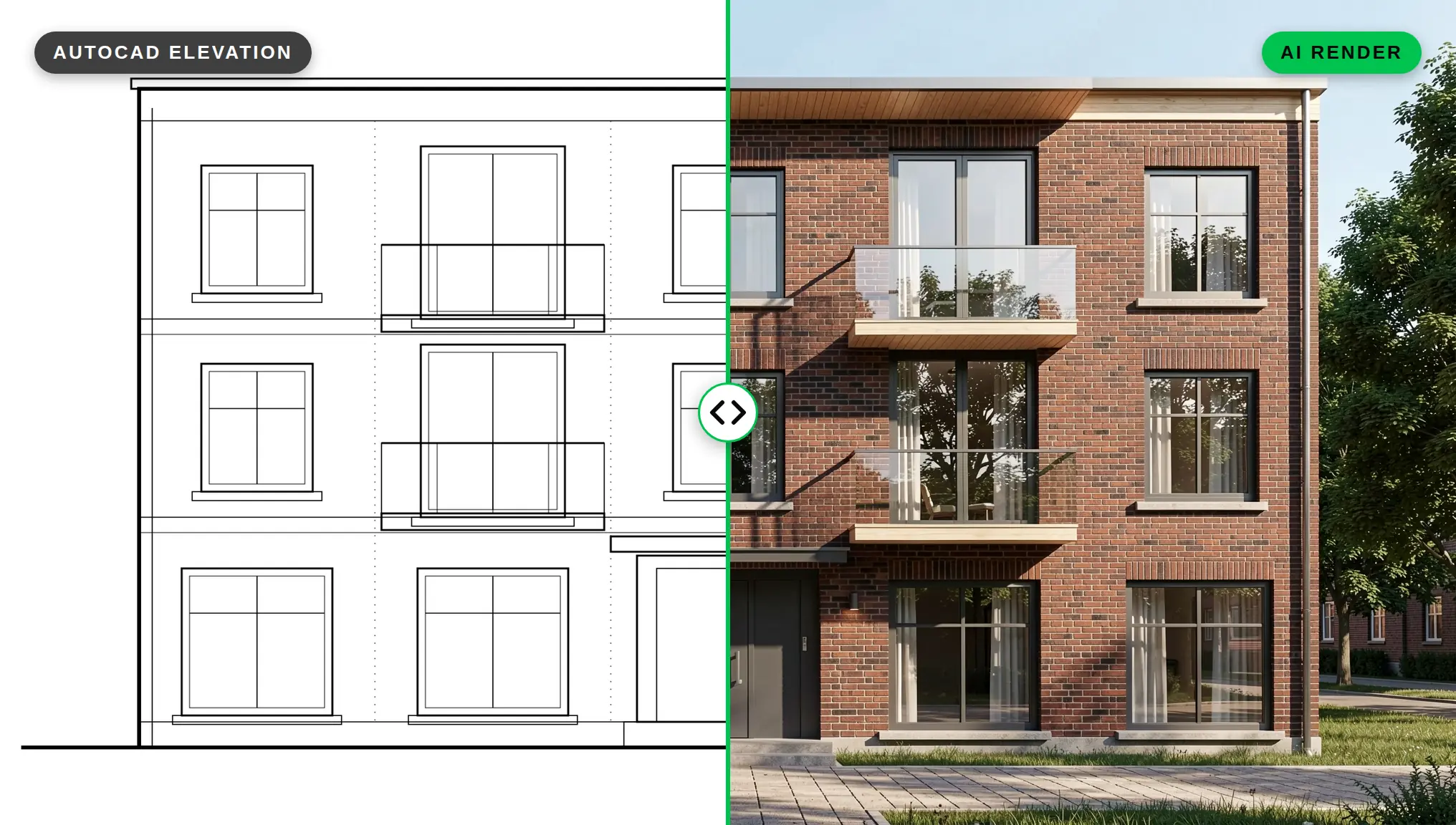
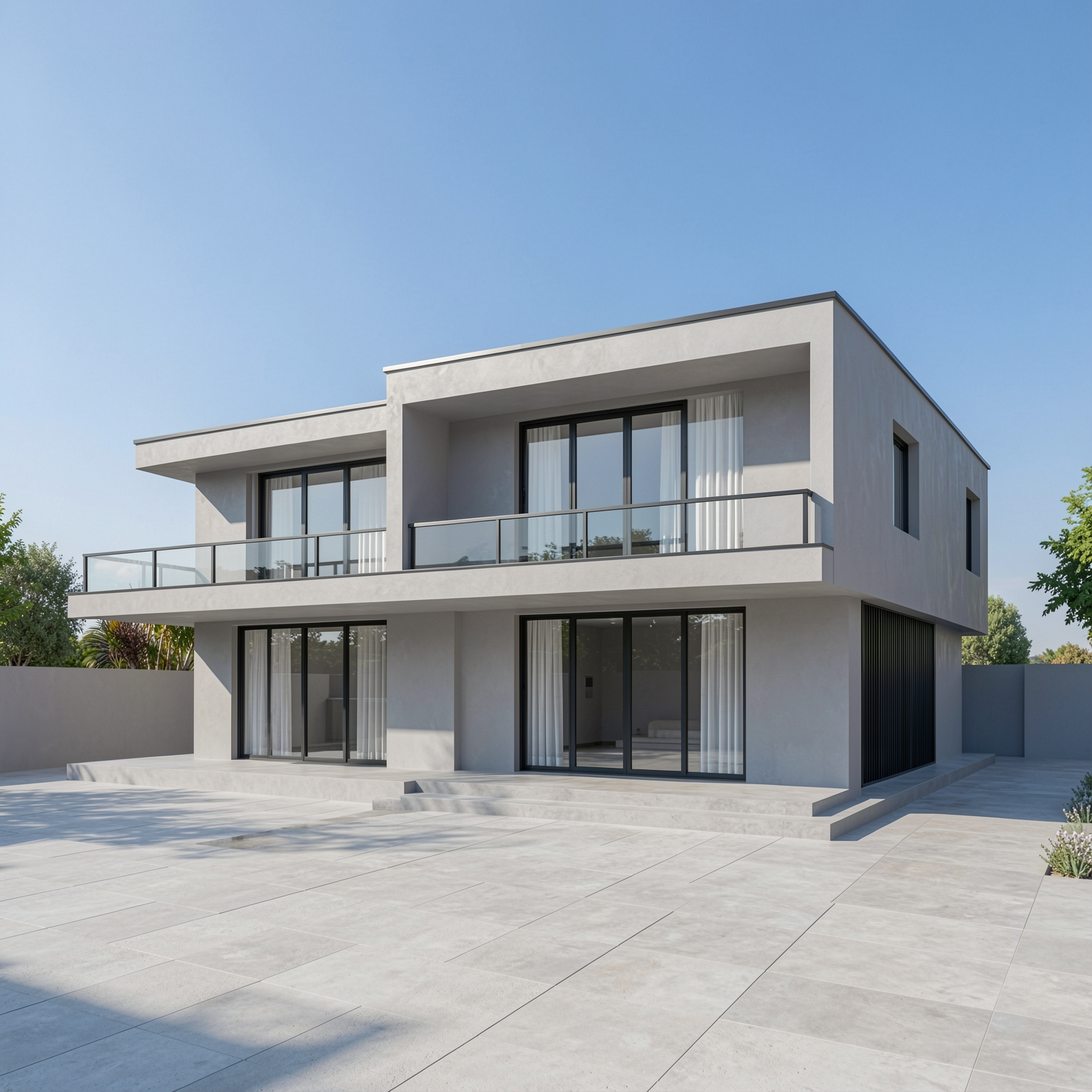
The example elevation in this guide is a clean, monochrome line drawing, just like a typical AutoCAD PNG export. Every render below was created from it in QUVIAI.
Why Render a 2D Drawing Instead of Waiting for a 3D Model?
- Speed at the concept stage. You can show a material and colour direction while the design is still changing.
- The proportions are already right. Your elevation already has the correct openings, floor heights and rhythm. The AI only has to add materials, depth and light.
- No extra modelling. Small studios and students can produce a presentation image without modelling a building they may redraw next week.
AI renders from 2D drawings are concept images. They are not a replacement for a coordinated model or for construction drawings. Use them to agree on a direction, then develop the chosen option with your usual tools.
Step 1: Choose the Right Drawing
Not every AutoCAD sheet makes a good input. The best candidates are:
- Elevations (front, street or garden facades). These usually give the most convincing results because they read like a straight-on photo of a building.
- Facade studies and details of a shopfront, entrance or balcony.
- Simple perspective line drawings, if you have them.
Step 2: Clean Up the Drawing Before You Export
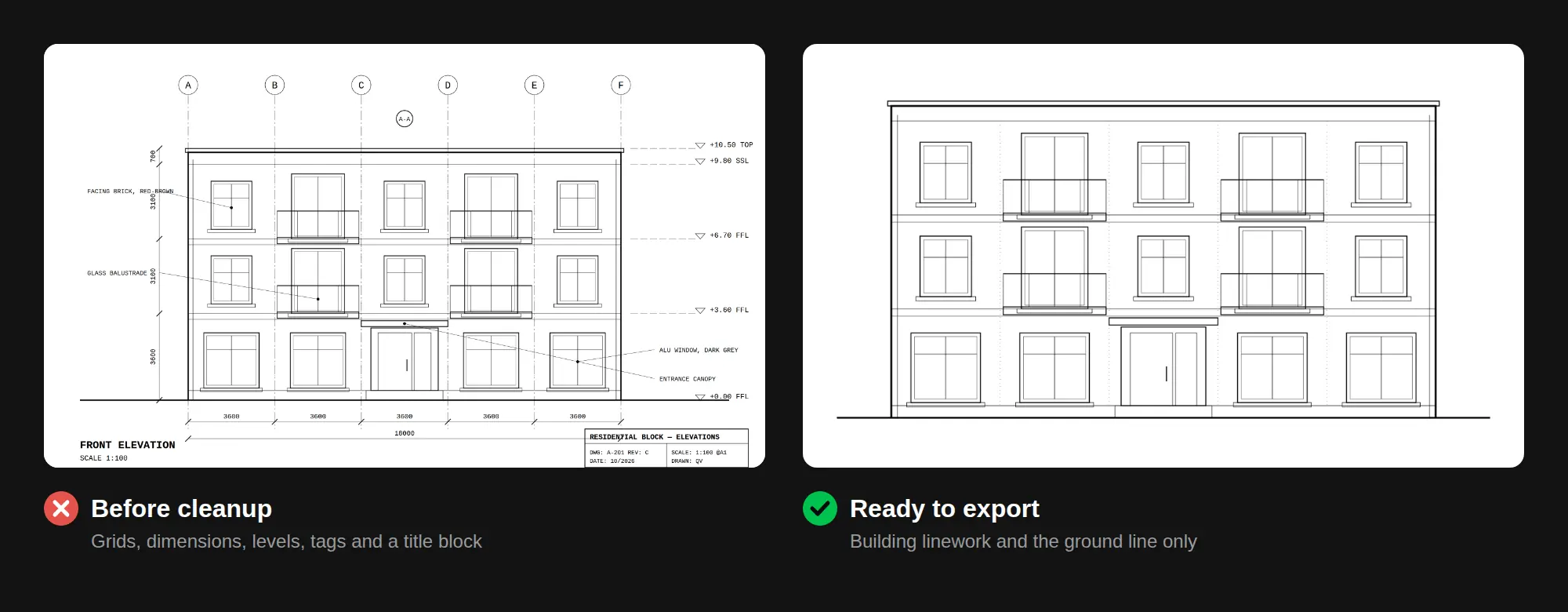
The AI reads every line on the page. Anything that is not part of the building can end up as strange geometry in the render. Before exporting:
- Freeze or turn off annotation layers. Hide dimensions, text, grid lines and level markers, tags, section marks and title blocks.
- Hide construction and helper geometry. Remove setting-out lines, xrefs you do not need, and temporary sketches.
- Keep the lines that describe the building. Walls, openings, window frames, roof edges, balconies, cladding joints and the ground line.
- Use line weights to show depth. A heavier outline for the building edge and lighter lines for joints and frames help the AI separate the main volume from the details.
- Keep hatches simple. Dense or overlapping hatches tend to read as noise.
- Crop to the building. Leave a small margin around the elevation and remove empty sheet space.
Step 3: Export the Drawing as an Image
AI rendering tools work from images, so you need to turn your DWG into a PNG or JPG. In AutoCAD, the usual route is the Plot dialog:
- Open the layout or model view that shows your cleaned elevation.
- In Plot, choose the PublishToWebPNG.pc3 printer/plotter. It writes a PNG file instead of printing.
- For higher resolution, edit the plotter’s properties and add a custom paper size. For raster plotters these sizes are set in pixels, not millimetres. Around 2,000–3,000 pixels on the long side is a good target: sharp enough for fine lines without creating a very large file.
- Use a monochrome plot style so the lines come out black on white.
- If you need JPG or TIFF instead, you can add a raster plotter through the Autodesk Plotter Manager (“Add-A-Plotter Wizard” > My Computer > Raster File Formats).
PNG is usually the better choice for linework because it keeps edges crisp. A simple screenshot of a clean viewport can also work for a quick test.
Step 4: Generate the First Render With Sketch → Render
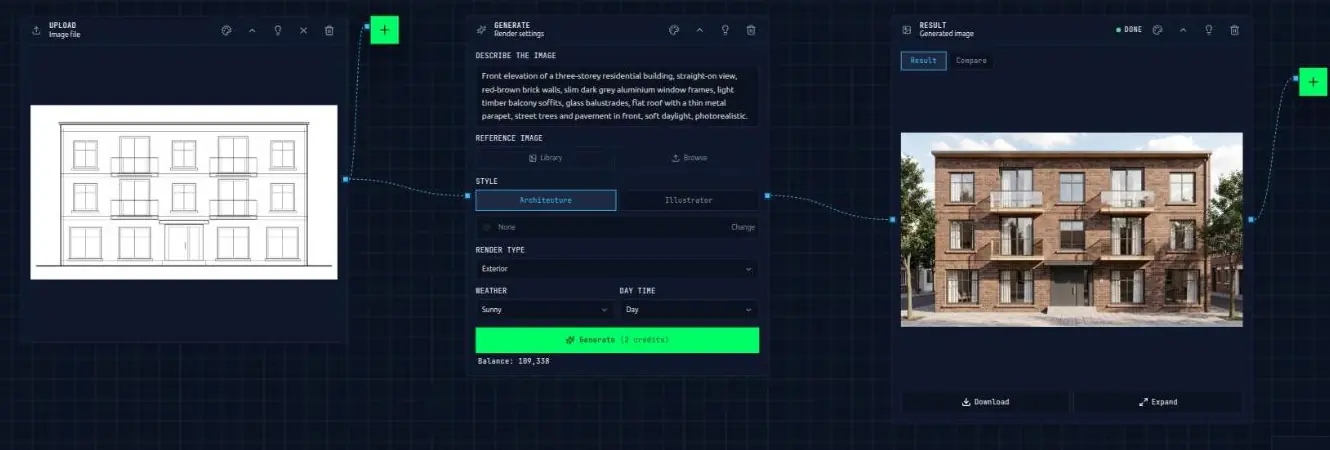
In QUVIAI, use the Sketch → Render tool. It turns sketches into photorealistic renders, and a clean exported elevation works the same way as a precise sketch: the lines guide the shape, and your prompt describes everything the drawing cannot show.
Upload the exported image and describe the building. A good elevation prompt names:
- The building type and view: “front elevation of a three-storey apartment building, straight-on view”.
- Materials per element: what the walls, frames, balconies and roof are made of.
- Context: pavement, planting, sky, neighbouring buildings if you want them.
- Light and mood: “soft overcast daylight”, “late afternoon sun”.
Example:
“Front elevation of a three-storey residential building, straight-on view, red-brown brick walls, slim dark grey aluminium window frames, light timber balcony soffits, glass balustrades, flat roof with a thin metal parapet, street trees and pavement in front, soft daylight, photorealistic.”
Tips:
- Match the prompt to the drawing. If the drawing shows three floors and vertical windows, say so. A prompt that contradicts the lines leads to confused results.
- Be precise about materials. “Vertical fibre-cement panels in warm grey” works better than “modern cladding”.
- Generate a few versions and keep the one that follows the openings and floor lines most closely.
For more on writing prompts, see our AI architecture prompts guide. If you have not used Sketch → Render before, our sketch to photorealistic render guide walks through the basics.
Step 5: Check the Result Against the Drawing
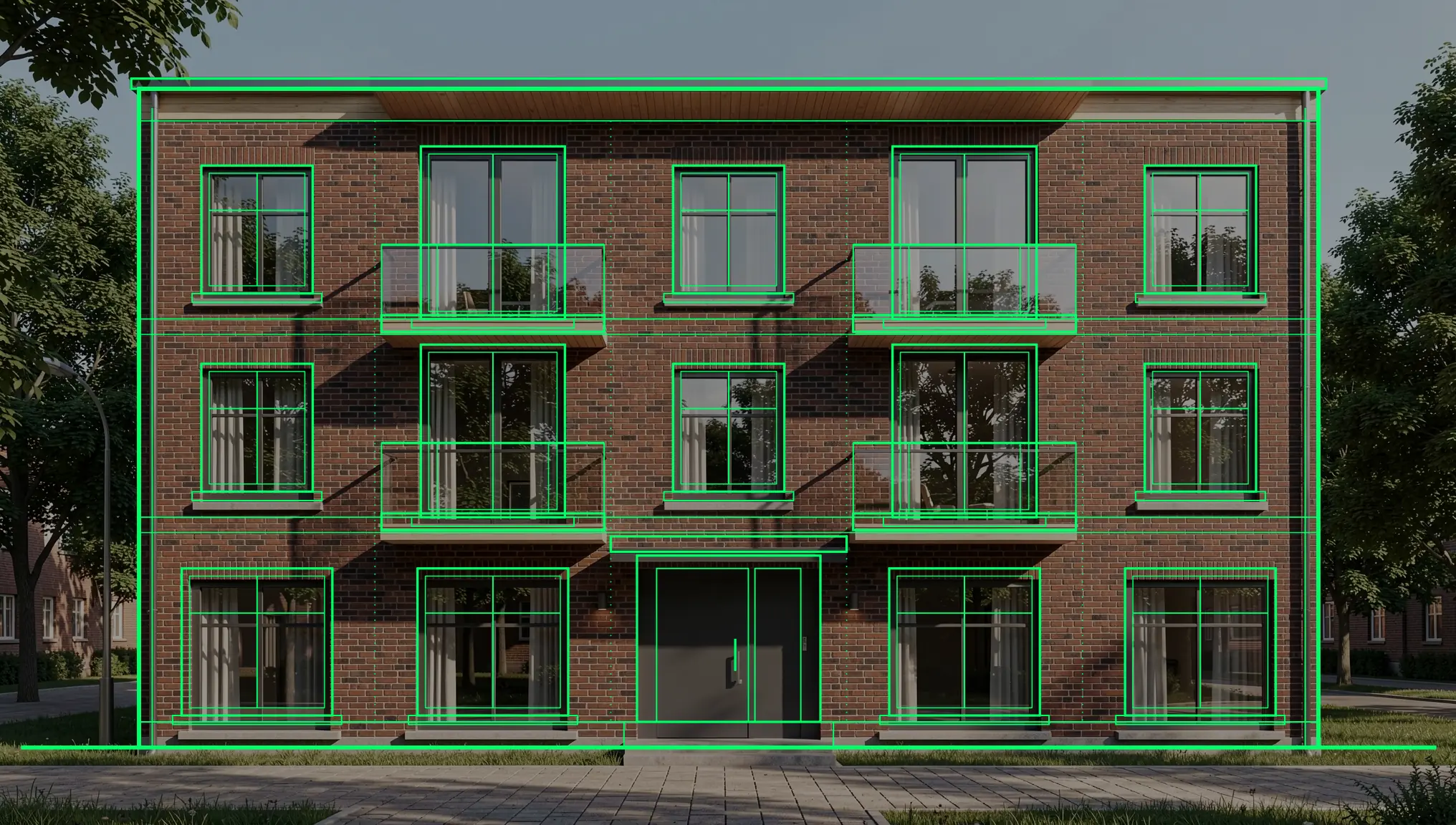
Before you show anything to a client, compare the render with the original elevation:
- Are the number and position of windows the same?
- Do the floor heights and roof line match?
- Has anything been added that is not in the design, such as an extra balcony or a different door?
Step 6: Refine With AI Render Editing
QUVIAI’s AI render editing lets you change parts of the image without regenerating everything:
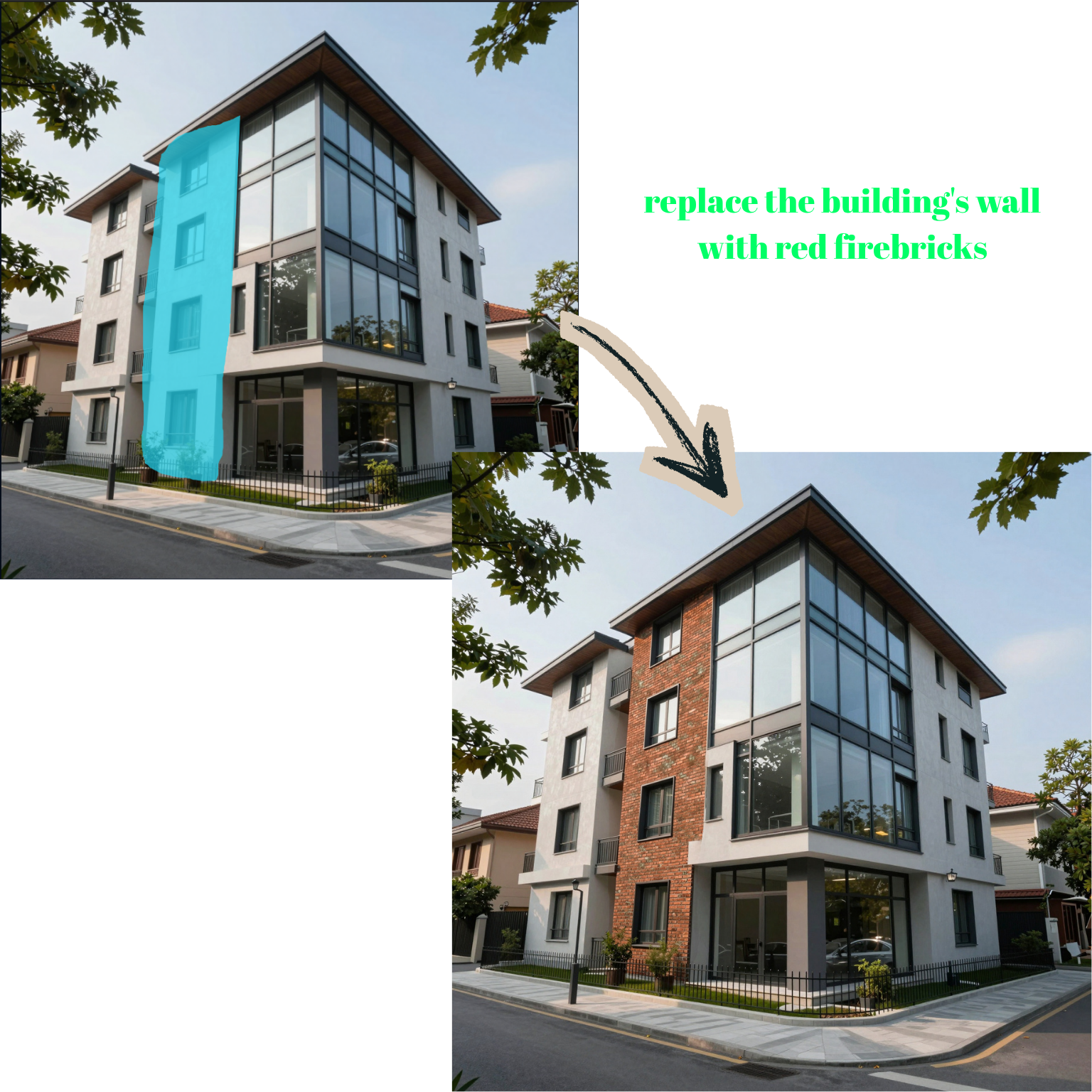
- Masked editing: select an area, such as the ground-floor entrance, and describe what should be there.
- Maskless editing: describe the change in words, for example “make the window frames black”.
A practical order: first correct anything that does not match the drawing, then adjust materials and colours, then add details like lighting, signage and planting. Our article on masked vs maskless AI editing explains when to use each.
“Replace the entrance with a tall light oak timber door with a glass side light and a slim timber canopy above it, warm light inside the lobby. Photorealistic, matching the brick, materials and daylight of the render.”
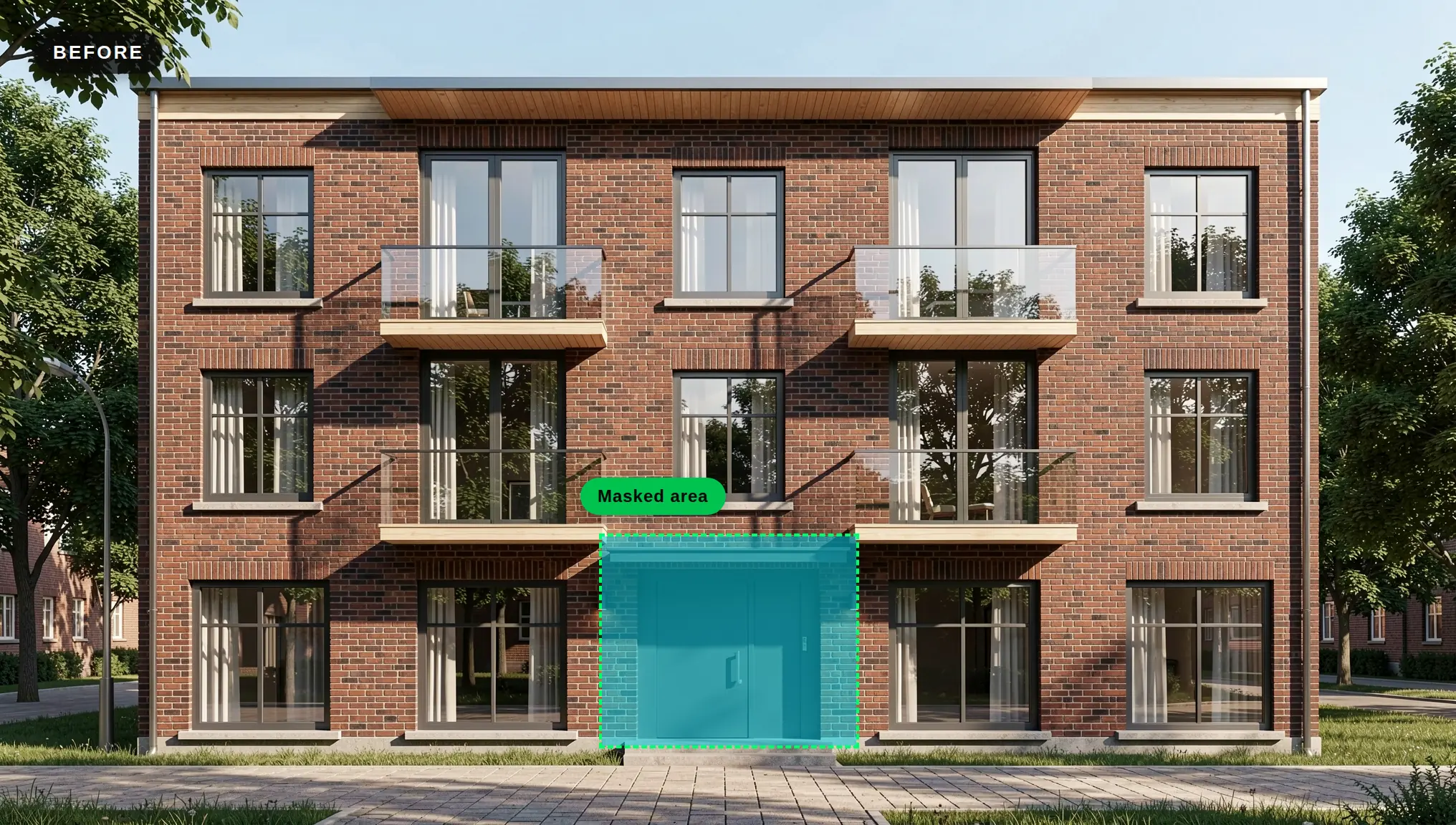
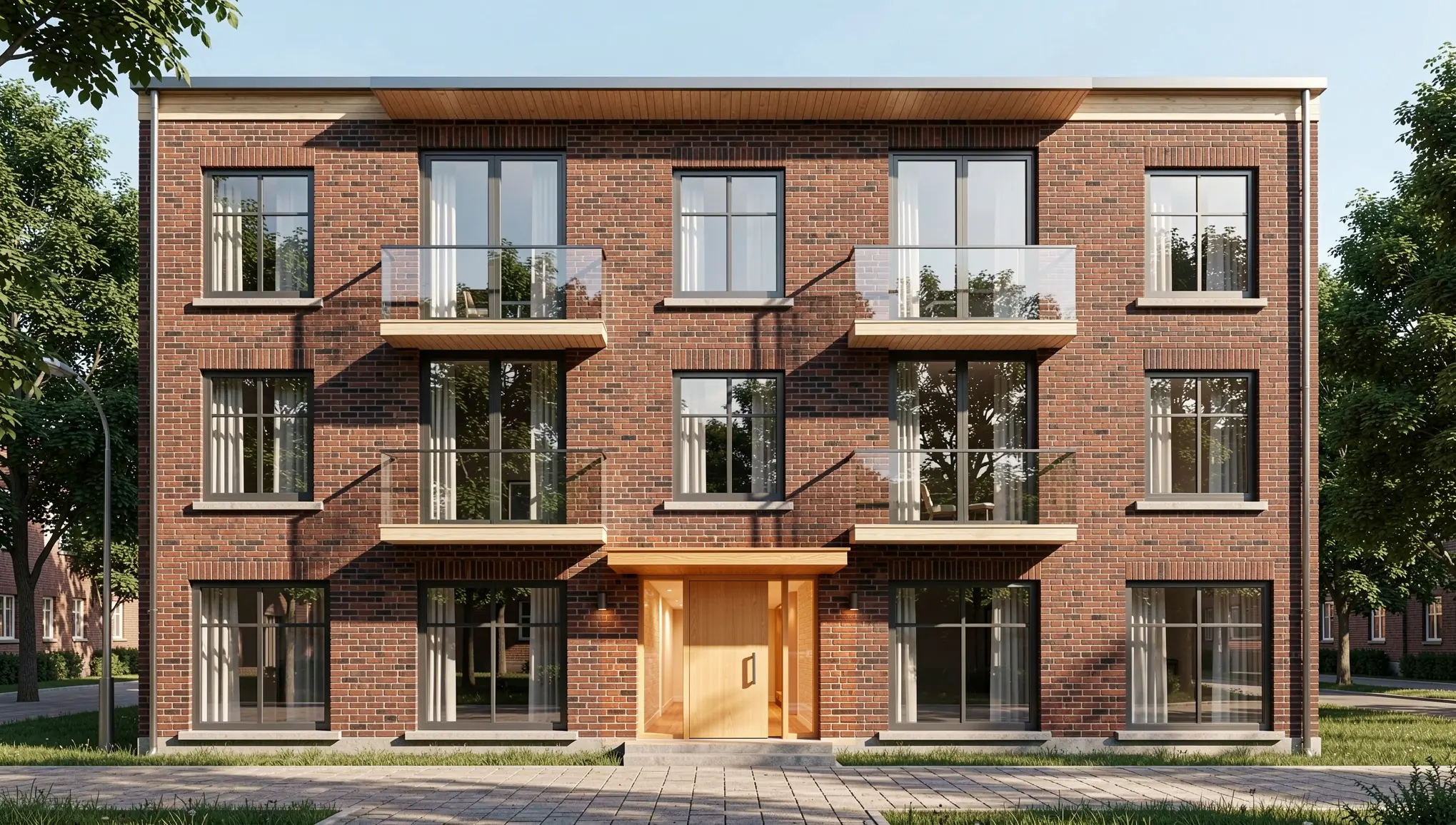
Only the selected entrance changed. The brick, windows and balconies around it stay exactly as they were.
Tip: Keep the mask tight around the element you want to change. A small, clearly bounded selection gives the most predictable result.
Step 7: Create Options for the Client
Once one version works, use it as a base for comparisons:
- Material options: with QUVIAI you can render the same design with different material choices and show them side by side, for example brick vs. light render vs. timber cladding.
- Lighting options: you can also create the same view in different lighting conditions, such as day and night. See our day to night render guide.
- Motion: with Render → Video you can turn a still render into a video for a presentation.
Both material options below were made from the brick render with a short maskless edit that changes only the walls:
“Change the brick walls to smooth warm off-white render. Keep the windows, frames, balconies, timber soffits, roof edge, entrance, trees, pavement, camera angle and daylight exactly the same. Photorealistic.”
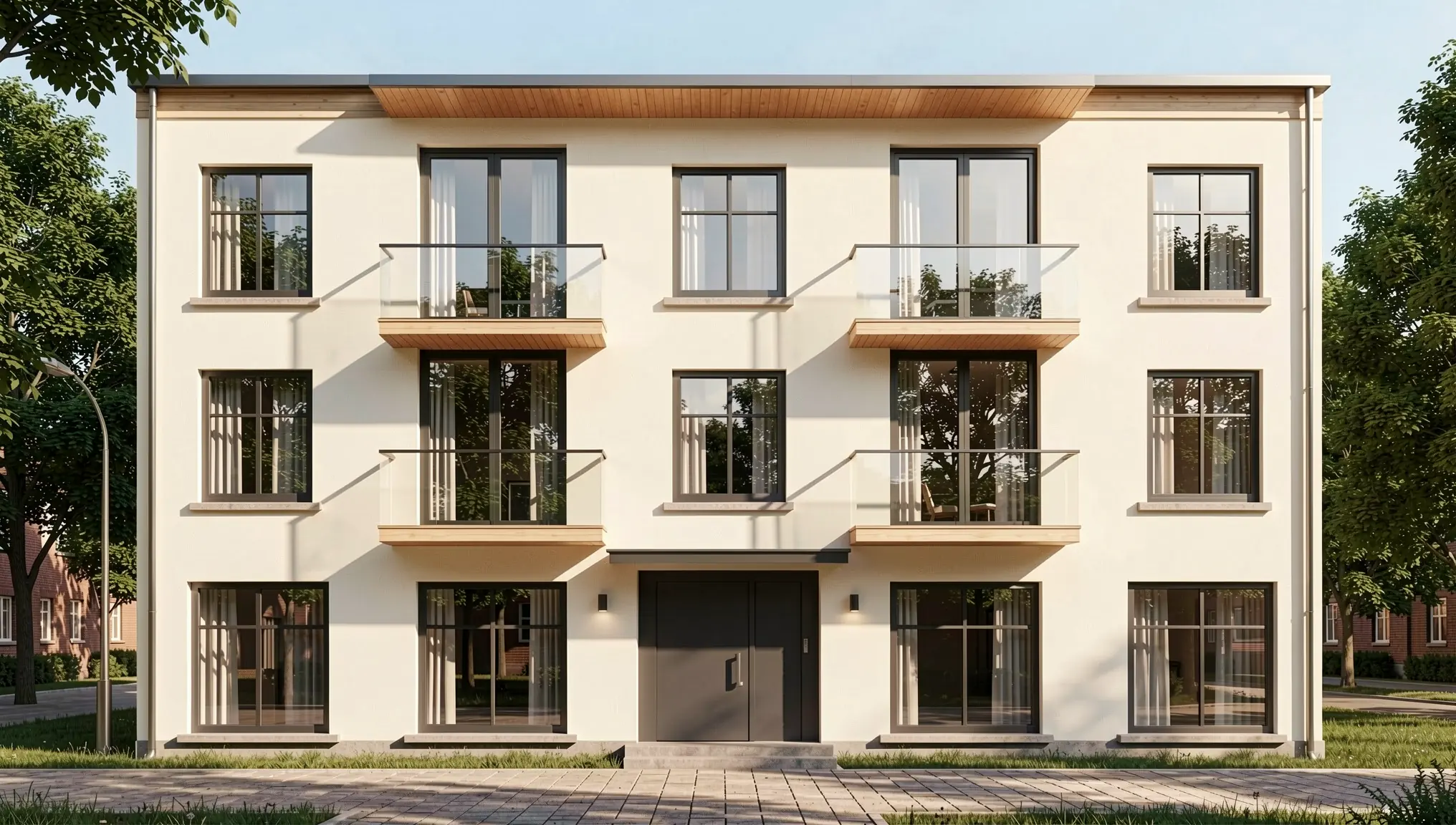
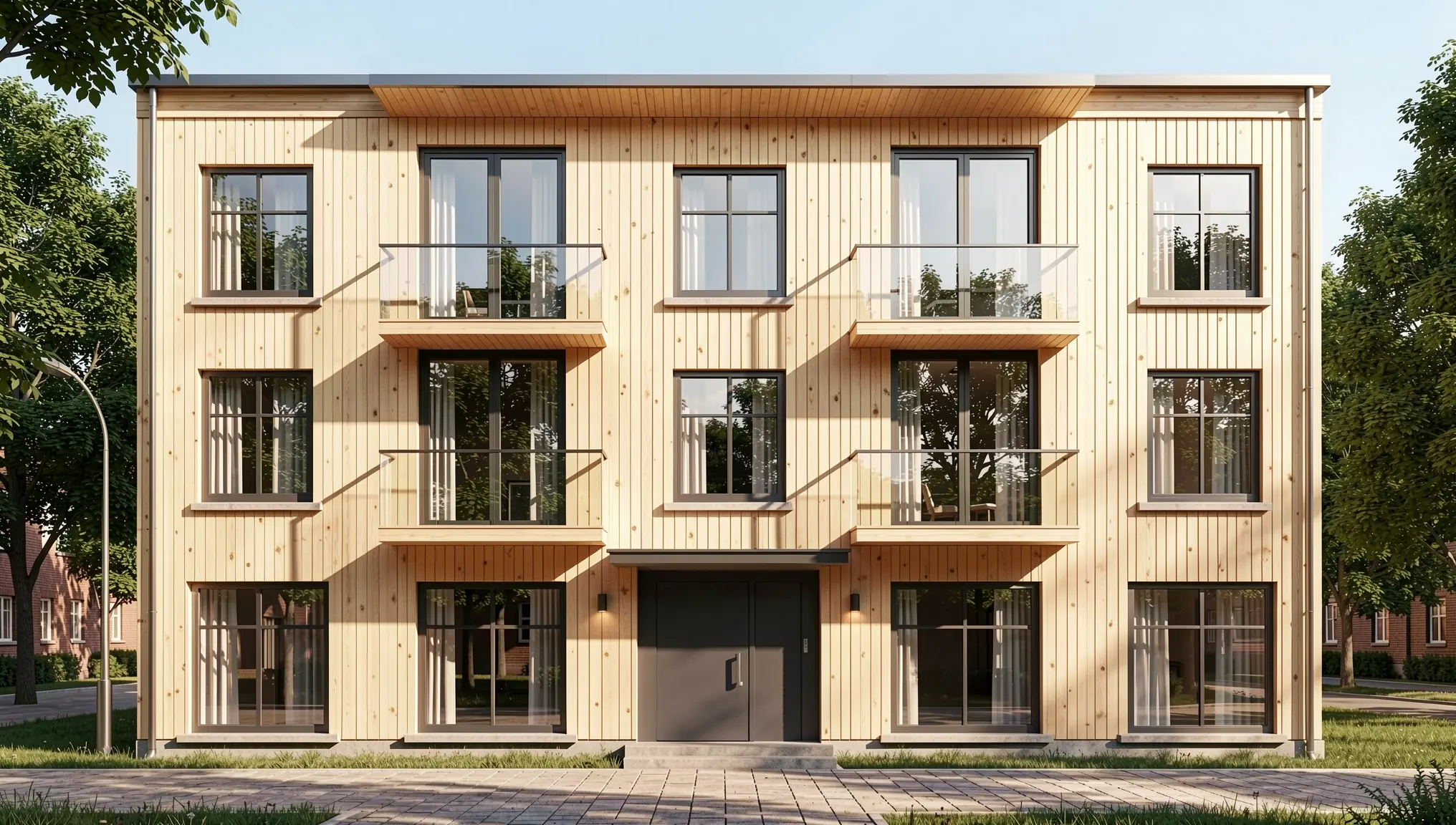
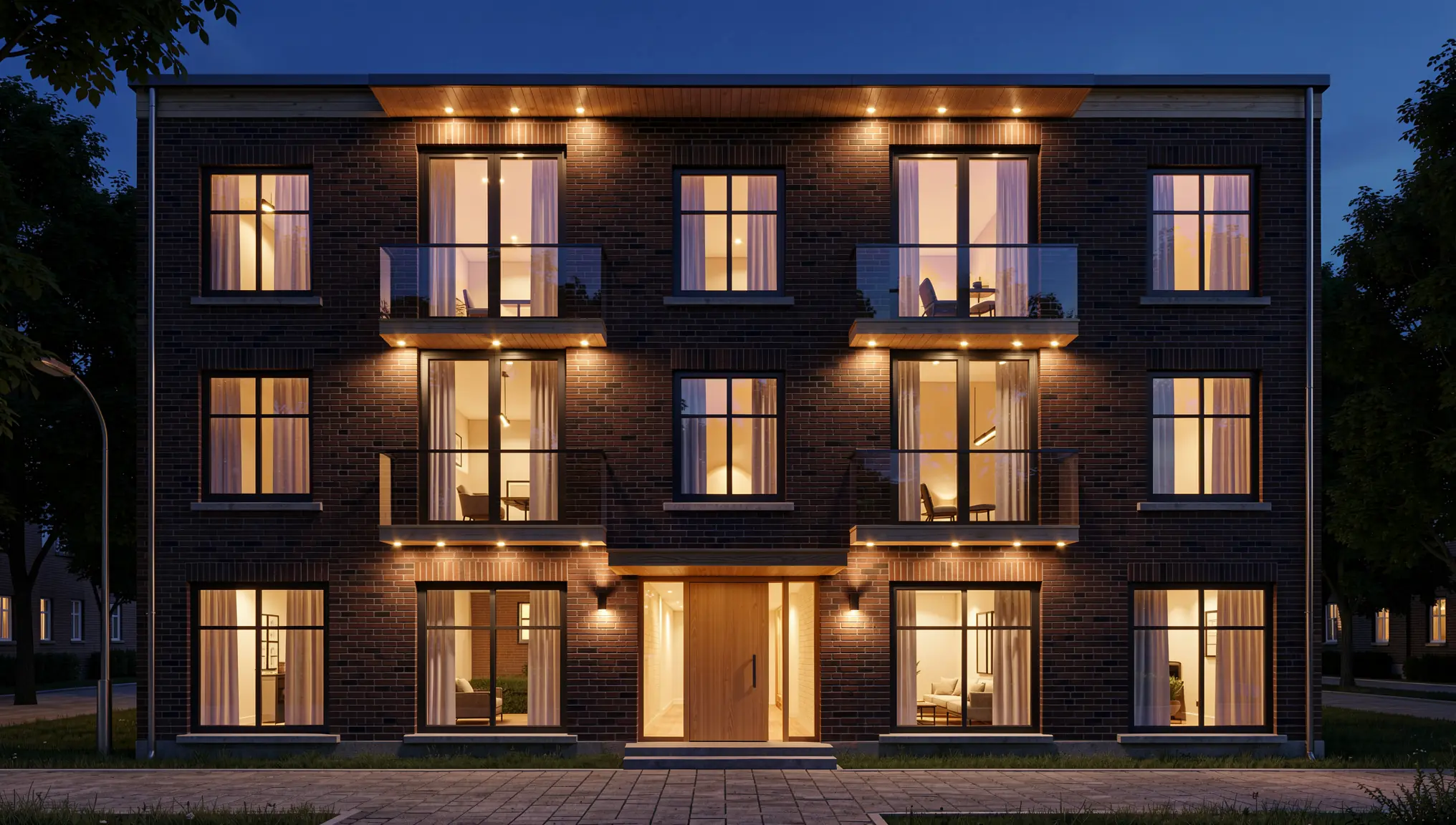
Change one thing at a time so the client is comparing a single decision.
Common Mistakes to Avoid
- Low resolution. Thin lines disappear in small images, and the AI then invents details.
- Prompting against the drawing. Asking for a pitched roof on a flat-roof elevation produces a mix of both.
- Presenting the concept as final. Label renders as early visualisations, not construction information.
When Should You Use a 3D Model Instead?
A 2D-to-render workflow is ideal for single facade views and early options. If you need several matching camera angles, exact site context or walk-through views, a 3D model is the better starting point. If you already work in 3D modelling software, see our free AI render plugins, or read how to render a 3D model with AI.
Conclusion
Your AutoCAD elevations already contain most of the design. Clean them up, export a sharp PNG, describe the materials and light, and refine the result with masked or maskless editing. In a short session you can turn a technical drawing into a set of concept images that clients understand at a glance.