AI RENDERING GUIDE
How to Render a 3D Model or BIM View With AI
Published 6 min read
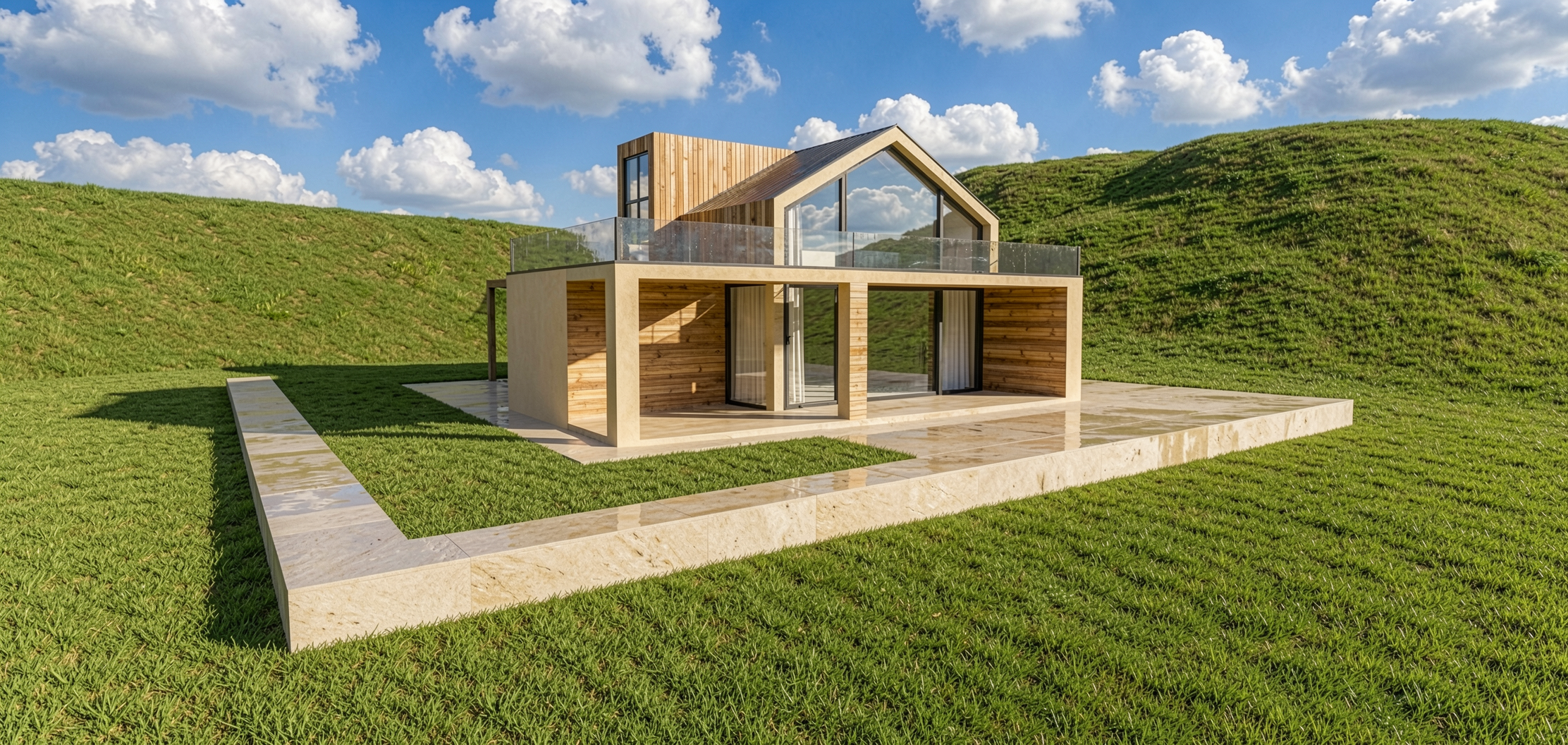
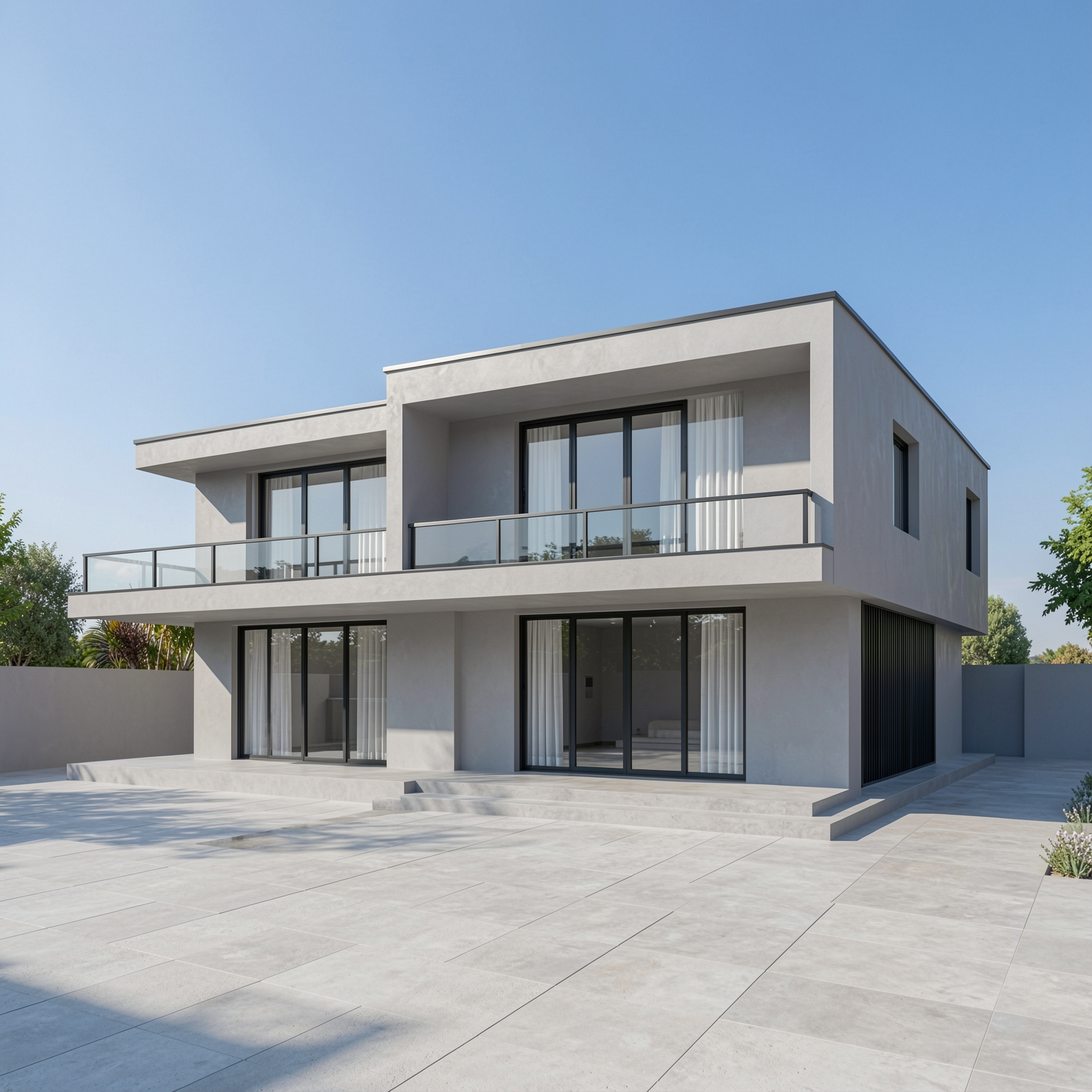
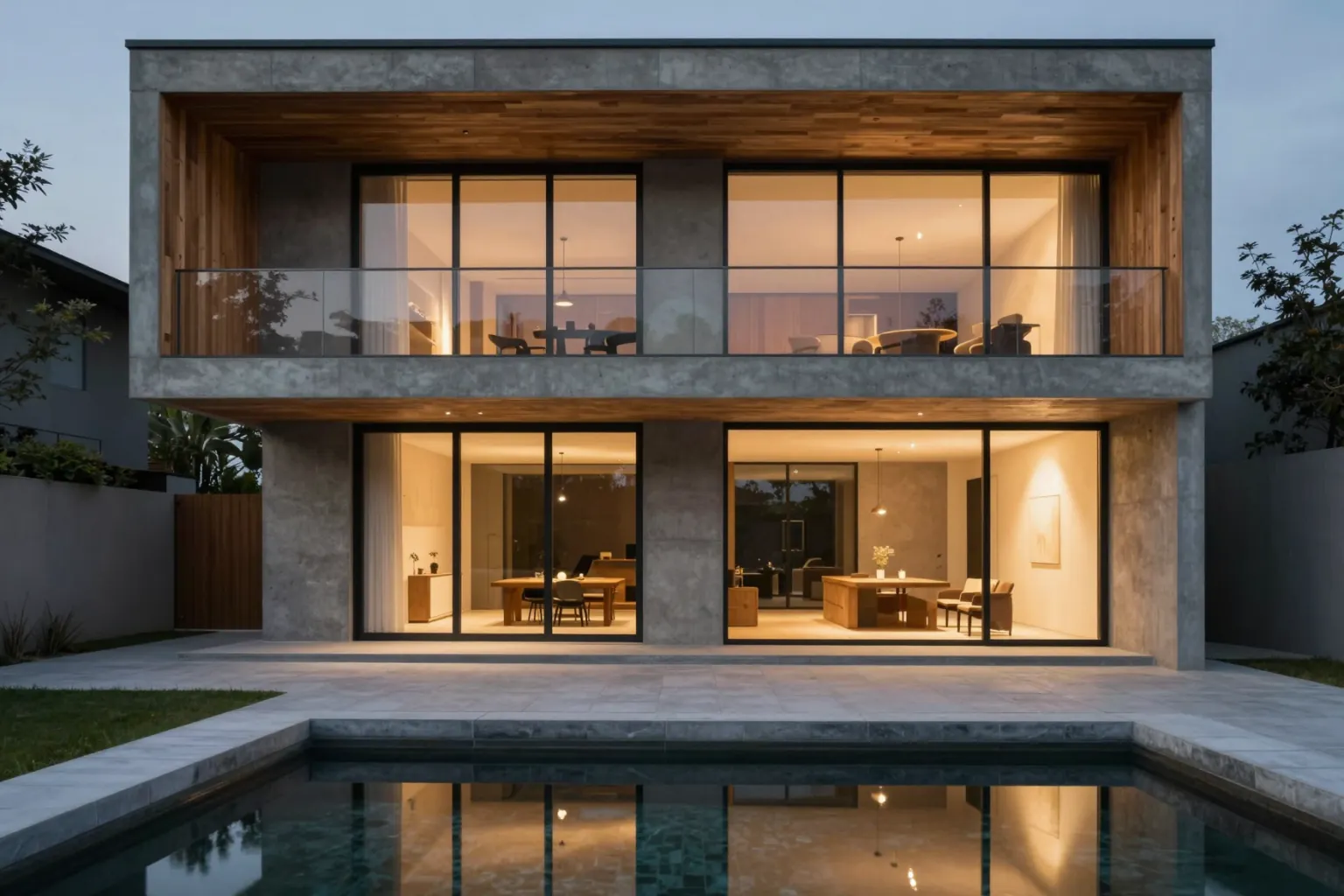
Your 3D or BIM model already holds the design: the massing, the openings, the camera you want. What it usually lacks is the time to turn it into a convincing image — materials, lighting, vegetation, a render engine and a powerful graphics card.
AI rendering skips most of that. There are two ways to get a photorealistic AI render from your 3D model in QUVIAI, and which one fits depends on how much control you need over the view.
Method 1: Render a Viewport Export (Fastest)
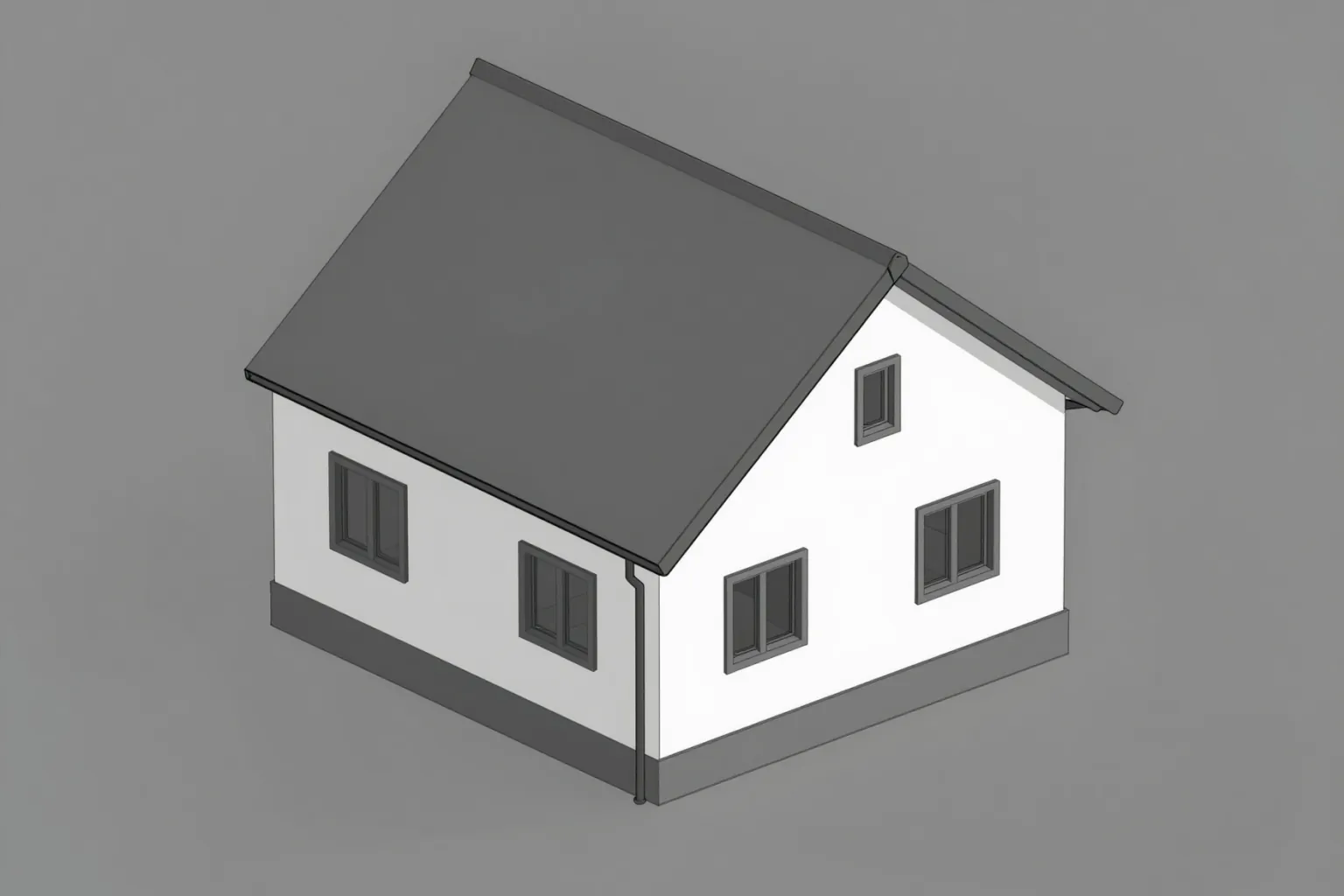
The quickest route is to treat your model view as an image. Set up the camera in your modelling software, export the view, and use it as the input for AI rendering — exactly like a sketch to render.
- Set the camera in your modelling software. Choose the exact perspective you want in the final image. Two-point perspective reads best for exteriors.
- Export a clean view. An untextured, shaded or hidden-line view works. Hide dimensions, section marks, grids and text.
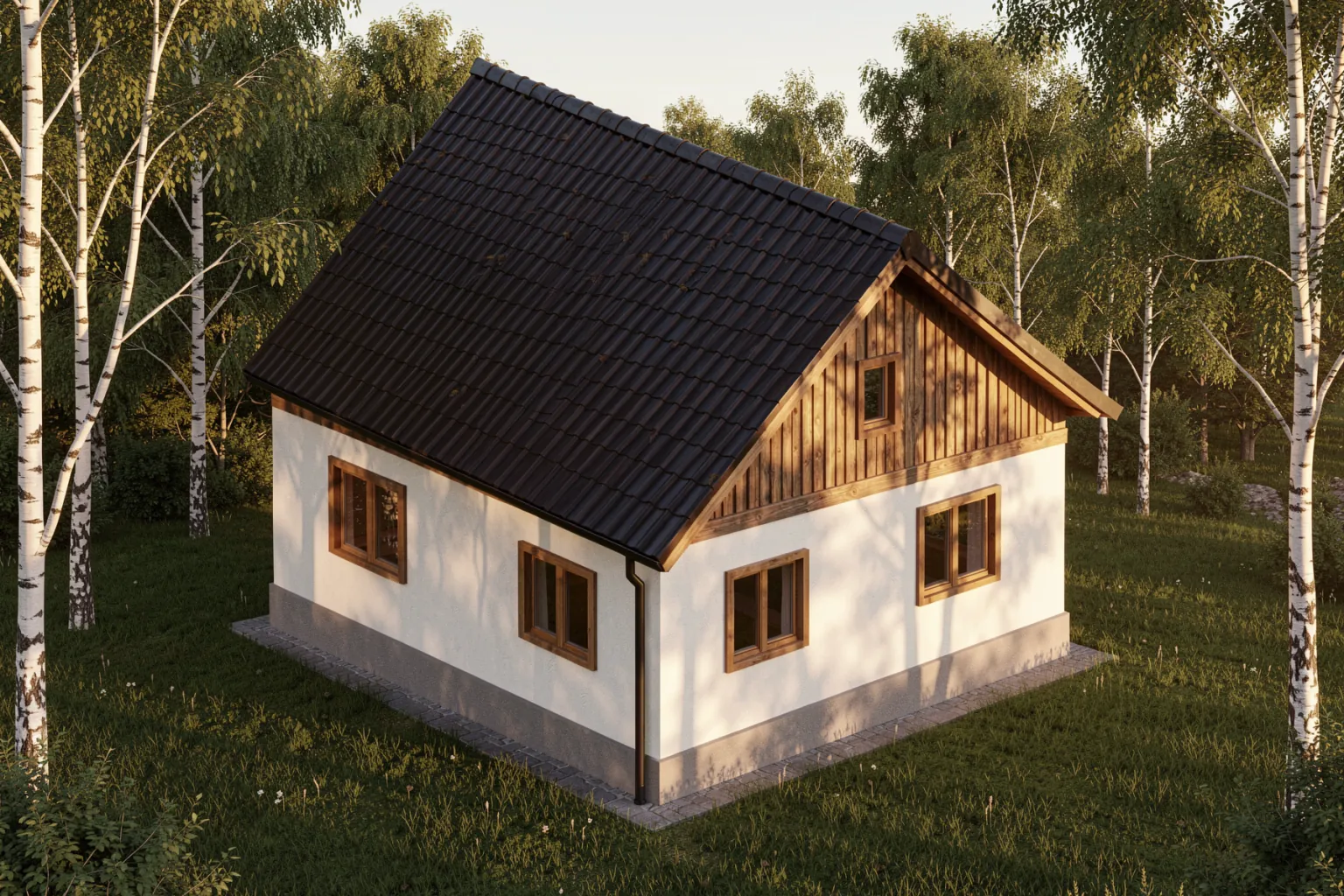
- Upload it to QUVIAI as the reference image. Describe materials, light and context — for example "timber and white plaster facade, late afternoon sun, lawn and birch trees".
- Choose a style and generate. The AI keeps the massing and camera of your export and adds materials, light and surroundings.
Method 2: Import the Model Into the Browser 3D Editor
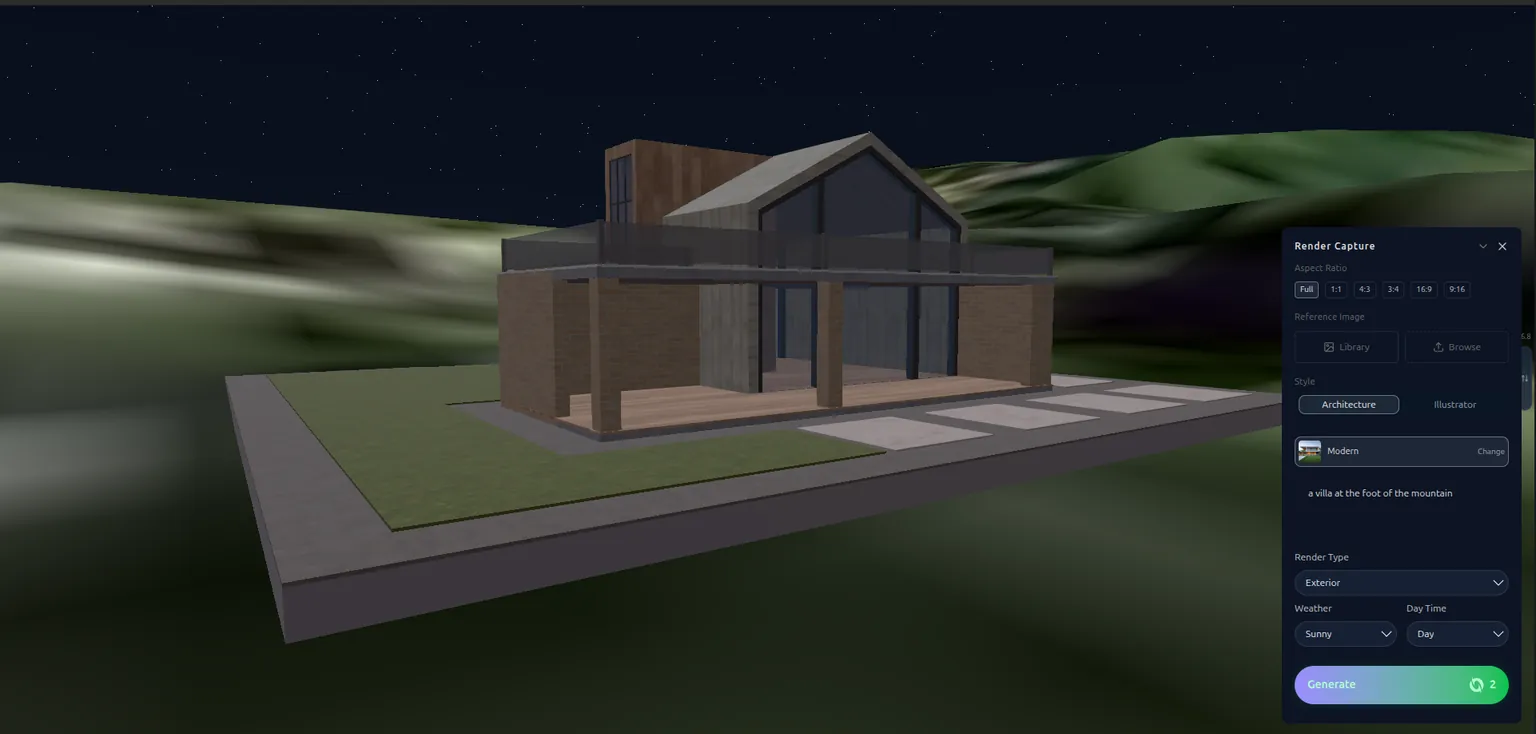
If you want to move the camera, add objects or place the building on real terrain, import the model itself into the QUVIAI 3D scene editor, which runs in the browser.
- Export the model. The editor imports common 3D file types such as .glb/.gltf, .obj, .fbx and .dae. Most modelling and BIM tools can export at least one of them.
- Import it into the scene. Add generated 3D objects or built-in elements such as walls, doors and windows if you need them, and optionally import real terrain from a map.
- Open the render panel. Choose the style, exterior or interior render type, weather and time of day.
- Generate the render from the camera you set in the editor.
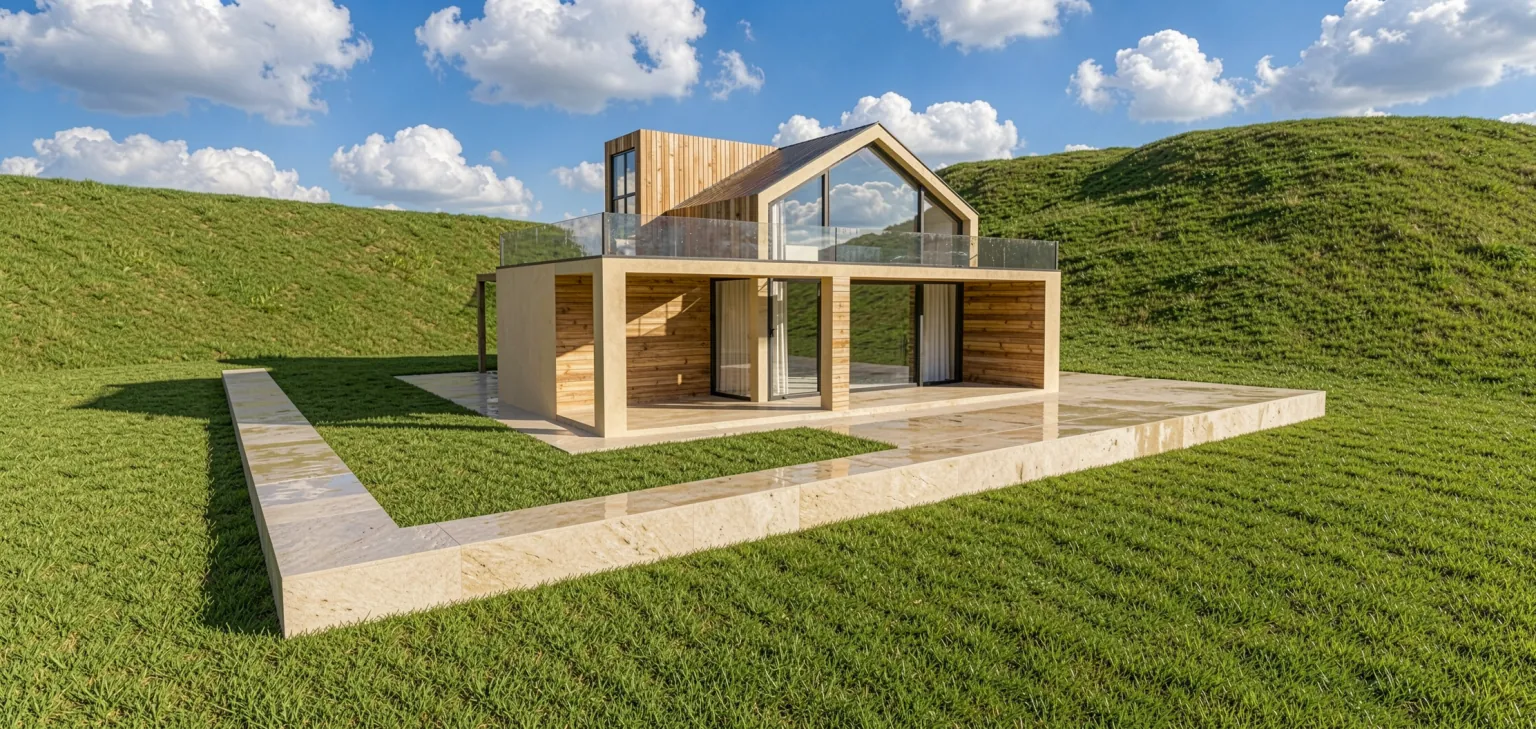
For a full walkthrough of the editor, see our guide to building a 3D scene in your browser.
Prefer to stay inside your modelling software? QUVIAI also offers free AI render plugins that render the current view without exporting anything.
Which Method Should You Use?
- Viewport export: fastest; best when you already know the exact view and just need a convincing image of it.
- 3D editor import: best when you want to adjust the camera, add objects, use real site terrain or produce several views of the same model.
Tips for Better AI Renders From 3D Models
- Simplify the view. Turn off layers you do not want rendered — annotations, grids, section boxes.
- Keep edges readable. Hidden-line or shaded-with-edges display modes give the AI clear outlines of openings and volumes.
- Name materials in the prompt. An untextured model carries no material information, so the prompt decides what the facade is made of.
- Check the details. AI renders are concept visuals: review openings and rooflines before sending an image to a client.
- Make variations from the result. Once you have a render, create night and seasonal versions or new camera angles without re-exporting.
Who Is This For?
- Architects working in CAD, BIM or 3D modelling software who need presentation images without a render engine
- Small studios without a dedicated visualization artist or render farm
- Students producing portfolio and jury images on a laptop
- Developers who receive models from architects and need marketing visuals quickly
Conclusion
You do not need a render engine to get a convincing image of your 3D or BIM model. Export a view for the fastest result, or import the model into the browser 3D editor when you want full control over the camera and the site.