How to Generate Multiple Angles From an Architectural Render with AI
After finishing an architectural render and preparing it for a presentation, a common question comes up: "Can we also see this space from a bit higher, or from the side?" The traditional way to answer that means rebuilding the 3D scene, repositioning the camera, and rendering again — while keeping materials and lighting consistent throughout.
Multi-angle generation solves this directly: without rebuilding the scene, you can generate different camera angles from a single architectural render you already have.
What Is Multi-Angle for Architectural Renders, and How Does It Work?
The input isn't a 3D model — it's a render or image you already have. The system analyzes that single image and reconstructs the same scene from a different camera angle. You set the angle using three on-screen controls: horizontal rotation, vertical rotation, and zoom.
Here's an important detail worth understanding: parts that aren't visible in the original render — a wall behind the camera, or a ceiling detail that would only show from a different angle — are filled in by the model's reasonable estimate. The result works as a continuation of the original render, preserving the coherence of the space.
Step by Step: Generating Different Angles From Your Render
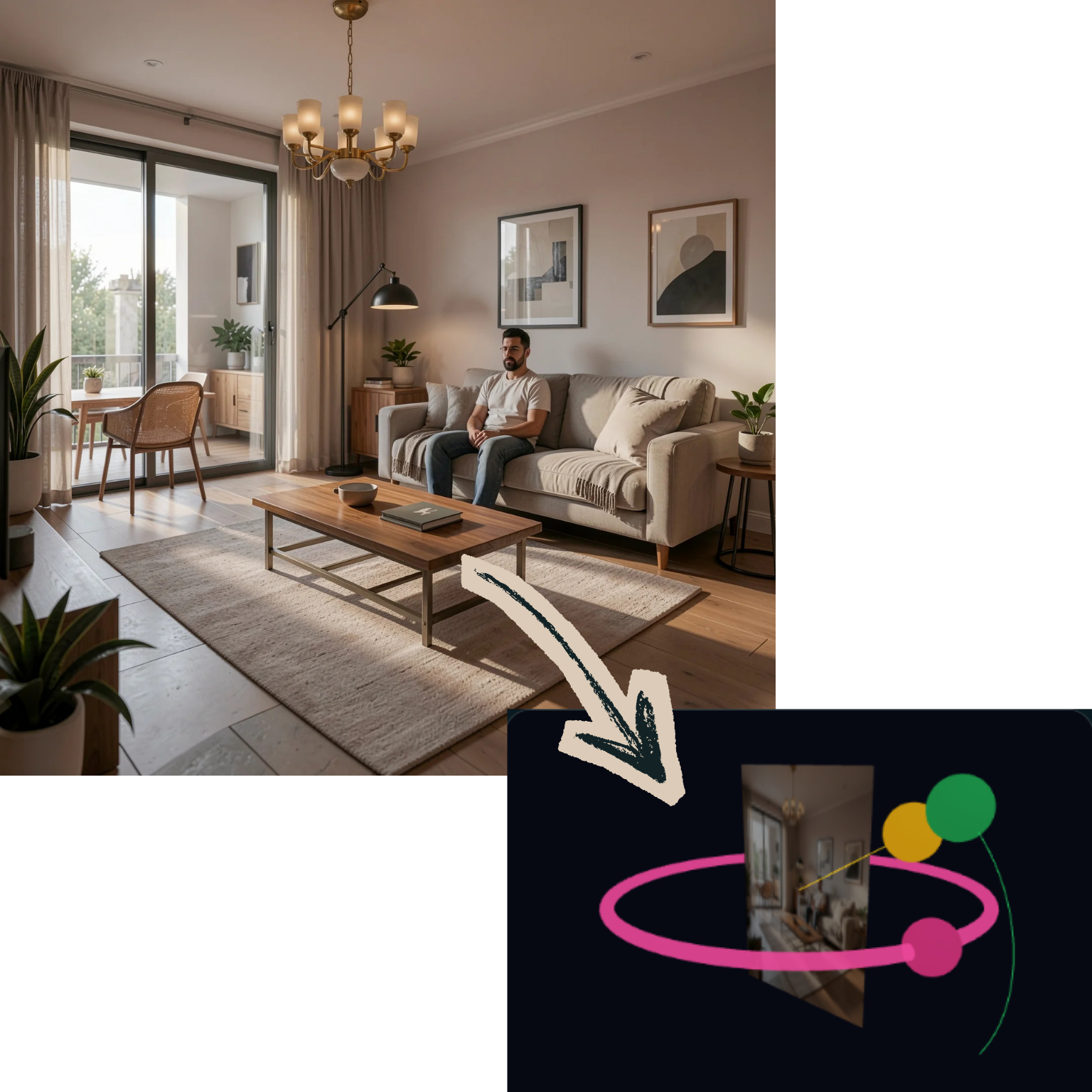
- Upload your render. A finished architectural render or image you already have.
- Set the angle. Use the three on-screen controls — horizontal rotation, vertical rotation, and zoom — to pick the camera angle you want.
- Generate the result. The system preserves the original scene and produces a new render from your chosen angle, filling in unseen parts with a reasonable estimate.
A Real Example
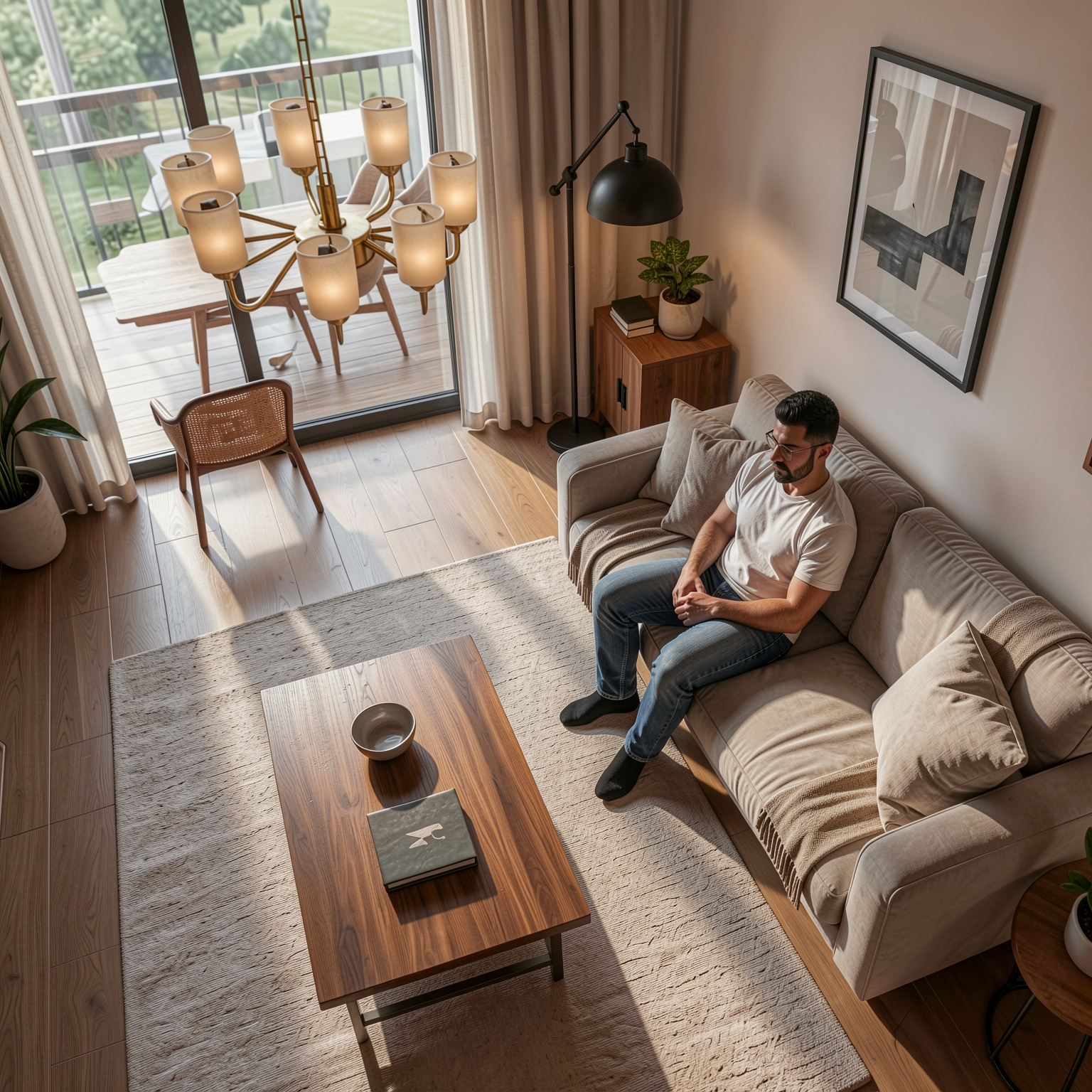
In this example, the original render was shot from a front-facing angle, while the generated result offers a completely different top-down perspective — the room's layout, furniture placement, and lighting remain consistent throughout.
A Realistic Expectation: Understanding the Guesswork
For angles close to the original render (a slight rotation, for example), results are highly reliable, since most of the scene is already visible. For extreme angles (a full view from the opposite side, say), the model's estimation plays a bigger role — this isn't a limitation, it's simply how the feature works, and worth knowing going in. For the best results, we recommend approaching the angle you need gradually.
Who Is This For?
- Architecture studios — presenting a project from multiple angles in one deck
- Real estate professionals — showing a space from different perspectives
- Architecture students — deriving several presentation visuals from a single render for a portfolio
- Interior designers — quickly checking how a design reads from different corners
Conclusion
Seeing an architectural render from a different angle no longer requires rebuilding the scene. From a render you already have, you can get a new perspective in minutes.
Ready to try it on your own render?
Try it free →