How to Plan and Create Social Media Content With AI
If you run a small business, social media probably happens at the end of the day: you open Instagram, stare at an empty caption box, and post whatever you can think of — or nothing at all. A week goes by, then two, and the account goes quiet.
The problem is rarely a lack of ideas. It is deciding what to post every single day, from scratch, and then making the visuals and writing the text. The fix is to make those decisions once a month and let AI do the heavy lifting. AI can turn a short description of your business into a month of post ideas, draft captions for every channel, and create the images and videos. Your job changes from making everything to reviewing and approving.
Why Plan a Month at Once — and Why Use AI?
- Fewer decisions. You decide what to post once, not thirty times.
- No blank page. AI gives you a full first draft of the month. Editing a plan is much easier than inventing one.
- Consistency. Accounts that post on a steady rhythm are easier for followers to remember — and for algorithms to show.
- Better balance. When you see the whole month, it is obvious if every post is a sales pitch or if you forgot a product launch.
- Faster production. AI can write ten captions and create ten visuals in the time it takes to make one by hand.
Step 1: Give AI Your Business Basics
AI is only as good as what you tell it. Spend ten minutes on a short brief you can reuse every month. It keeps your posts consistent and stops the AI from guessing:
- What you sell and the three products or services you most want to promote.
- Who you sell to — one or two sentences about your typical customer.
- Your tone — friendly, expert, playful, calm. Add a few words you always use and a few you never use.
- Your visual rules — logo, brand colors, and real photos of your products.
- Key dates this month: launches, sales, holidays, events, seasonal changes.
One note on privacy: your plans, prices and customer details are business information. Where you can, choose AI tools that keep your data on your own computer, and only share what is needed to create a post.
Step 2: Choose Your Channels and Frequency
AI makes it easy to produce a lot, but be honest about what you can review and post. Three good posts a week on one or two channels beats daily posting that stops after ten days. A realistic starting point for most small businesses:
- Instagram or Facebook: 3 posts a week
- TikTok or Reels: 1–2 short videos a week
- LinkedIn: 1–2 posts a week, if you sell to other businesses
- Pinterest: a few pins a week, if your products are visual — food, fashion, home, design
Choose fixed days, such as Monday, Wednesday and Friday. Fixed days turn posting into a routine instead of a decision.
Step 3: Let AI Fill Your Calendar With a Content Mix
A month of posts should not be a month of ads. Ask the AI to rotate between a few post types so your feed stays useful and interesting:
- Product: one product, one benefit, one clear photo or video.
- How-to and tips: something your customer can use even if they never buy from you.
- Behind the scenes: your team, your workshop, how things are made or packed.
- Social proof: a customer review, a before-and-after, a finished project.
- Offer or announcement: a sale, a launch, an event — keep these to about one in five posts.
Then give it one clear instruction with your brief, your channels and your days:
"Plan four weeks of Instagram posts for my bakery, three per week on Monday, Wednesday and Friday. Mix product posts, tips, behind the scenes and customer reviews, with no more than one offer per week. Include our autumn menu launch in week 1."
An example month
Here is what the result could look like for a small bakery posting three times a week:
- Week 1: Monday — new autumn menu (product). Wednesday — how we shape our sourdough (behind the scenes). Friday — "which one would you pick?" carousel of three cakes (engagement).
- Week 2: Monday — how to keep bread fresh for longer (tip). Wednesday — customer review with a photo of their order (social proof). Friday — weekend pre-order reminder (offer).
- Week 3: Monday — meet the baker (behind the scenes). Wednesday — the cinnamon roll, step by step (product video). Friday — three ways to serve our pumpkin loaf (tip).
- Week 4: Monday — this month in numbers (fun fact). Wednesday — a catering order we loved (social proof). Friday — next month's special preview (announcement).
Treat this as a draft. Move posts, delete the ones that don't fit, and ask for new ideas where you need them.
Step 4: Turn Each Post Into a Short Brief
Before creating anything, make sure every slot on the calendar has two or three plain sentences describing the post. This brief is also the instruction the AI will use to create the visual and the caption, so the clearer it is, the better the result:
"Carousel, 4 slides. Show our three autumn cakes one by one on the same wooden table, then a final slide asking which one followers would pick. Warm, cozy light. Caption: friendly, short, ends with a question."
A good brief answers four questions: what is the format, what do we show, what is the mood, and what should the viewer do next.
Step 5: Match the Format to the Platform
The same idea needs a different shape on each channel. Tell the AI the right aspect ratio for every post — it is the easiest way to look professional:
- 4:5 (portrait): Instagram and Facebook feed posts — takes up more of the screen than a square.
- 9:16 (vertical): Reels, TikTok, Stories and YouTube Shorts.
- 2:3 (tall): Pinterest pins.
- 1:1 (square): safe everywhere, good for LinkedIn and X.
- 16:9 (wide): YouTube videos and website banners.
Captions also change per channel: short and playful on Instagram and TikTok, more professional and a bit longer on LinkedIn, very short on X. Ask the AI for a separate version for each platform instead of one caption for all.
Step 6: Create Visuals and Captions With AI in Batches
Once the plan is ready, create everything for a week — or the whole month — in one or two sessions:
- Start from your real assets. Give the AI your actual product photos and logo, so it shows what you really sell instead of inventing products. Removing the background from product photos lets you place them on any scene and keeps the feed looking clean.
- Create all visuals of the same type together. All carousels in one go, all videos in another.
- Keep carousels consistent. Slides in one carousel should show the same product, in the same style — only the angle, color or step changes.
- Generate captions last, once you can see the finished visual.
- Check the cost before you create. AI images and especially videos usually use paid credits. Know what a week of content costs before you press the button.
- Save everything in one folder per week, named by date, so posting takes a minute.
Step 7: Review Before Anything Goes Live
AI is fast, but you are the one who knows your business. Before posting, check every post once: is the product real and correct, are prices and dates right, does the caption sound like you? If one slide or one sentence is off, regenerate just that part instead of starting over. Fixing it now is cheap; deleting a post after customers have seen it is not.
At the end of the month, look at which posts got the most saves, comments and messages, and tell the AI to plan a little more of that next month.
Common Mistakes to Avoid
- Posting AI output without reading it. Always review — AI can get facts, prices or details wrong.
- Letting AI invent your products. Always use your real product photos and logo — customers notice.
- Planning too much. A plan you can't review and post is worse than a smaller plan you finish.
- Selling in every post. Keep offers to about one in five.
- Copy-pasting the same caption everywhere. Adapt the length and tone to each platform.
- Letting tools post automatically. Keep the final click yourself, so nothing goes out that you haven't approved.
Frequently Asked Questions
Can AI plan my social media content?
Yes. Give an AI tool a short description of your business, your channels and how often you want to post, and it can create a full month of post ideas with a balanced content mix. You then edit the plan before anything is made.
Can AI create the images and videos for my posts?
Yes. AI can create images, carousels and short videos from a written brief. For the best results, give it your real product photos and logo, and choose the right aspect ratio for each platform.
How many posts should a small business make per month?
For most small businesses, 12 to 15 posts a month on their main channel — about three a week — is a sustainable starting point. Consistency matters more than volume.
Is it safe to share my business information with AI tools?
It depends on the tool. Look for tools that run the AI on your own computer or clearly explain what is sent to the cloud, and only share what is needed to create each post.
Can I use the same post on every platform?
You can reuse the same idea, but adapt the format and caption. A 4:5 image for Instagram, a 9:16 video for TikTok, and a shorter, more professional caption for LinkedIn.
Plan and Create It All in One App: Meet Postcard
Everything in this guide — the business brief, the AI-planned calendar, the post briefs, the right formats for each channel, batch creation and a final review — is exactly what we built Postcard to do.
Postcard is a desktop app for Windows, macOS and Linux, and planning, captions and chat are free. Tell it about your business once, and it fills your calendar with weeks of post ideas and writes the text for Instagram, Facebook, TikTok, Pinterest, LinkedIn, X and YouTube — in English, German, French or Turkish. Each post is a short, editable brief you can rewrite or drag to another day.
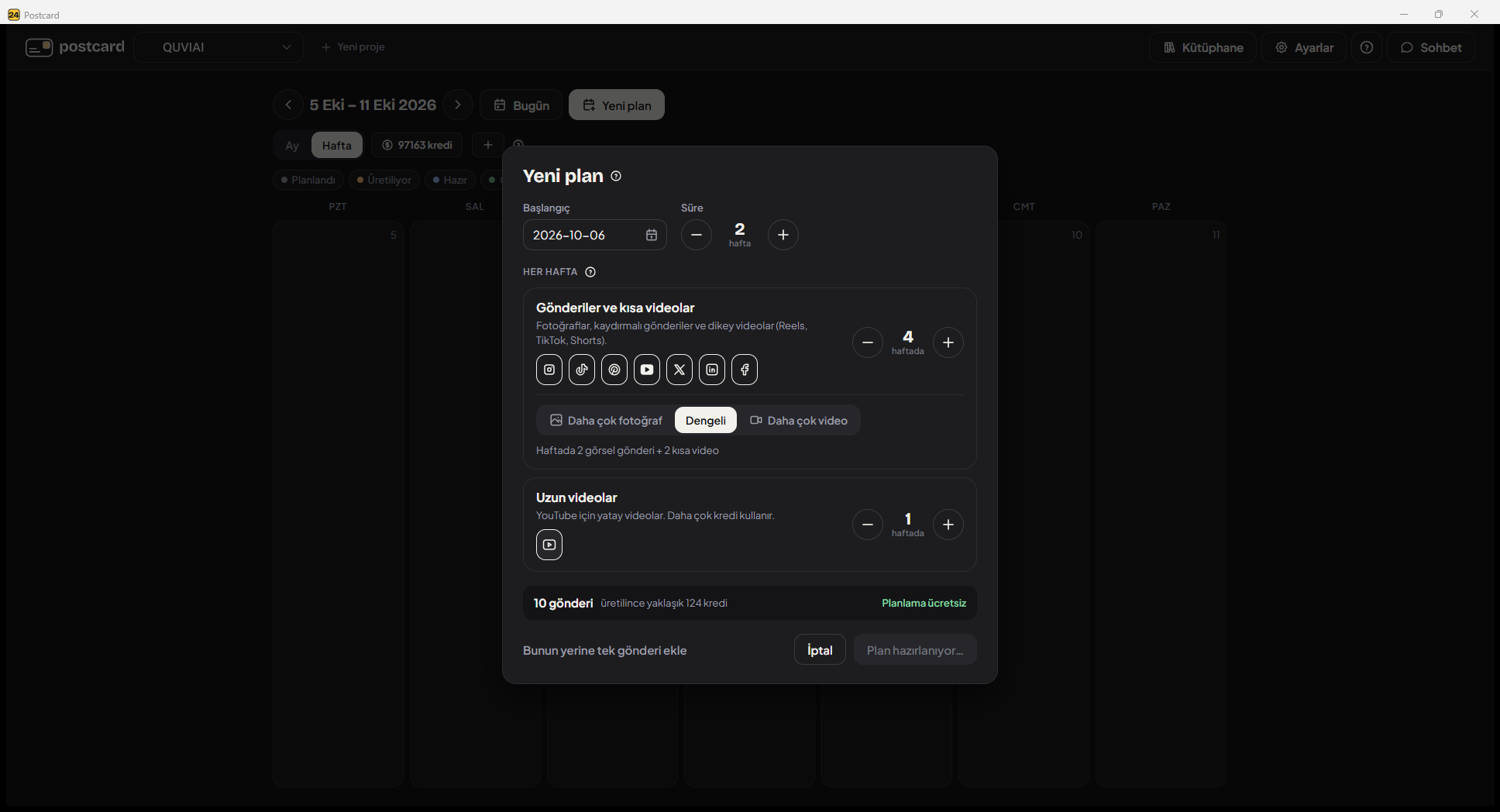
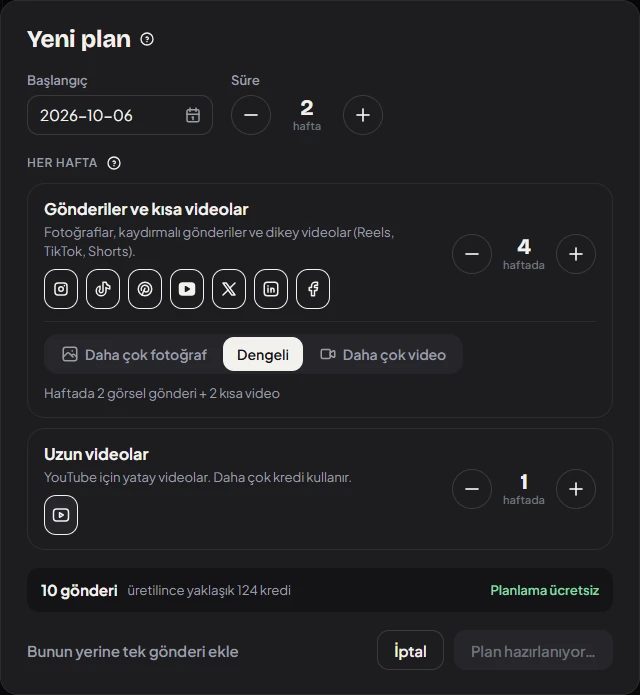
- Private by design: the built-in AI runs on your own computer, so your plans and captions stay with you — even offline.
- Your real brand: add your logo and product photos once, with free background removal for product shots.
- Visuals when you approve: images and videos are made with QUVIAI only after you see the exact credit cost and confirm.
- You have the last word: approve in one click, redo a single slide or caption, and post when you're ready. Postcard never posts for you.

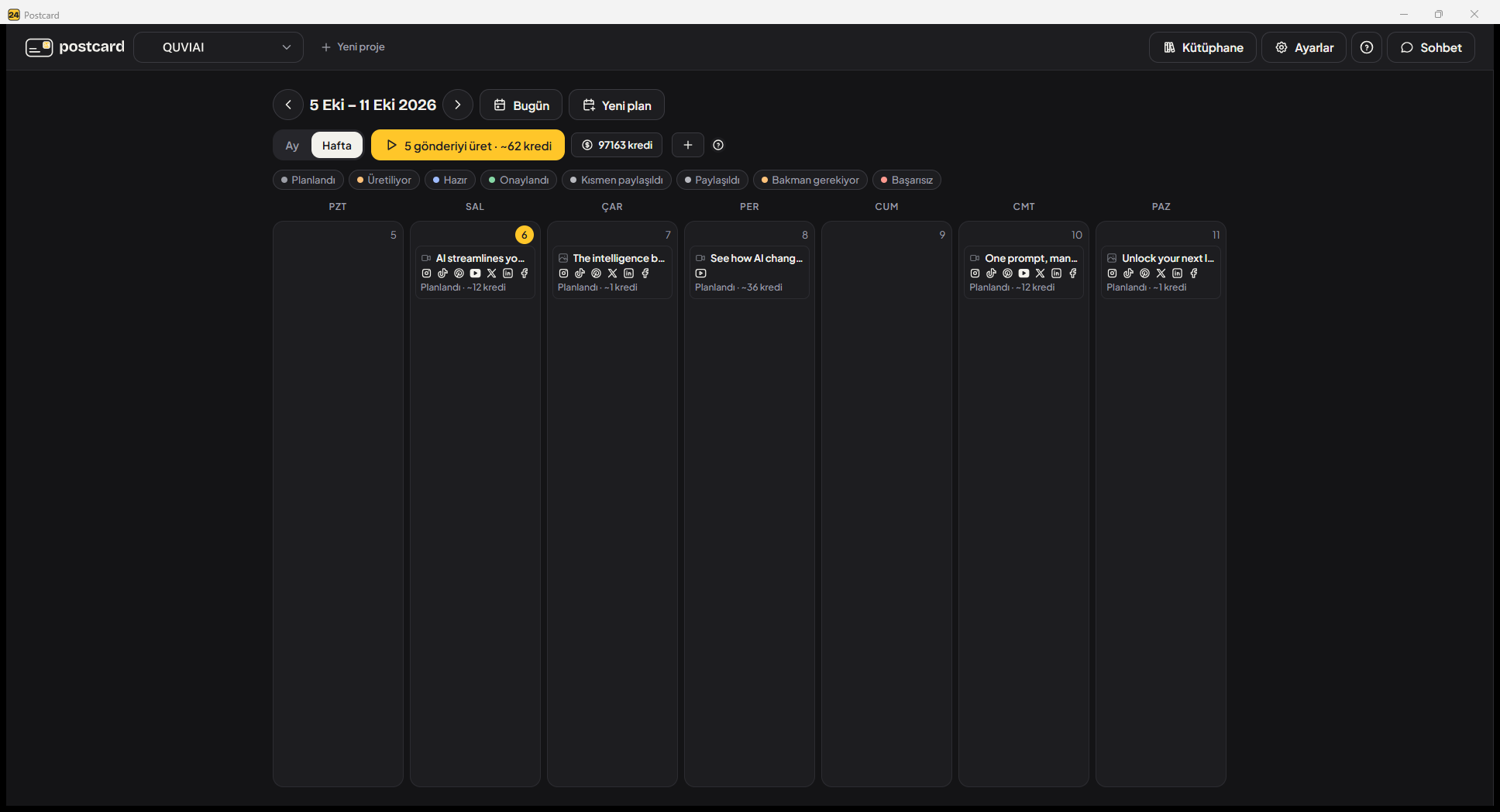
Ready to plan and create your next month with AI?
Download Postcard →