

Viewport to render
Captures the 3D Viewport and returns a photorealistic render. 2 credits per render.
Free, open-source add-on for Blender
Turn your Blender 3D Viewport into a photorealistic architectural render with AI — no lighting, materials or render settings to configure. Generate 3D objects from a prompt or image and import them into your scene.
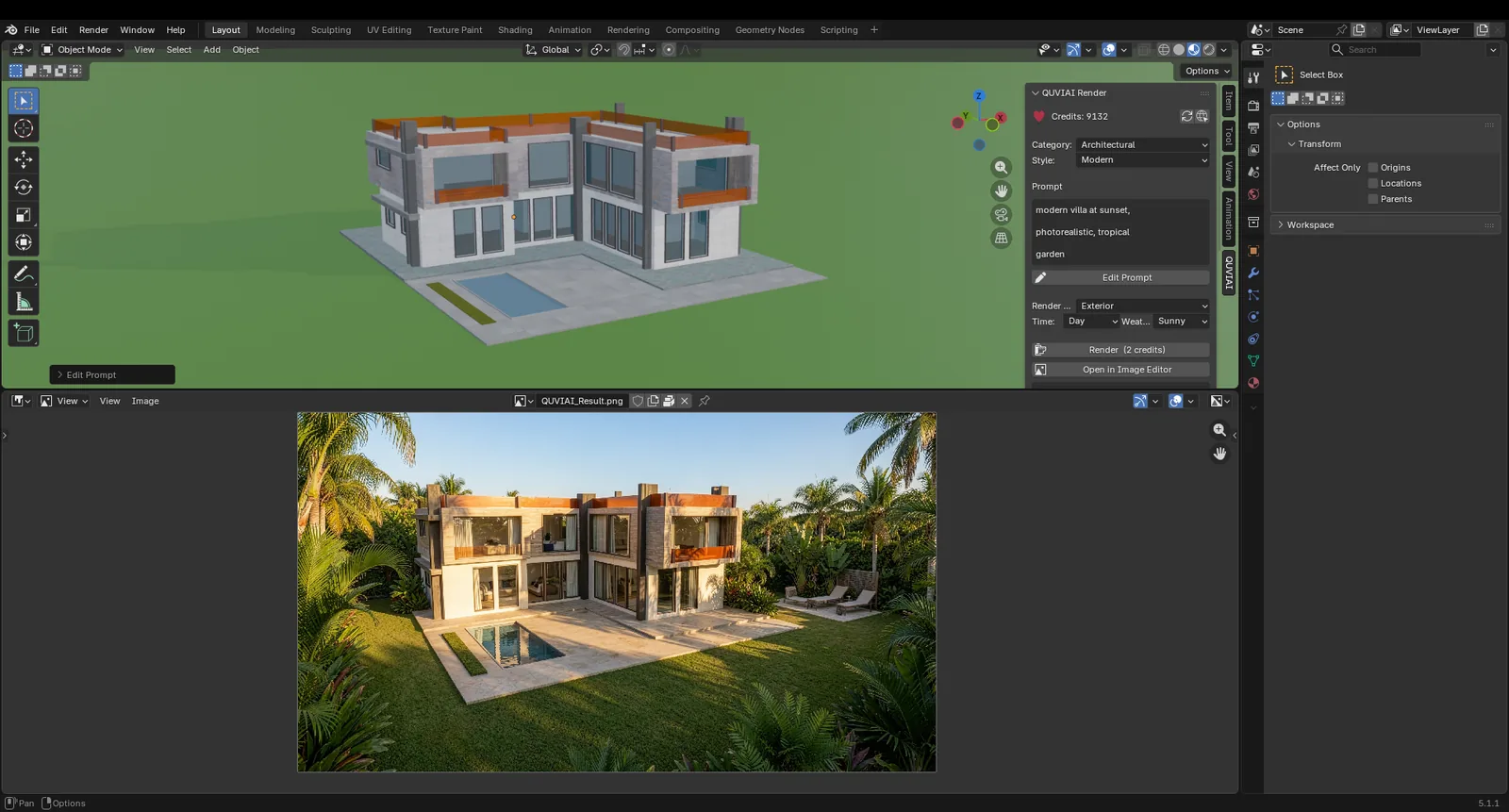 IN BLENDER
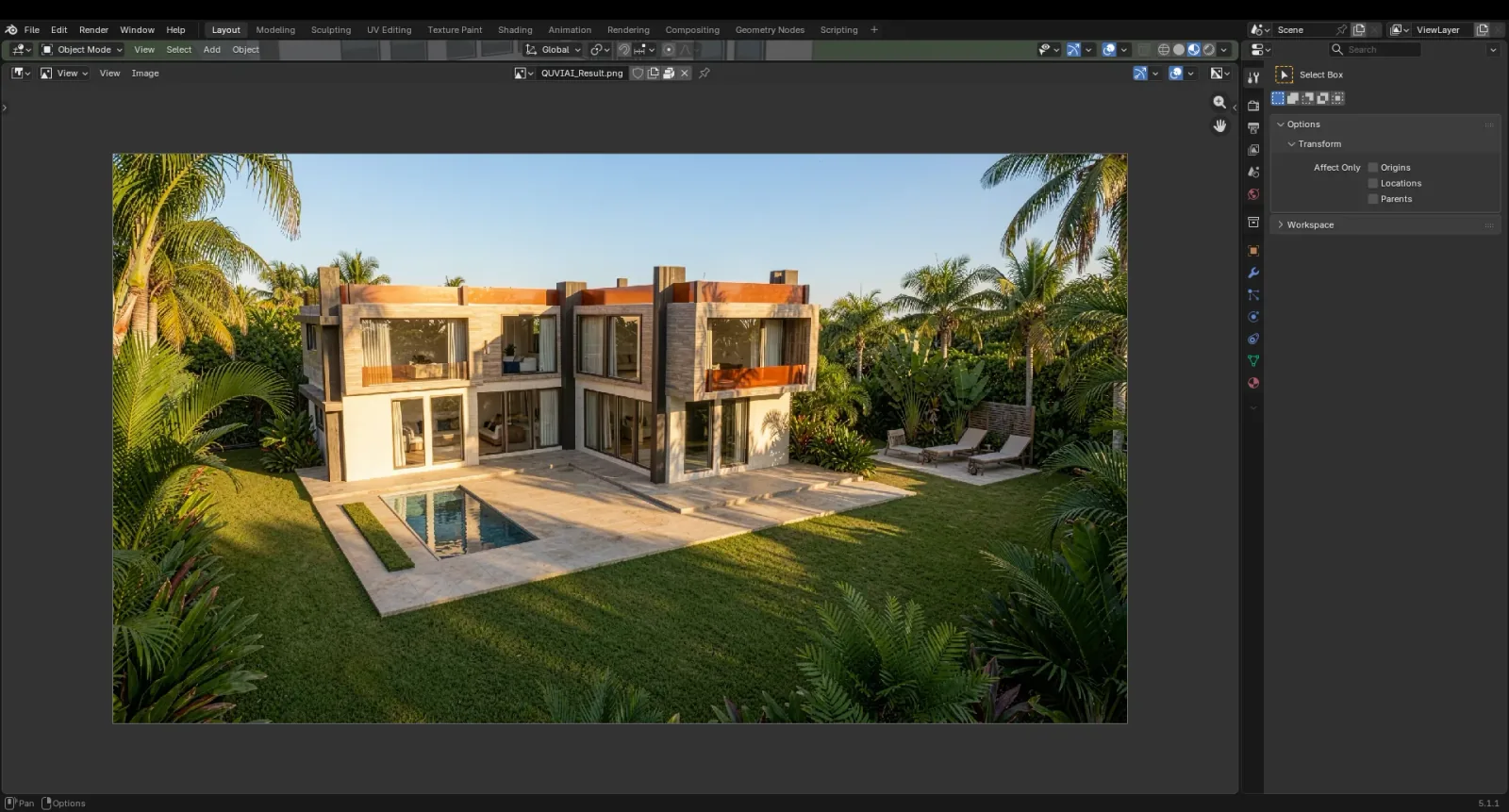 AI RENDER
OVERVIEW
QUVIAI Render is a free, open-source Blender add-on that captures your 3D Viewport and turns it into a photorealistic architectural render using QUVIAI. It is a fast way to get a convincing concept image from a blockout or an untextured scene, without building materials and lighting first.
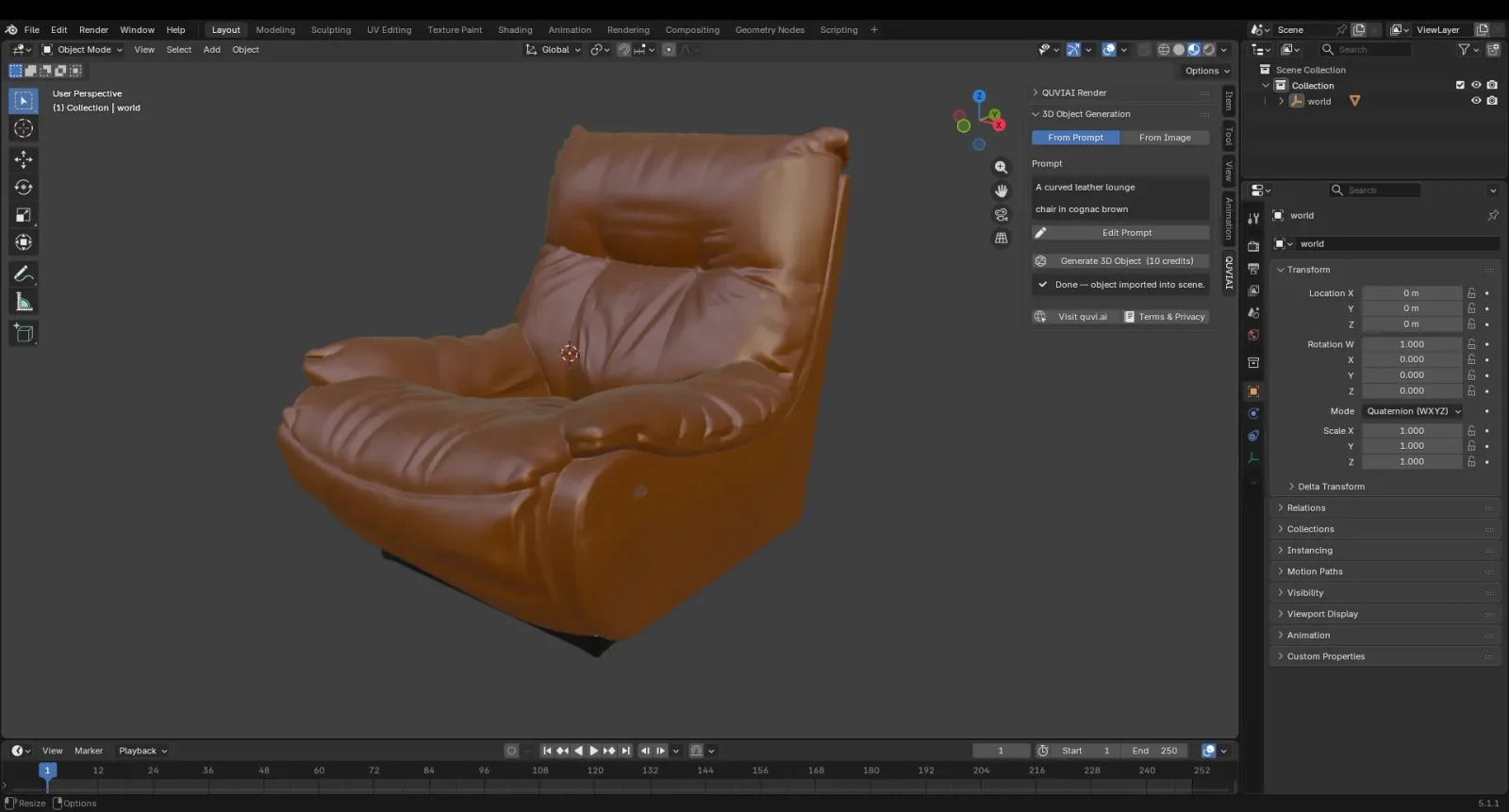
The add-on lives in the 3D Viewport sidebar. Besides rendering, it can generate 3D objects from a text prompt or a reference image and import them into your scene as glTF, ready to place and render.
FEATURES
Captures the 3D Viewport and returns a photorealistic render. 2 credits per render.
Set the category, style, prompt, render type, time of day and weather from the sidebar panel.
The finished render opens in Blender’s Image Editor so you can review and save it.
Generate a 3D object from a text prompt or an image and import it into the scene. 10 credits per object.
Log in with e-mail and password or with Google from the add-on preferences; your credit balance is shown in the panel.
Licensed GPL-3.0-or-later, with the source code on GitHub.
INSTALL
Download the latest release from GitHub: quviai_blender_extension.zip for Blender 4.2 and newer, or quviai_blender.zip for Blender 4.0–4.1. Do not unzip it.
Open Edit › Preferences › Add-ons, choose Install (or Install from Disk in Blender 4.2+), and select the ZIP file.
Enable QUVIAI Render, then log in from its preferences with your QUVIAI e-mail or Google account.
In the 3D Viewport press N to open the sidebar and select the QUVIAI tab.
HOW TO USE
Full walkthrough: Step-by-step guide: AI rendering in Blender
Set the 3D Viewport to the angle you want. Solid or Material Preview shading with clear edges works well.
Choose a category and style and write a prompt for materials, setting and mood.
Select the render type, time of day and weather.
Click Render. The image opens in the Image Editor when it is ready.
EXAMPLES
REQUIREMENTS
FAQ
FREE TO INSTALL
Free to install. Every QUVIAI account gets 5 free credits every day · No credit card required.
SketchUp is a trademark of Trimble Inc. Blender is a trademark of the Blender Foundation. QUVIAI is an independent product and is not affiliated with, sponsored or endorsed by Trimble Inc. or the Blender Foundation.