AI RENDERING GUIDE
How to Visualize a Renovation From a Photo With AI: A Before-and-After Guide
Published 8 min read
Renovation projects start from something that already exists. A tired facade, a dated kitchen, a shopfront that no longer fits the street. Clients usually find it hard to picture the change from drawings alone, and building a full 3D model of an existing building just to test an early idea takes time you rarely have at the concept stage.
A quicker route is to start from a photo of the building or room as it is today and use AI to show what it could become. In this guide you will learn how to prepare a good “before” photo, how to describe the renovation, when to edit the whole image versus a selected area, and how to present before-and-after results to a client.
Every example in this guide was made in QUVIAI. To show the whole workflow from start to finish, we created the “before” photos with the text-to-image tool. The steps are exactly the same when you start from your own photo.
Why Start a Renovation Concept From a Photo?
- The context is already there. Neighbouring buildings, street, trees and light are in the shot. You do not need to model them.
- Clients recognise their own building. A before-and-after pair of a place they know is easier to discuss than an abstract view.
- Fast iteration. You can test several directions (materials, colours, openings) in one session before committing to drawings.
- Useful for many projects. Facade refreshes, interior refurbishments, retail fit-outs, adaptive reuse studies and listing photos for property sales all start from an existing space.
AI renovation visuals are concept images, not survey-accurate drawings. Treat them as a way to agree on a direction, then develop the chosen option with your usual tools.
Step 1: Take (or Choose) a Good “Before” Photo
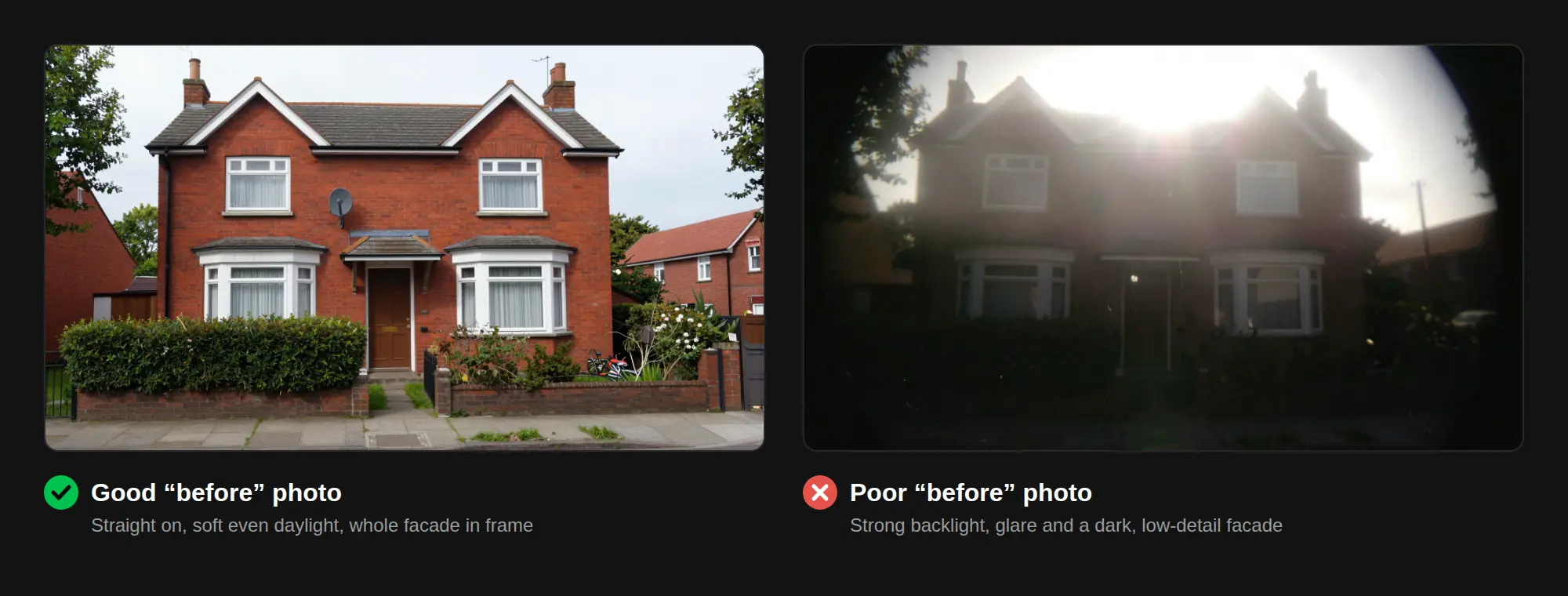
The quality of the starting photo has a big effect on the result.
- Shoot straight on or at a slight angle. Strong perspective distortion makes facades and walls harder to read.
- Use even daylight. Overcast days or soft light avoid harsh shadows that can be mistaken for geometry.
- Keep the whole subject in frame. Leave some margin around the building or room.
- Remove clutter where you can. Parked cars, bins and loose objects in an interior distract from the design.
- Use the highest resolution you have. Detail around windows, edges and materials helps the AI keep the structure.
Step 2: Decide What Changes and What Stays
Before writing anything, list two things:
- What must stay: the overall massing, roofline, number of floors, window positions (if they are not changing), the street context.
- What changes: cladding, colours, window frames, balconies, entrance, signage, landscaping, or, for interiors, flooring, wall finishes, lighting and furniture.
This list becomes the backbone of your prompt. It also stops you from asking for too much in a single pass, which is the most common reason for results that drift away from the existing building.
Step 3: Generate the First Renovation Concept
Upload your photo and describe the renovated version. In QUVIAI, you can create a photorealistic render from a photo and then refine it with AI render editing.
A clear renovation prompt names the building type, the elements that change, the materials, and the mood:
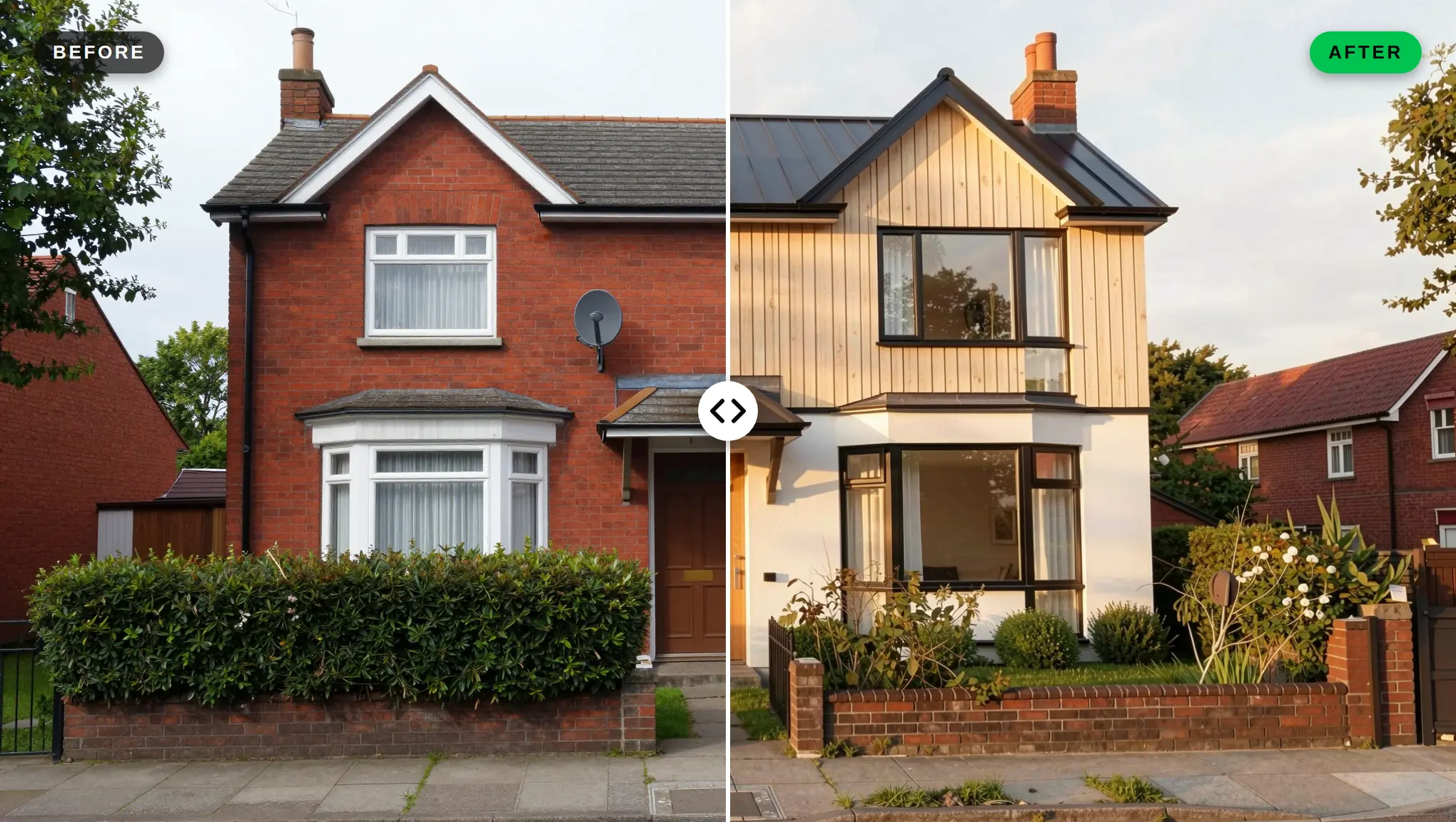
“Renovate the facade of this two-storey house: vertical light timber cladding on the upper floor and smooth white render on the ground floor, replace the old windows with larger windows in slim black aluminium frames, new covered entrance with a timber canopy and a modern timber front door, new dark standing-seam roof, remove the satellite dish, replace the hedge with neat low planting along the front, soft late-afternoon light, photorealistic. Keep the same house shape, roofline, chimneys, number of floors, camera angle, street and neighbouring houses.”
This is the exact prompt behind the house at the top of this article. It names the new materials, and it lists everything that must stay.
For an interior:
“Small kitchen renovation: matte sage-green lower cabinets with slim brass handles, white oak open upper shelves, terrazzo countertop, white zellige wall tiles, warm under-cabinet lighting, light oak floor, a modern black tap. Keep the window, the room layout, the camera angle and the daylight. Photorealistic interior photo.”
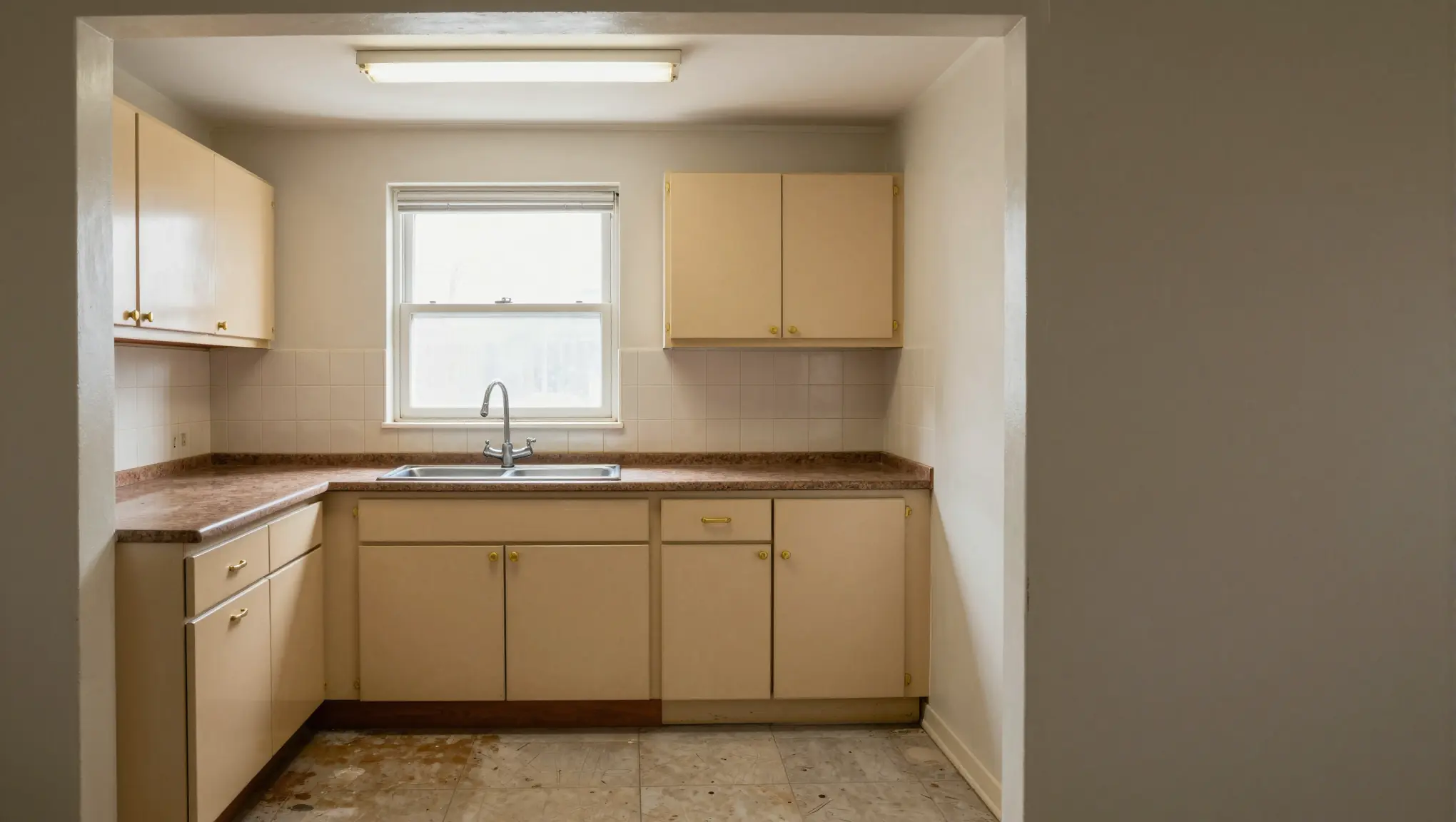
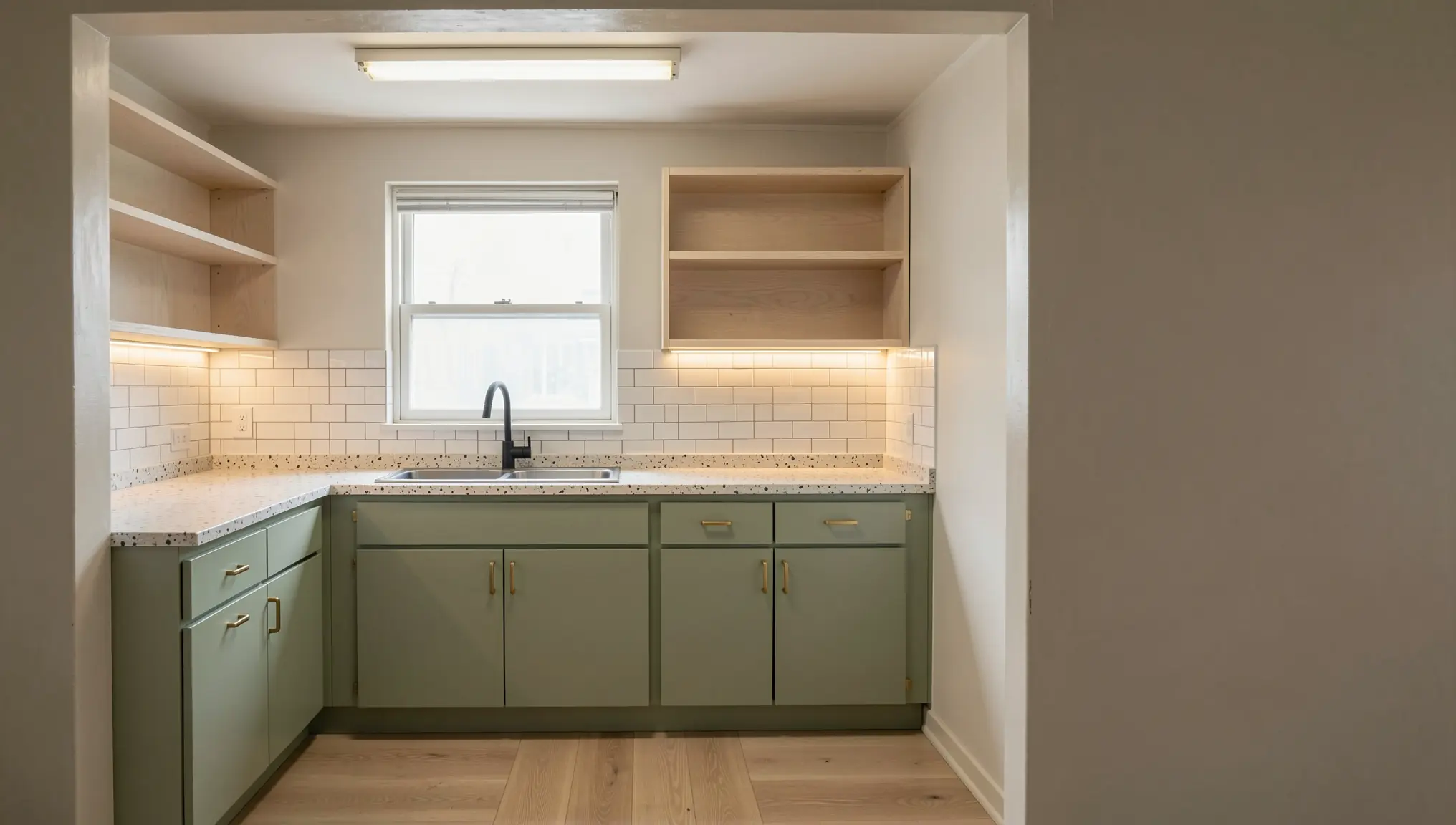
The window, the room layout and the camera angle stay where they were. Only the finishes change.
Tips:
- Name the materials precisely. “Vertical light timber cladding” works better than “wood”.
- Say what to keep. Phrases like “keep the window positions” or “keep the room layout” help the result stay close to the original.
- Generate a few versions. Pick the one that respects the existing structure best and refine from there.
For more on prompt structure, see our guide to AI architecture prompts.
Step 4: Refine Specific Areas With Masked or Maskless Editing
Your first result will rarely be perfect everywhere. Instead of regenerating the whole image, edit only the part that needs to change.
- Maskless editing: describe the change in a text prompt, for example “change the front door to dark green” or “remove the satellite dish”. Good for general or object-based changes.
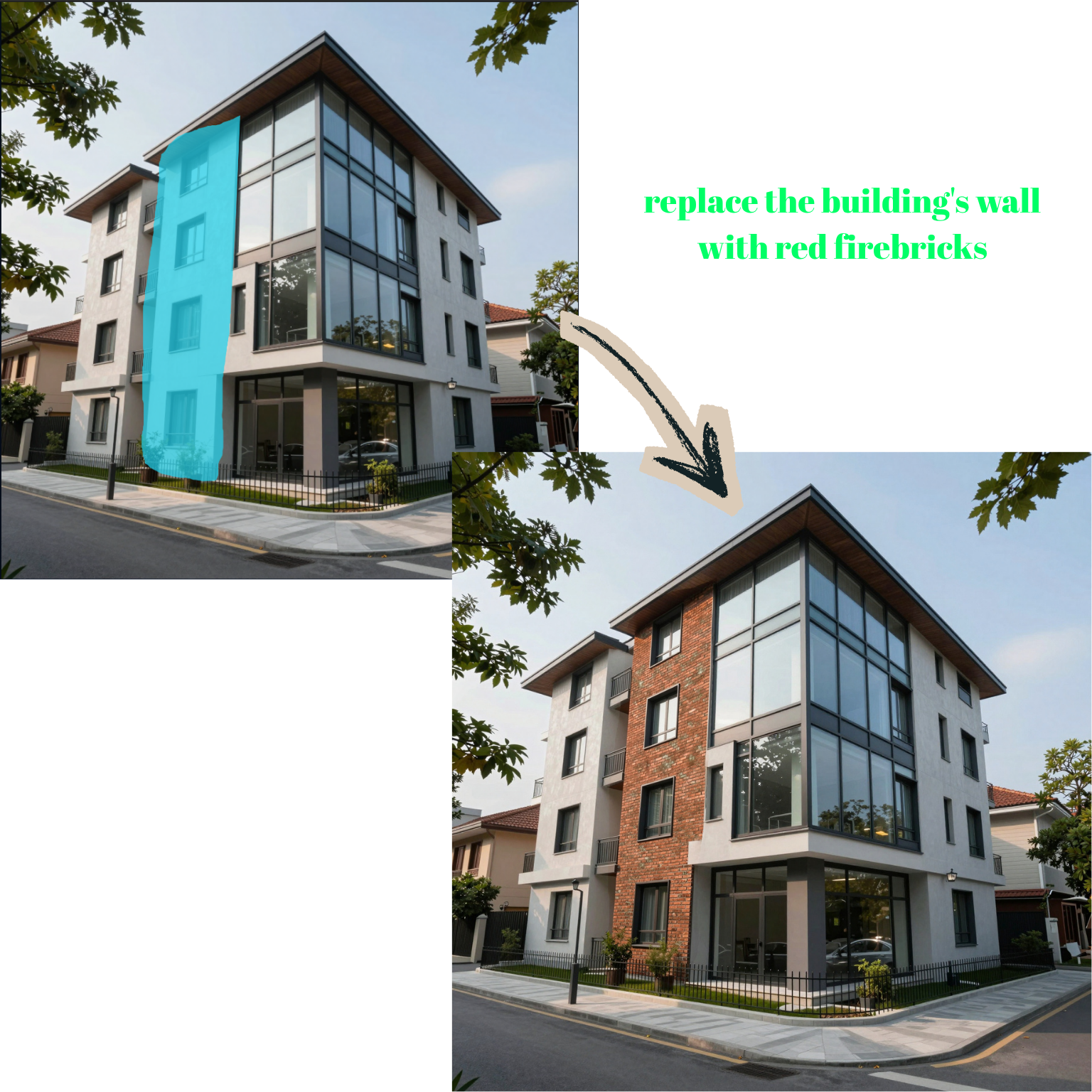
- Masked editing (inpainting): select an area, such as the ground-floor shopfront, and describe what should happen inside it. Good when the change has a clear boundary.
A practical order for renovation work:
- Fix anything that changed but should not have (a moved window, an extra floor).
- Adjust the main material and colour choices.
- Add details: lighting, signage, planting, furniture.
Here is a masked edit on a retail ground floor. Only the selected bay with the roller shutter was changed. The rest of the shopfront, the upper floors and the neighbouring buildings stay exactly as they were:
“Replace the grey roller shutter and the striped awning with a modern full-height shop window in slim black steel frames, with warm interior lighting showing a minimal boutique with timber shelves and a few products. Photorealistic, matching the daylight and perspective of the photo.”
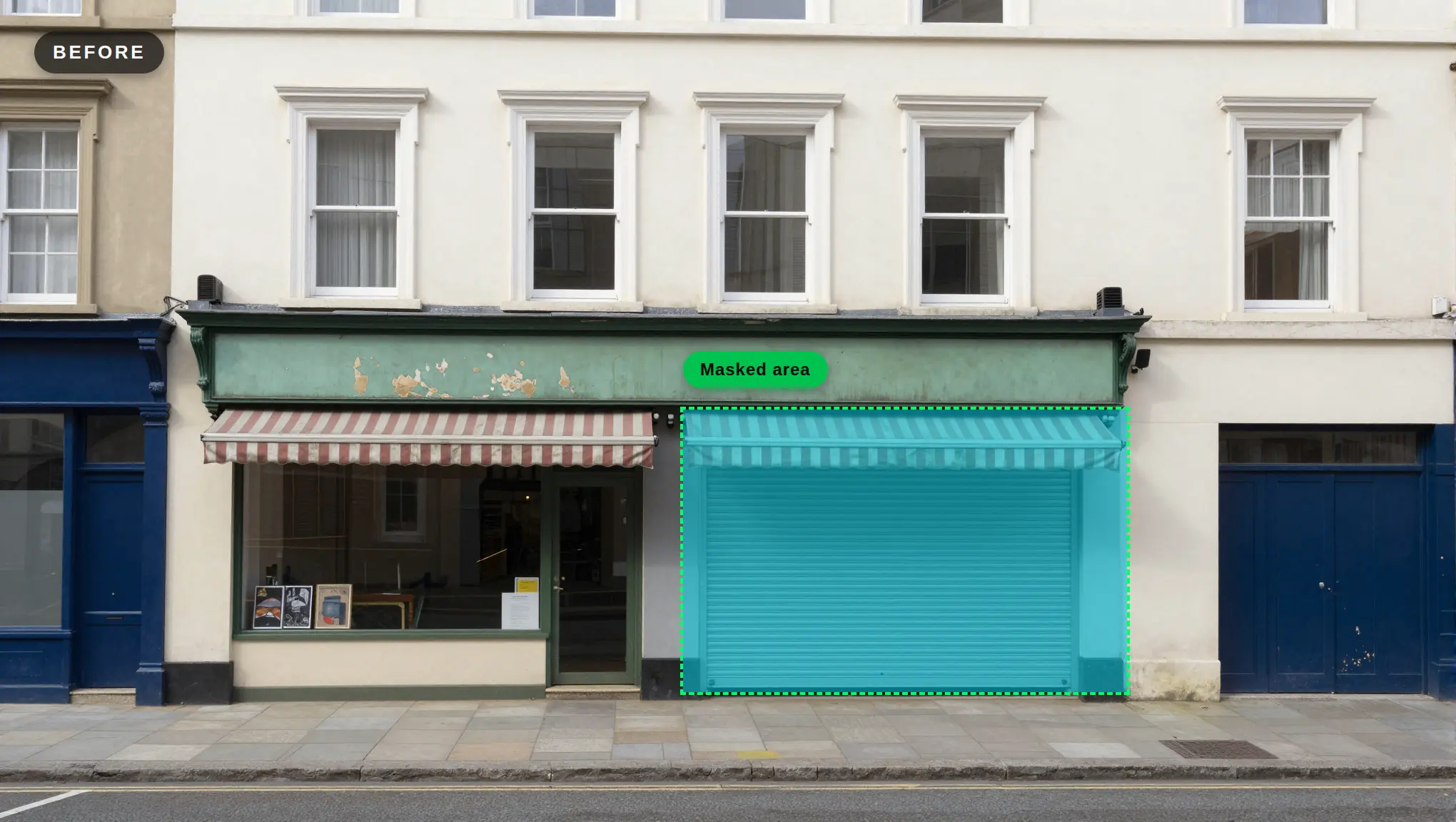
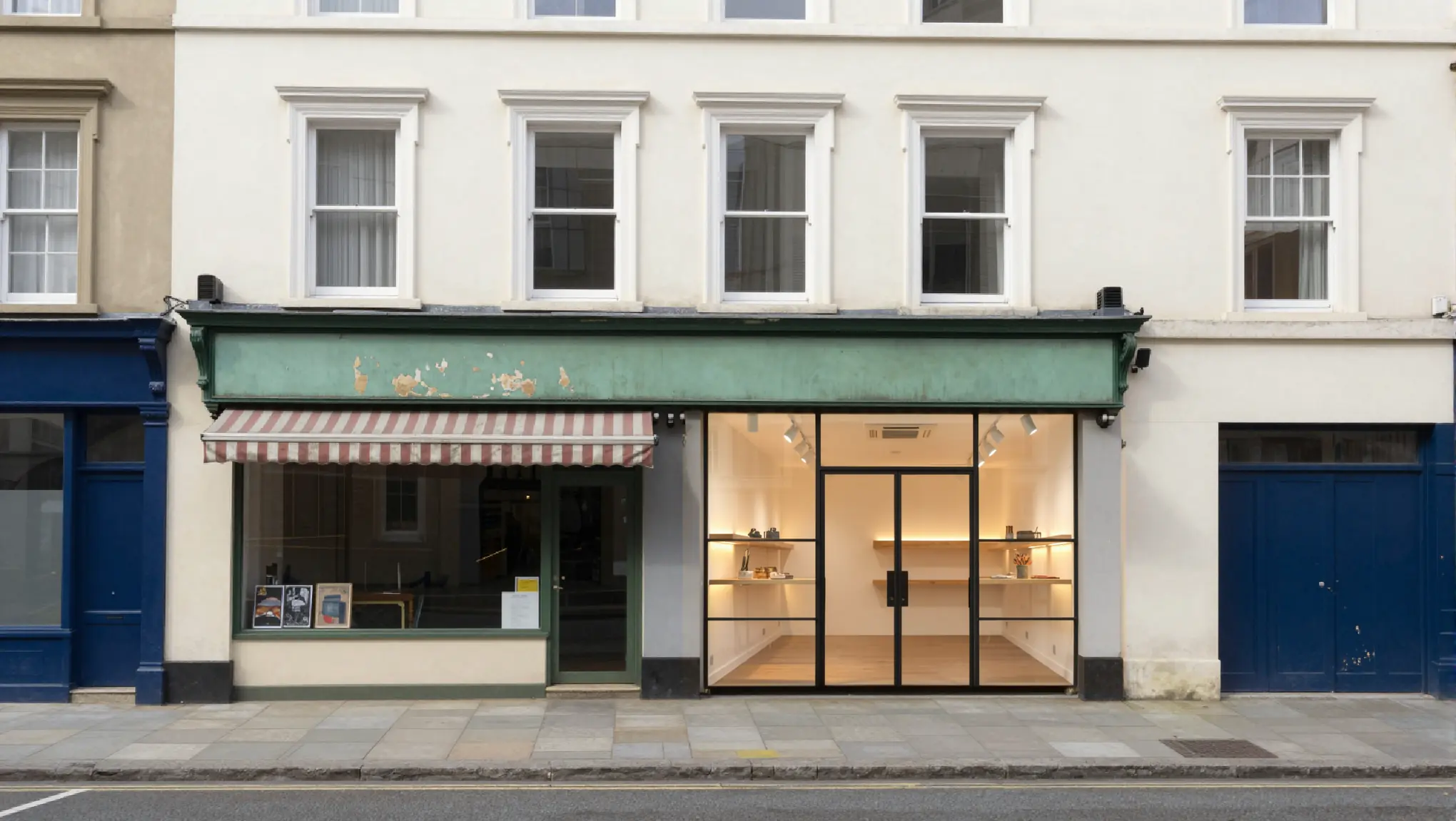
Tip: Keep the mask tight around the area you want to change. A small, clearly bounded selection gives the most predictable result. For a larger change, work in several smaller edits.
Our article on masked vs maskless AI editing explains when to use each method in more detail.
Step 5: Create Design Options and Variations
Renovation decisions are often about choosing between options. Once you have a base result, create two or three variations that change one thing at a time:
- Material options: timber vs. brick slips vs. fibre-cement panels.
- Colour options: a light, neutral scheme vs. a darker, contrasting one.
- Lighting: a day view for the design discussion and an evening view for atmosphere. Our day to night guide shows how.
Keeping everything else constant makes the comparison fair and keeps the client focused on the actual decision. These two options were both created from the same “before” photo, with the same prompt except for the materials:
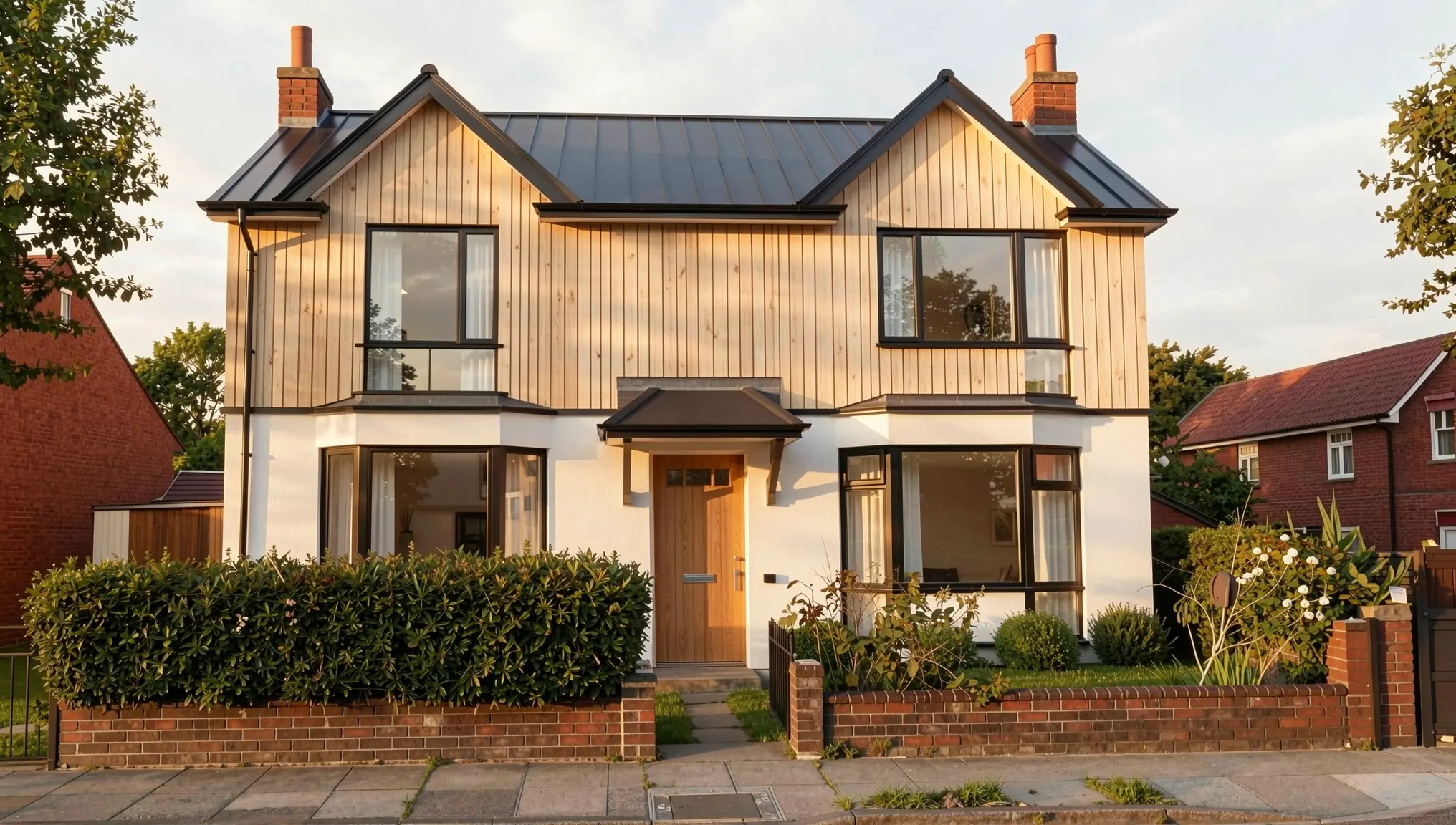
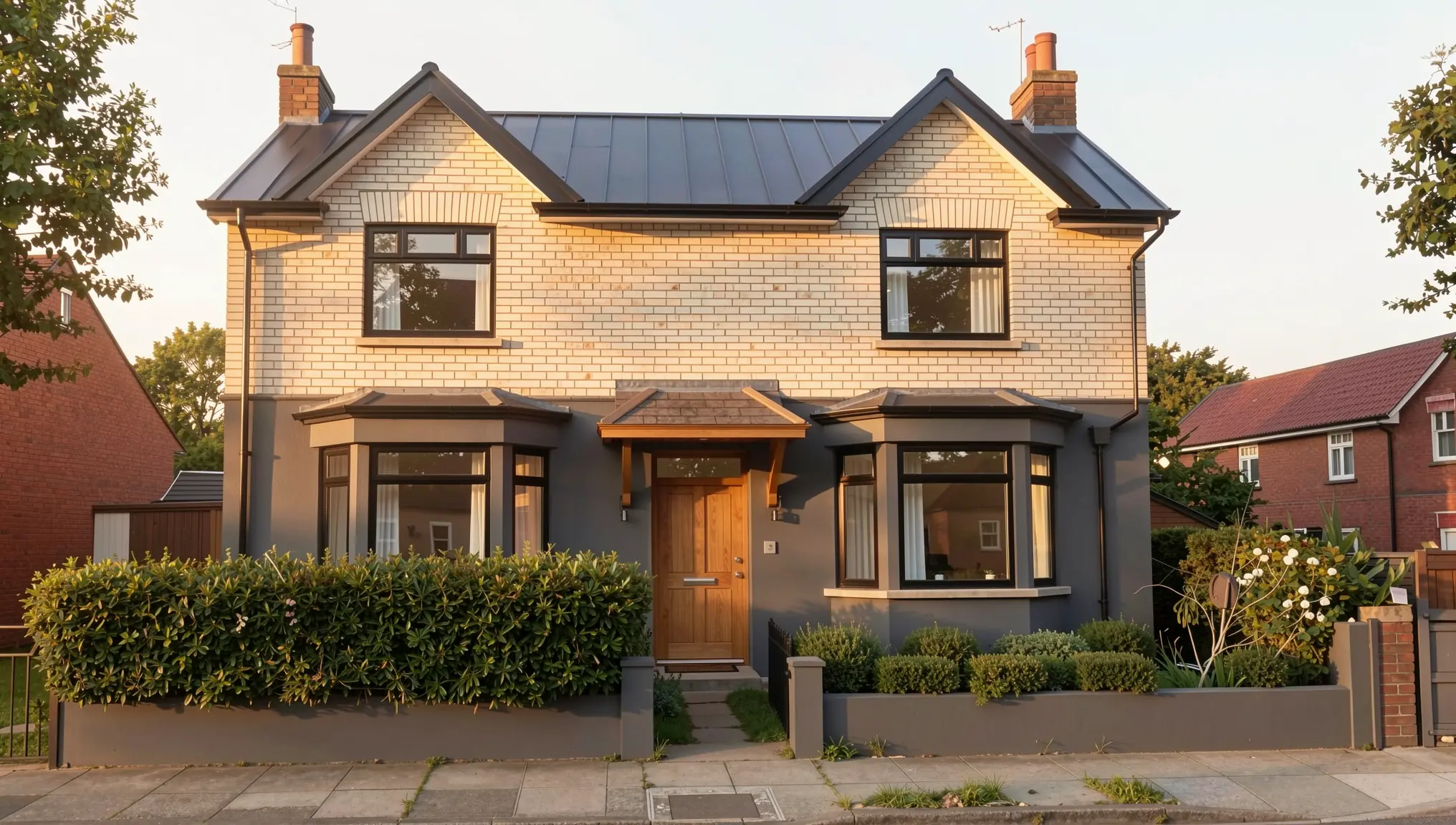
Tip: Always generate each option from the original photo, not from the previous option. That keeps every version equally close to the existing building.
Step 6: Present the Before-and-After
How you show the result matters as much as the image itself.
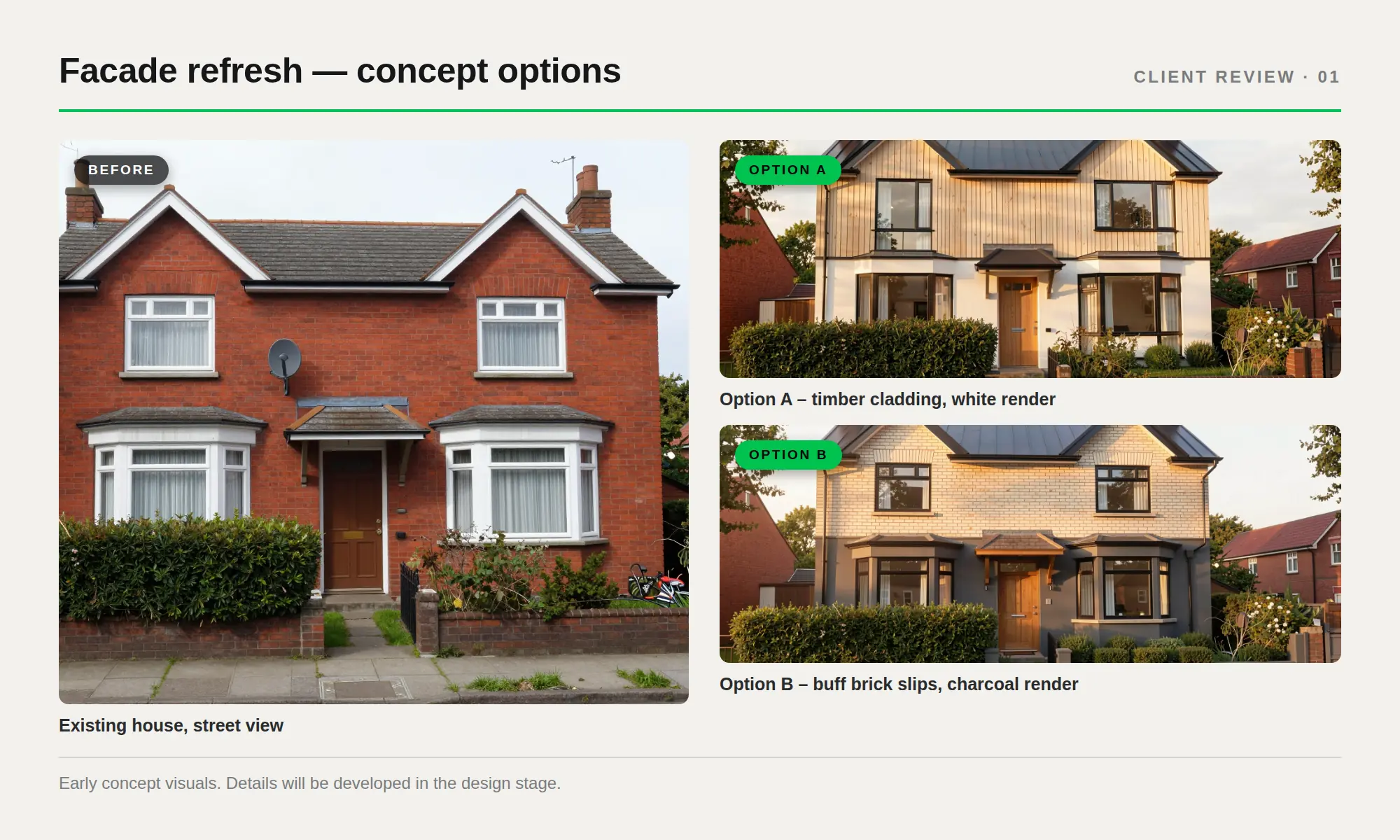
- Use the same framing. Put the original photo and the renovation concept side by side at the same size, or use a slider in a digital presentation.
- Label options clearly. “Option A – timber”, “Option B – brick” is easier to discuss than file names.
- Add a short note that the visuals are early concepts and that details will be developed in the design stage.
- Consider a short video. With QUVIAI’s Render → Video tool, you can turn a still render into a short clip for presentations or social media.
Common Mistakes to Avoid
- Changing too much at once. If massing, materials and context all change, the result no longer reads as this building. Work in steps.
- Starting from a low-quality photo. Blurry or very dark images lead to invented details.
- Not checking the structure. Always compare the result with the original. Window counts, floor heights and roof shapes should match unless you meant to change them.
- Presenting a concept as final. Make it clear that the image shows a direction, not construction-ready information.
Who Is This For?
- Architects testing facade refreshes and adaptive reuse ideas at the feasibility stage.
- Interior designers showing refurbishment options to homeowners and businesses.
- Real estate professionals illustrating the potential of a property that needs work.
- Students exploring renovation scenarios for studio projects.
Conclusion
Starting from a photo is one of the fastest ways to explore a renovation. Take a clear “before” photo, decide what stays and what changes, generate a first concept, refine it with masked or maskless editing, and present clean before-and-after comparisons. You get to a shared direction with your client before investing time in detailed drawings.