Multi-Reference AI Editing: Combine Elements From Multiple Images Into One Scene
Describing how you want a space to look isn't always easy in words. "A fabric in these tones," "a rug with a bit more texture," or "a facade material closer to this" rarely captures the exact image in your head. But if you already have a photo of that fabric, that rug, or that cladding — why not just show it?
That's exactly what multi-reference editing is for: upload a main image (an interior room or an exterior facade), add 1 to 4 reference images alongside it, and bring elements from those references into the main image using plain language.
What Is Multi-Reference Editing, and How Does It Work?
You give the system a main image and one or more reference images. Then, in a normal sentence, you describe what from which reference should go where in the main image — for example, "replace the rug with the one from reference 1, reupholster the sofa using the fabric from reference 2, swap in the coffee table from reference 3, and cover the back wall with the material from reference 4." You can also add extra instructions in the same prompt that don't need a reference at all — for example, "also remove the framed pictures from the wall." A language model running behind the scenes understands this description and applies each reference to the right element — no special syntax, tags, or drag-and-drop mapping required.
Step by Step: Editing With Reference Images
- Upload your main image. The interior room or exterior facade you want to edit.
- Add your reference images. You can upload 1 to 4 references — a fabric texture, a rug, a piece of furniture, any visual inspiration.
- Describe what you want in plain language. For example: "replace the rug with the one from reference 1, reupholster the sofa using the fabric from reference 2, swap in the coffee table from reference 3, and cover the back wall with the material from reference 4." You can also add instructions that don't need a reference, like "remove the pictures from the wall."
- Generate the render. The system applies each reference to the right element based on your description.
A Real Example
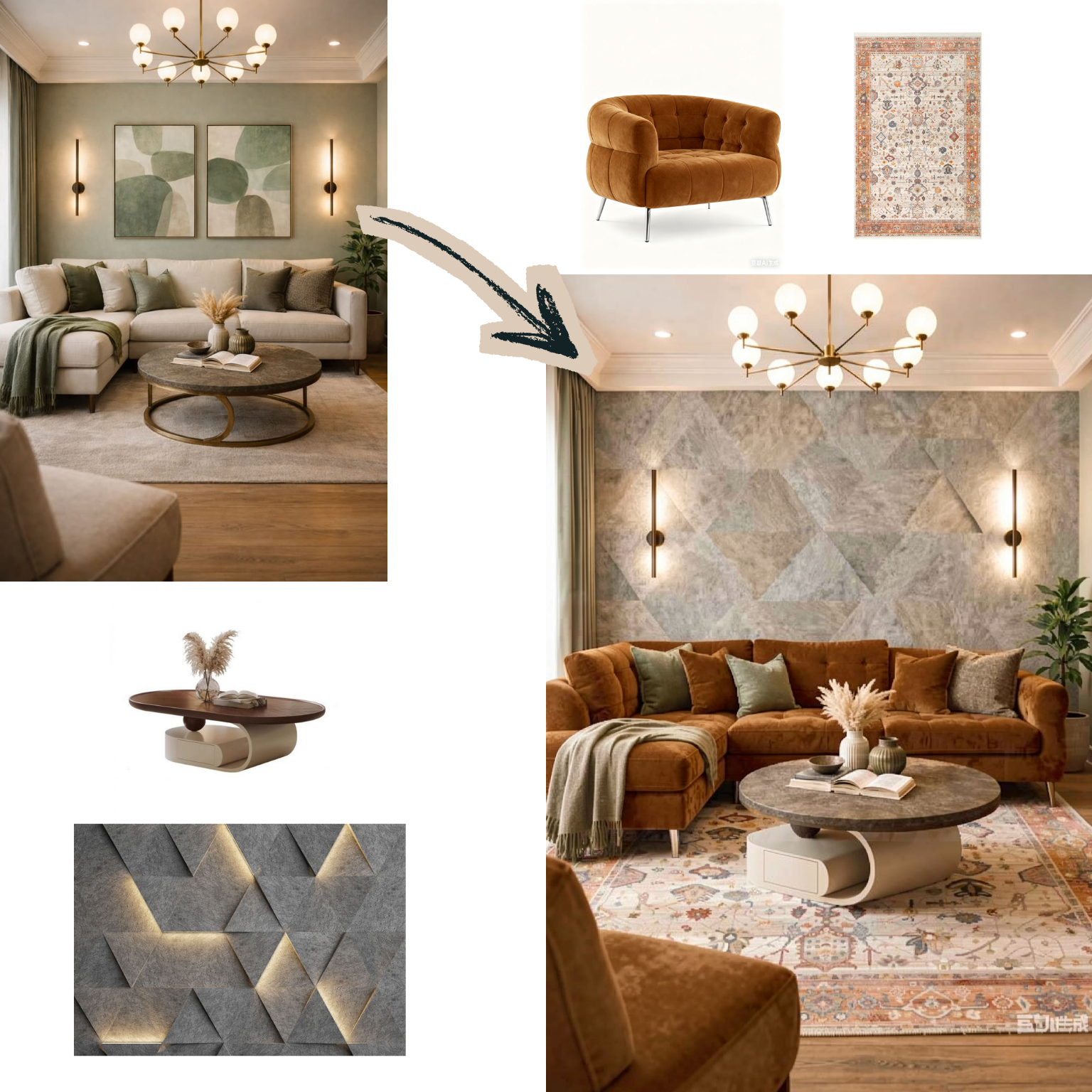
In this example, four changes were made to the original living room at once: the floor now has the patterned rug from one reference, the sectional sofa has been reupholstered in the velvet fabric from another, the coffee table has been swapped for the one from a third reference, and the back wall is now covered in the 3D panel texture from a fourth — with the framed pictures removed from the wall as well. The rest of the room — the lighting, the window, the plants — stayed exactly as it was.
Who Is This For?
- Interior designers — bringing a client's exact fabric or material samples directly into a design
- Furniture and textile sellers — showing how their own products (fabric, rugs, materials) look in a real space
- Architecture studios — integrating a client's inspiration images (Pinterest boards, catalog photos, material samples) directly into a project, whether it's an interior mood board or an exterior facade material
- Real estate professionals — presenting a space with a specific style or material set
Conclusion
You don't need to find the perfect words to describe how you want a room to look. Show your reference images, describe what you want in plain language — the system handles the rest.
Ready to try it with your own references?
Try it free →